PME Service guide
PME Service is the service app for the CU 2101 and CU 2102 signal servers, for iPhone and Android phones - the screens and the way of working are the same, and differences are marked iPhone or Android. On site you work with a CU over its own Wi-Fi. From anywhere, the PME server shows your assigned sites, their faults, firmware, configuration backup and operations log copy. This guide goes step by step, with screenshots and numbered fields.
Download the PDF for printing · Srpski · All guides
Video guide (3:51)
Before you start
- App: iPhone - PME Service from the App Store. Android - for now the administrator provides the app installation file; during installation the phone asks you to allow installing from that source.
- Permissions: the app asks for them when they are first needed. iPhone: local network (access to the CU), camera (QR code when binding a device), notifications (after signing in to the PME server). Android: camera; for finding the CU Wi-Fi networks "Nearby devices" (Android 13 and newer) or location (Android 12 and older - location must also be turned on; the app does not use it); on Android 9 and older also storage access for saving a file to Downloads. A permission you refused is restored in the phone settings (iPhone: Settings → PME Service; Android: Settings → Apps → PME Service → Permissions).
- Computer: everything done through the PME server also works in a browser - see the web guide.
- On site: the CU Wi-Fi password and a CU sign-in password (administrator, viewer or on-call technician). Both are in the CU Settings. You get them from the person responsible for the site.
- PME server: a personal technician account. The server administrator creates it, and you receive the username and a first password by email. Clinical staff accounts work only in NCS Staff.
- The app does not remember sign-in passwords. It only remembers CU Wi-Fi passwords, encrypted on the phone.
1. Start screen
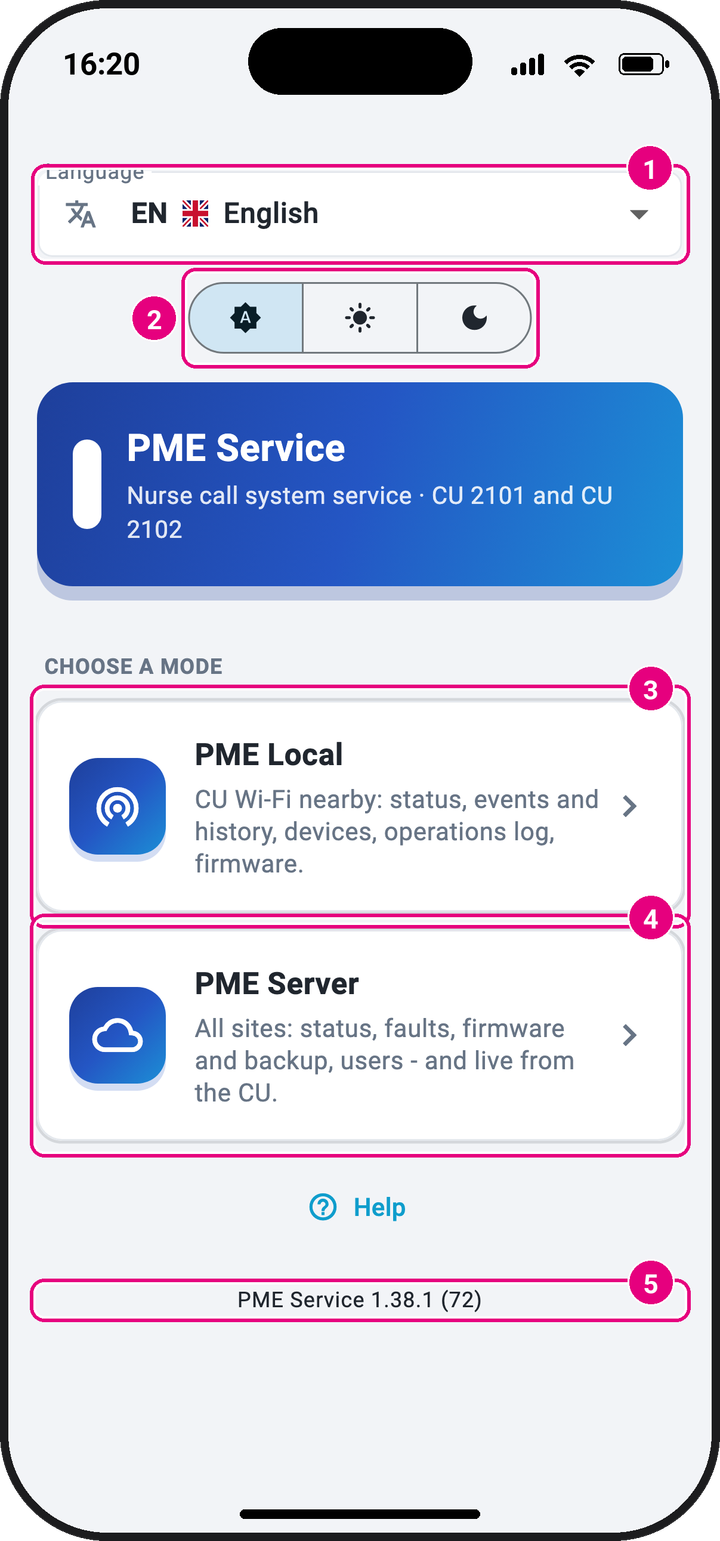
- 1App language (25 languages). It applies at once and is kept on the phone. Later you change it with the 文A icon in the bar of every screen.
- 2Theme: automatic (follows the phone), light or dark.
- 3PME Local: on-site work, over the Wi-Fi of a nearby CU.
- 4PME Server: all sites over the internet (
cloud.pme.rs). - 5App version. Quote it when you report a problem.
When a new version is out, a New version is available card appears here with an Update button (on iPhone it opens the App Store; on Android it opens the download of the new version if the server provides one, and if there is no button, the administrator provides the new version). The app checks the version over the internet, so the card does not appear on the CU Wi-Fi. If the version is older than the minimum the server accepts, the app shows Update required and works only after the update (Try again checks again). The Help button below the cards opens questions and answers (chapter 17).
2. Connecting to a CU (PME Local)
Every CU has a service Wi-Fi: network CU2101-xxxx or CU2102-xxxx, and the CU address is 192.168.4.1.
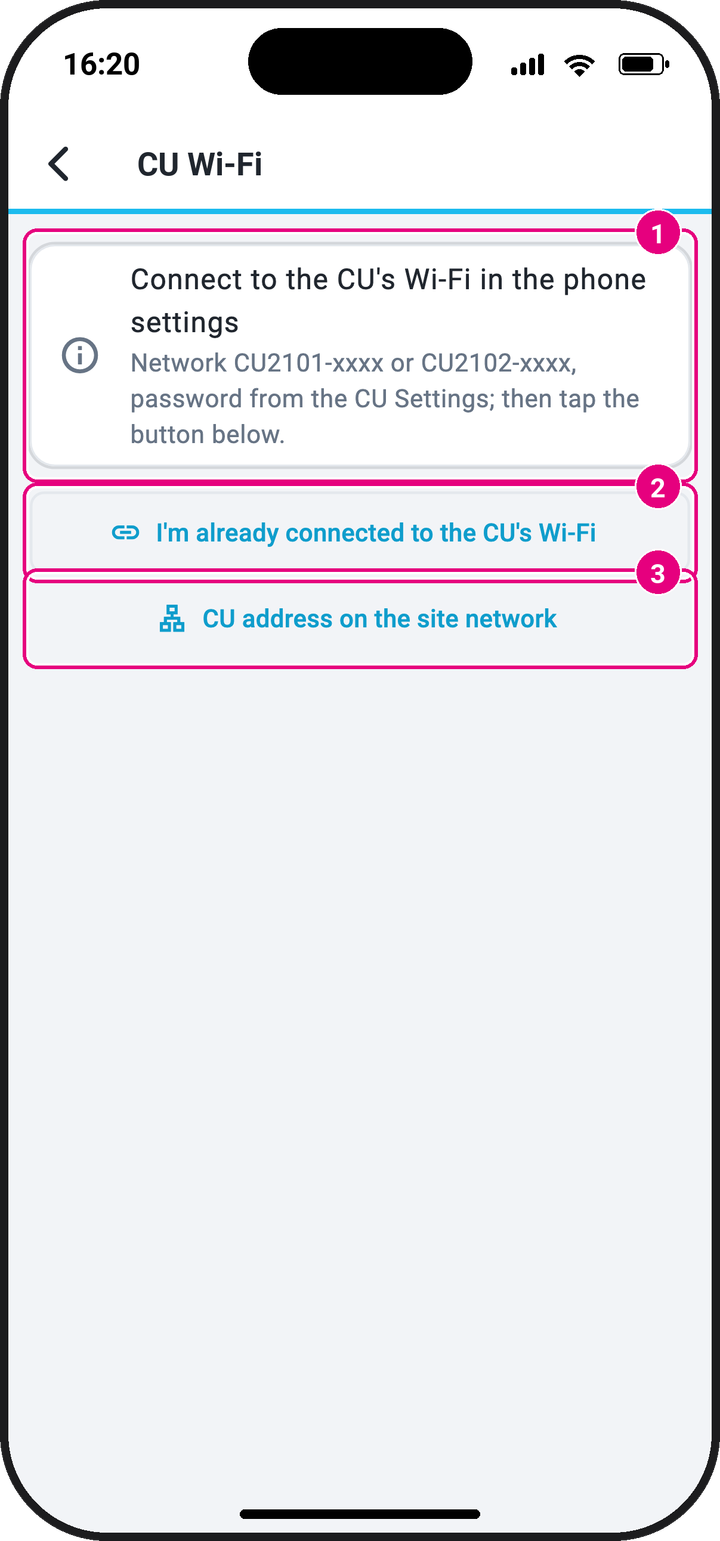
- 1iPhone: in the phone Settings pick the CU Wi-Fi network and enter its password. Then come back to the app.
- 2I'm already connected to the CU's Wi-Fi: the app checks the CU at
192.168.4.1and opens the sign-in. - 3CU address on the site network: when you are on the same network as the CU (Ethernet), enter its address, e.g.
192.168.1.180(port 8080). The last five addresses are remembered.
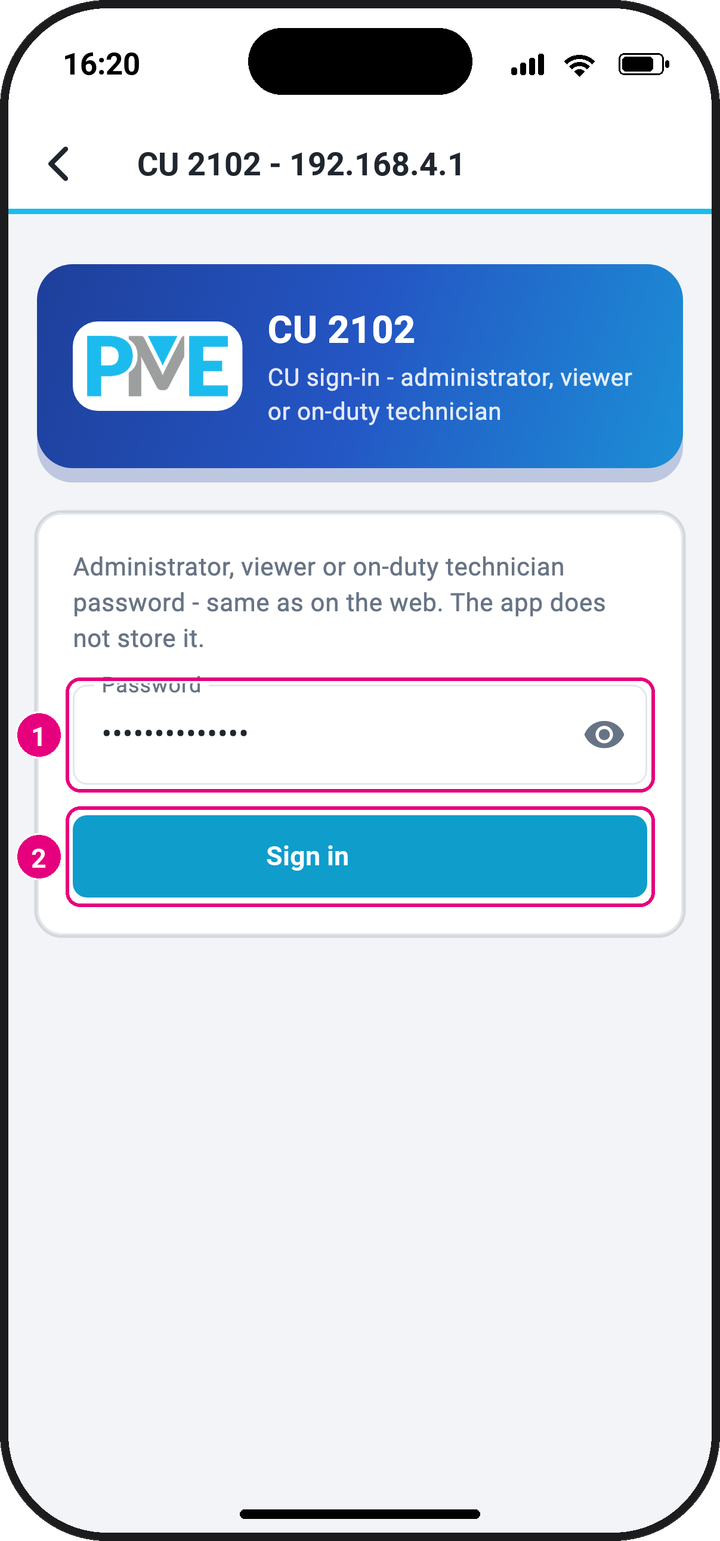
- 1The password of the administrator, viewer or on-call technician, the same as on the CU web. The eye shows what you typed.
- 2Sign in.
The role decides what you see: the administrator sees and changes everything; the viewer only looks; the on-call technician looks and writes to the operations log. Viewer and on-call technician have no Status screen, so Events opens.
The session expires after inactivity. The app then returns to sign-in.
3. CU status
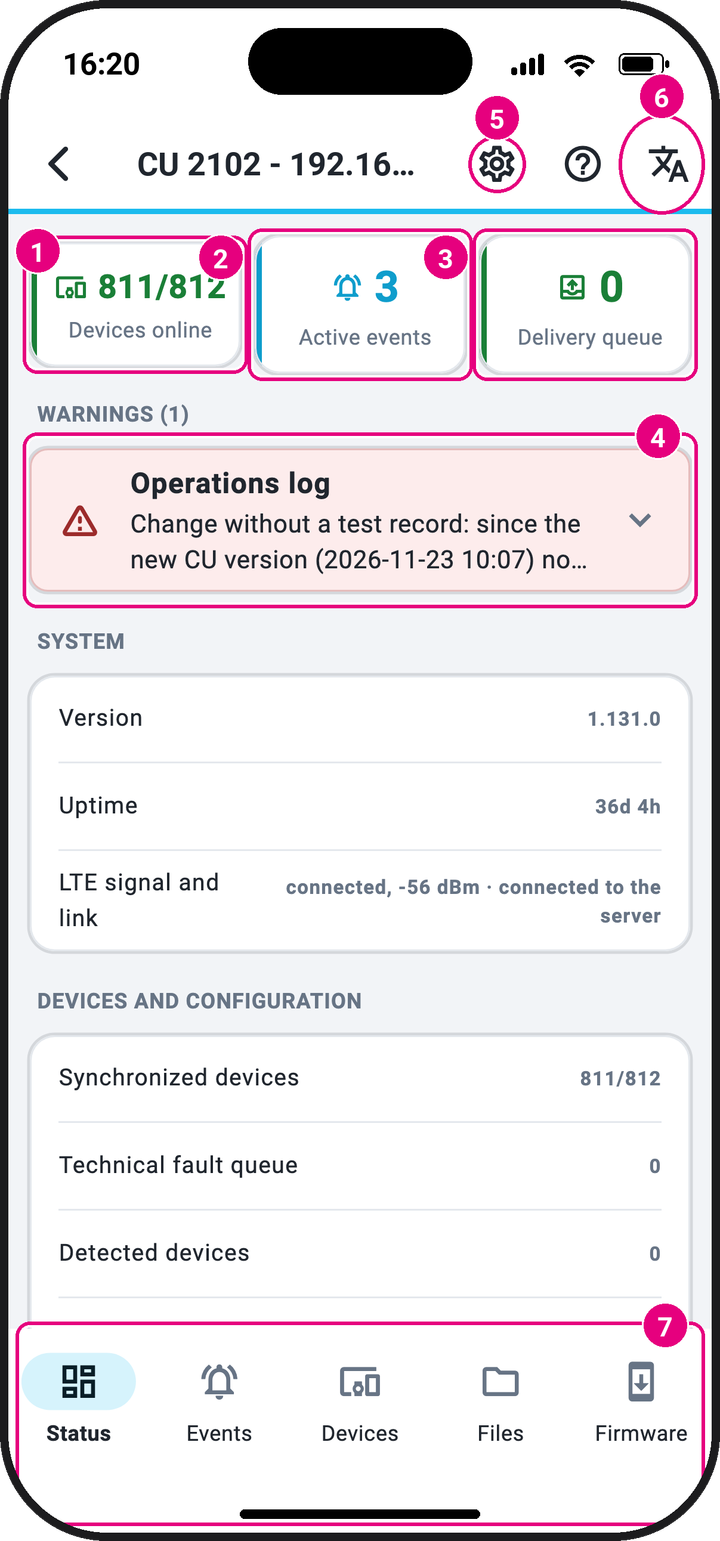
- 1Devices online out of all bound devices (811 of 812: one is offline).
- 2Active events: calls and technical faults active right now.
- 3Delivery queue: messages the CU has not yet delivered to devices. Normally 0.
- 4CU warnings, e.g. operations log (here: no test recorded since the new CU version), time, default password. Tap to read the whole text.
- 5CU settings (chapter 9).
- 6App language.
- 7Tabs: Status, Events, Devices, Files, Firmware.
Further down: system (version, uptime, LTE), devices and configuration, maintenance deadlines and backups. The view refreshes by itself while the app is on screen.
4. Events and history
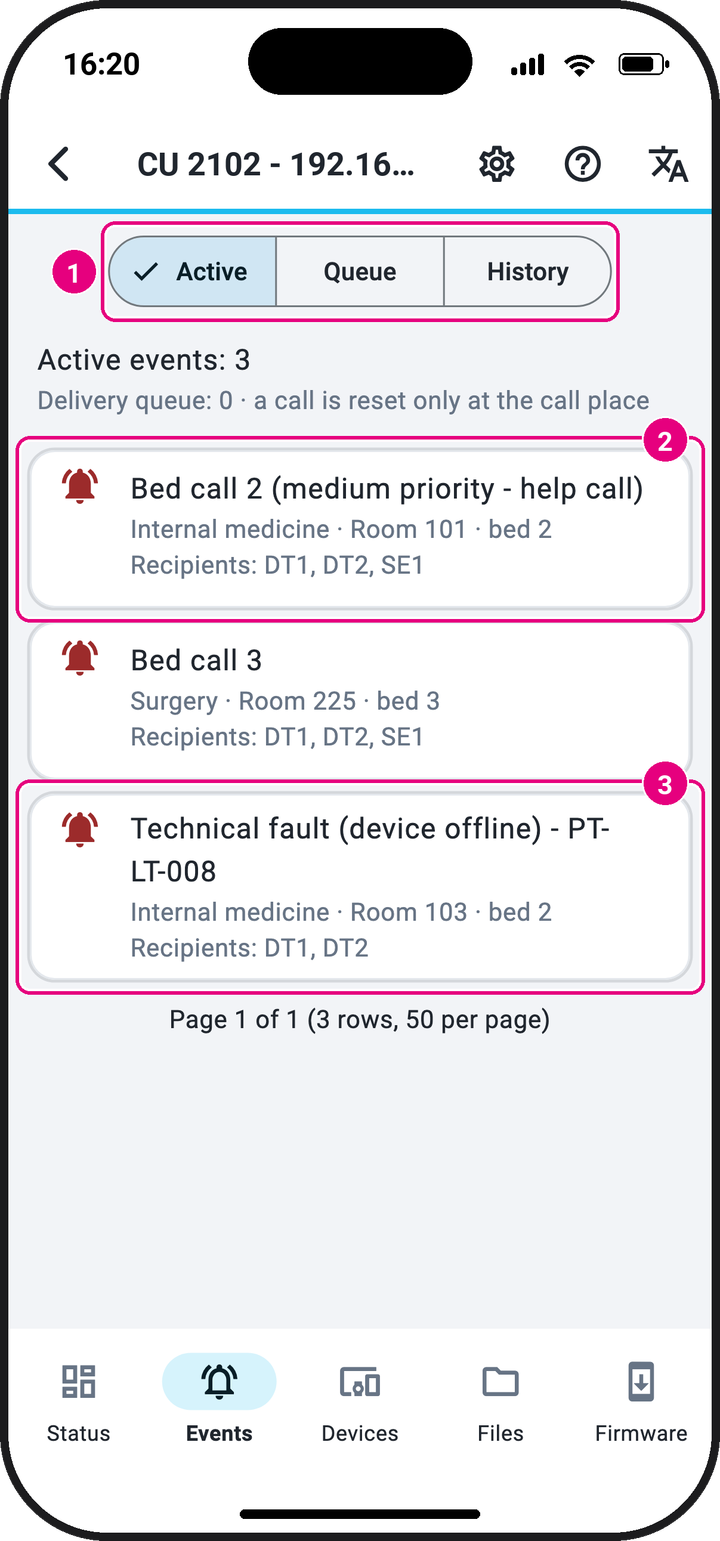
- 1Active (now), Queue (delivery queue) and History.
- 2A call: type and priority, ward, room and bed, and the devices showing it (recipients).
- 3A technical fault: here device PT-LT-008 in room 103 is not responding (offline). The fault clears by itself when the device is back online.
A call is cleared only at the call point. The app never cancels it.
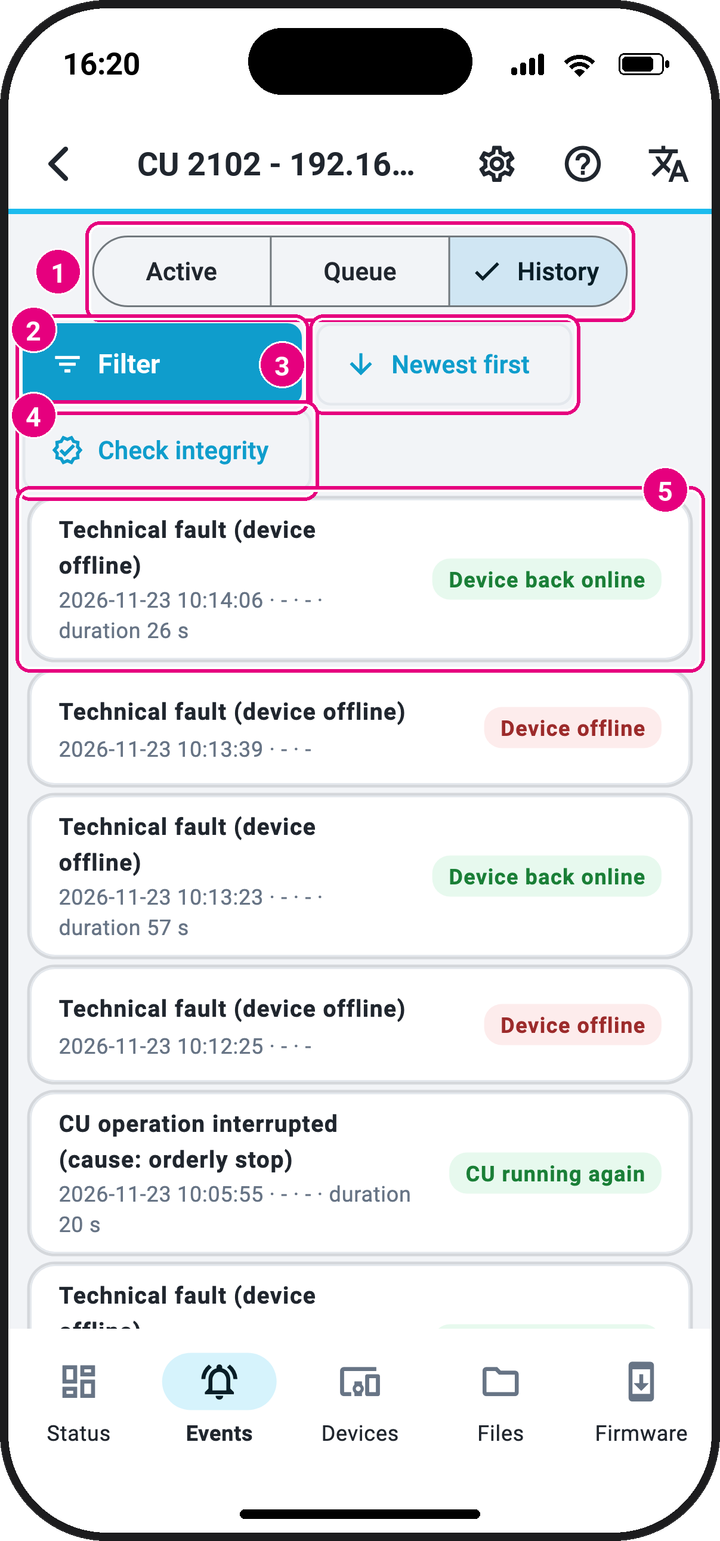
- 1History: all calls, presences and faults, with their duration.
- 2Filter: period, ward, room, event type.
- 3Order: newest or oldest first.
- 4Check integrity: the CU checks that no history record has been altered.
- 5One record: type, time, place, state (e.g. "Device back online").
History for a chosen period goes to PDF or CSV from the Files screen.
5. Devices
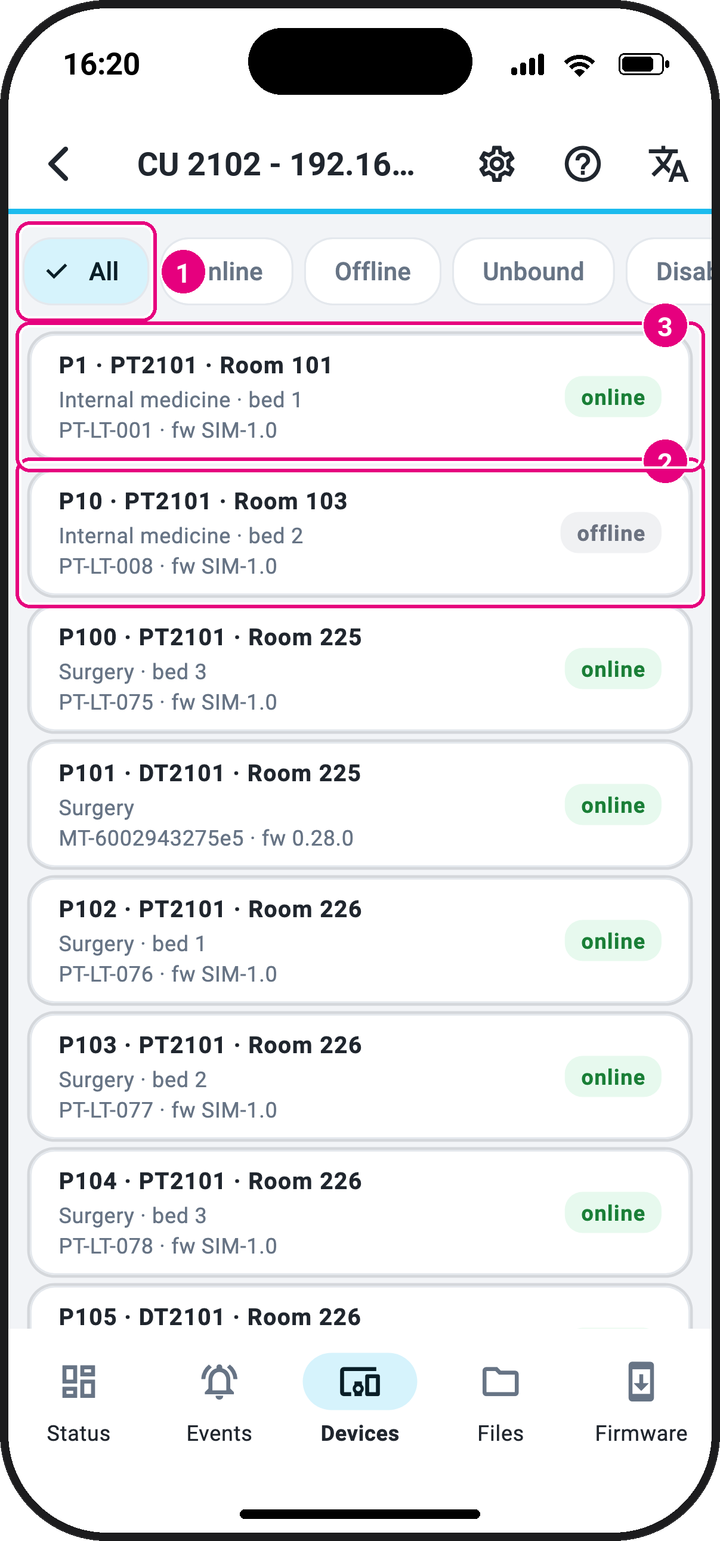
- 1Filter: all, online, offline, unbound, disabled.
- 2An offline device. Tap it for details.
- 3Device row: place (P1), type (DT, PT, SE, BIS; on a CU 2102 also intercom (SIP)), room, ward, bed, serial number and firmware.
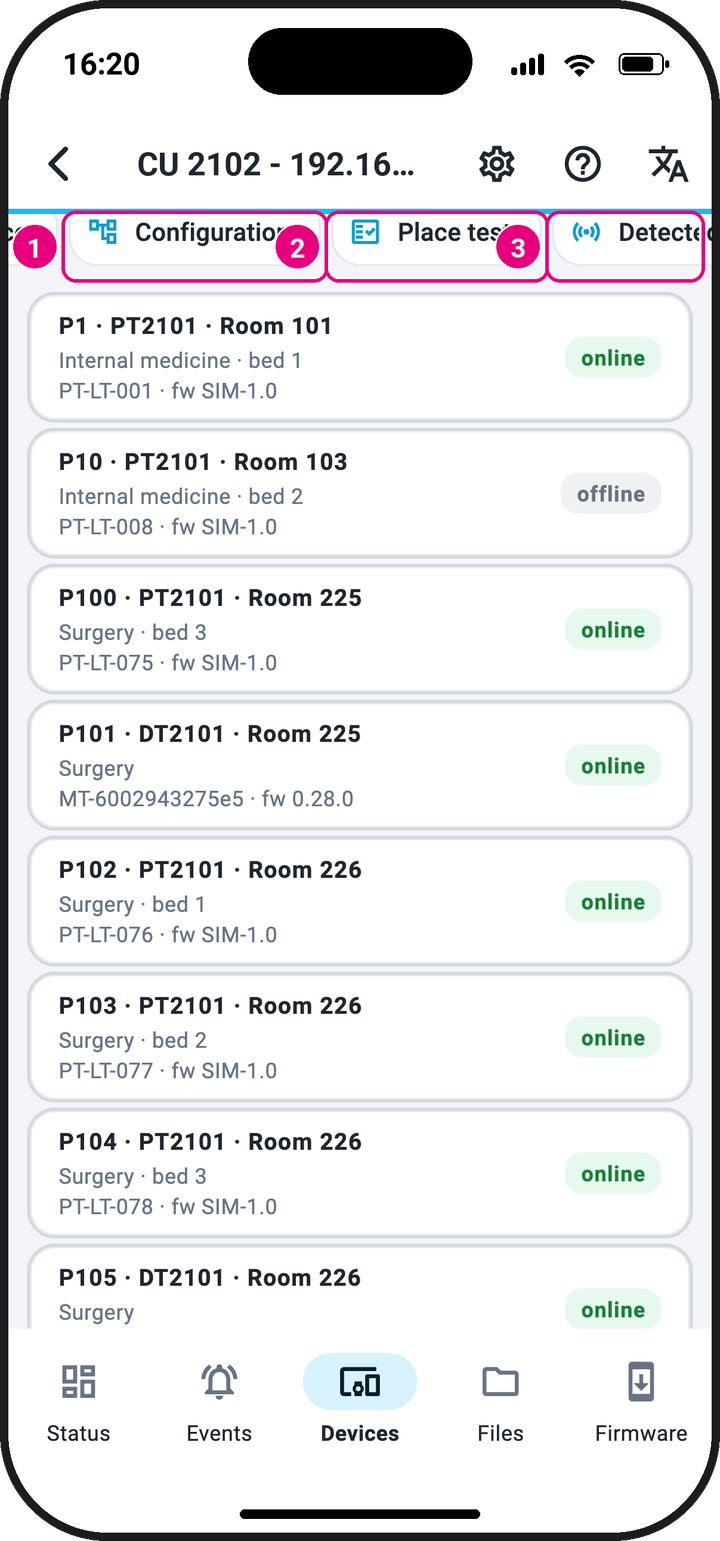
Swipe the filter row to the left. At its end are the actions:
- 1Configuration: wards, rooms and places (chapter 6).
- 2Place test (chapter 7).
- 3Detected: devices that report in but are not bound to a place. Tap one to bind it to a free place of the same type (a QR code on the device also works).
Before them is New place: adds a place to the configuration draft.
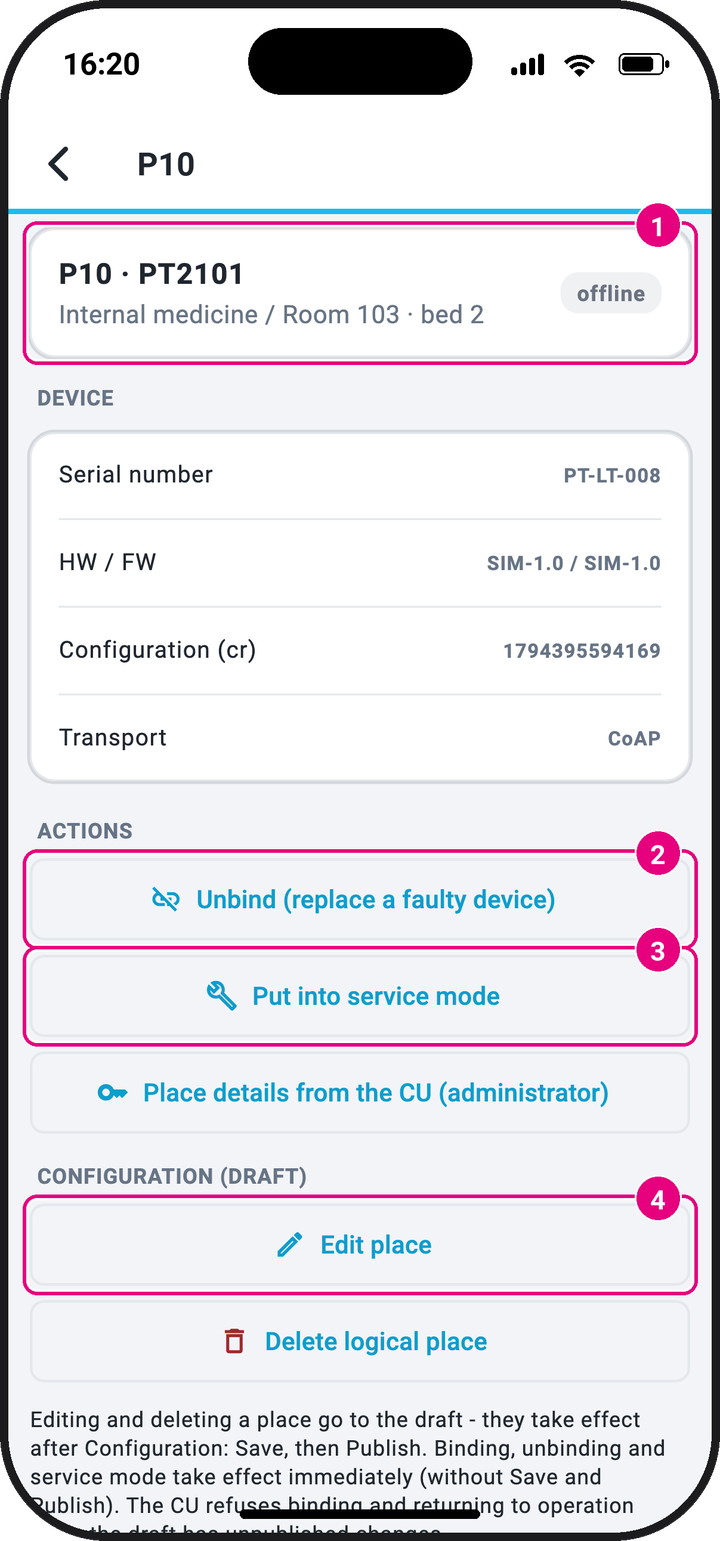
- 1Place, type, ward, room, bed and state.
- 2Unbind (replace a faulty device): the place stays and a new device is bound instead of the old one.
- 3Put into service mode: the device is temporarily out of operation. The dashboard reminds you if servicing takes too long.
- 4Edit place: name, room, bed, call types. The change goes into the configuration draft.
Binding, unbinding and servicing take effect at once. Editing and deleting places apply only once the configuration is saved and published.
6. Configuration
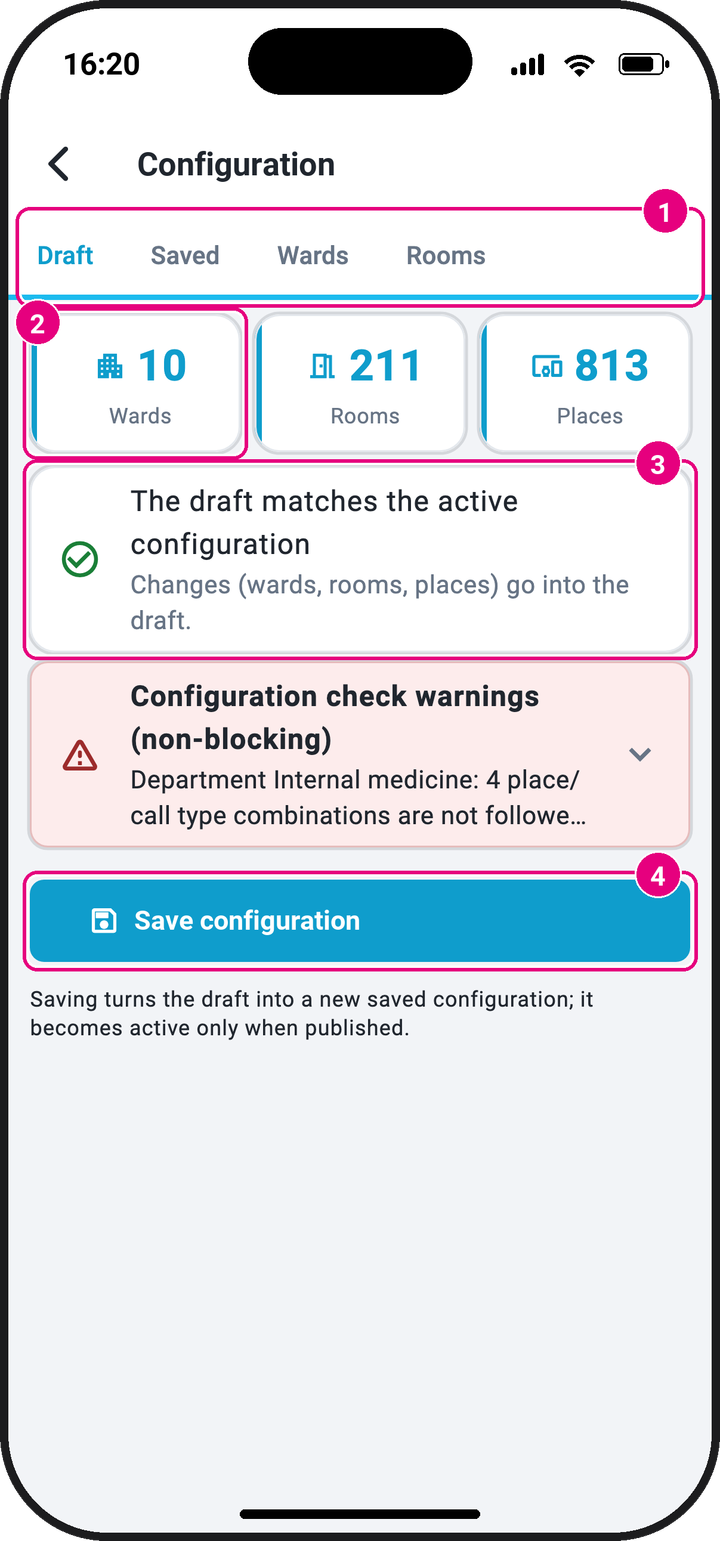
- 1Draft (changes in progress), Saved configurations, Wards and Rooms.
- 2Number of wards, rooms and places in the draft.
- 3Whether the draft differs from the active configuration. Below are check warnings (they do not block saving).
- 4Save configuration: the draft becomes a new saved configuration.
The order is always: changes in the draft → Save → on the Saved tab → Publish. Until publishing, devices work with the active configuration. After publishing, record a test in the operations log (DIN VDE 0834-1 §12.3).
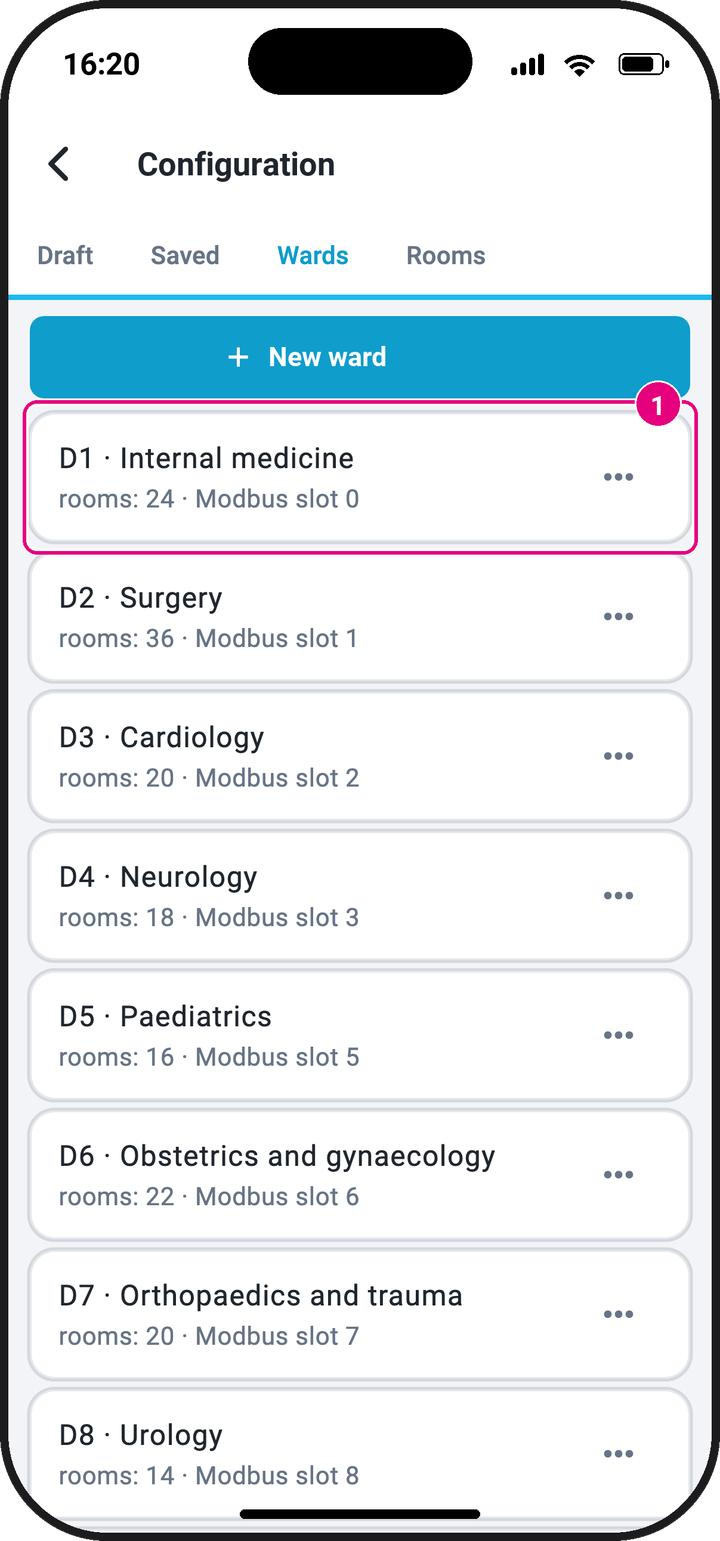
- 1Ward: code, name, number of rooms and Modbus slot - a permanent position in the Modbus TCP table for the BMS.
The slot stays the same when other items are added or deleted: a new item gets the first free slot when the configuration is saved, and a deleted one leaves a gap (here slot 4). The Rooms tab shows each room's slot the same way, and a place's slot is in the place form. An item without a slot (new in the draft) gets one only when saved.
Night duty
At night, a DT in a duty room can receive calls only while a nurse or doctor is in that room, so the sound does not wake patients where nobody is. It is set on each DT 2101 that is a duty room.
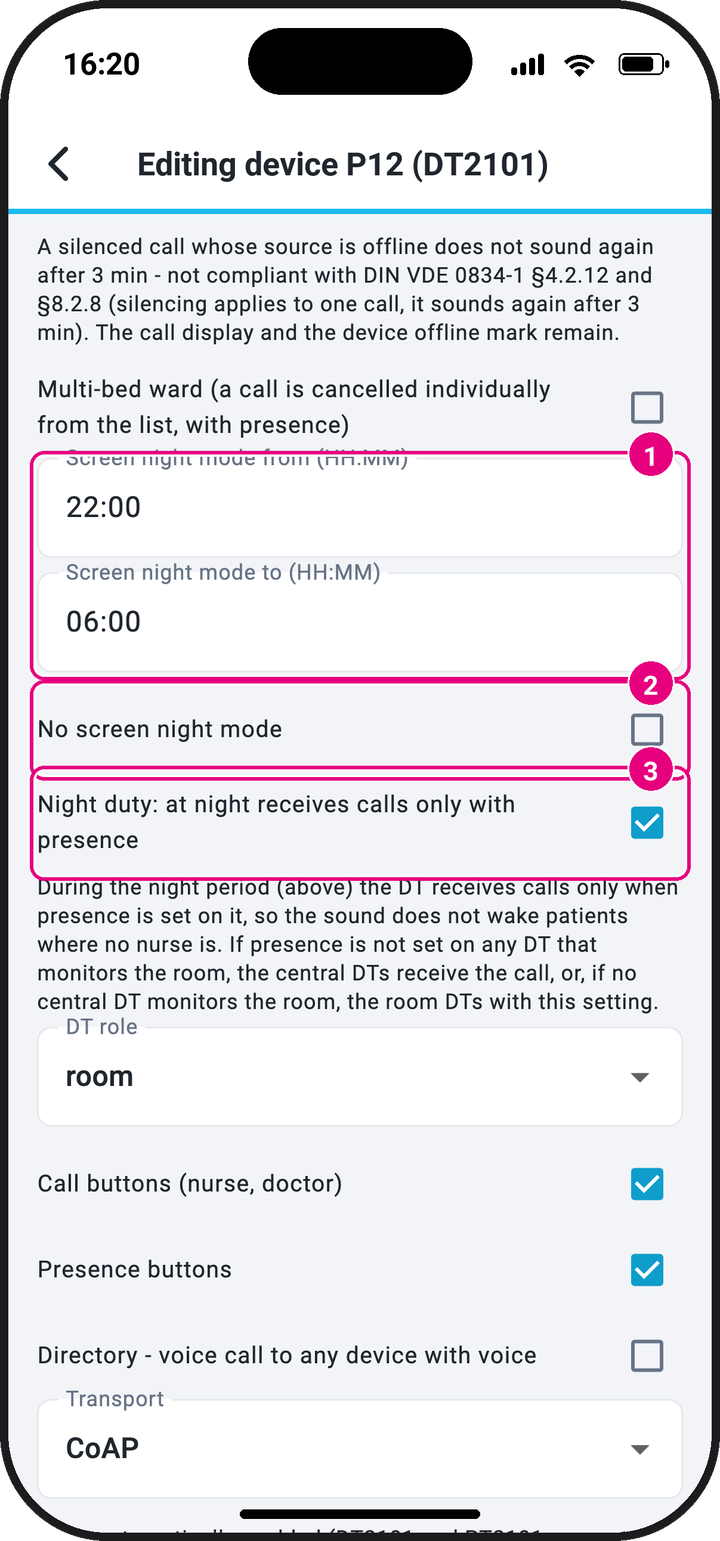
In the Devices list tap the DT, then Edit place, and scroll the form to the night mode.
- 1Screen night mode from / to (HH:MM): the night period by the CU clock, 22:00-06:00 by default. The same period applies to the DT screen night mode and to night duty.
- 2No screen night mode: the DT has no night period. Night duty then cannot stay on - the CU rejects such a change as an error.
- 3Night duty: at night receives calls only with presence: at night the DT gets calls only while presence (nurse or doctor) is set on it.
If at night presence is not set on any DT that monitors the room, the ward's central DTs get the call. If no central DT monitors the room, the room DTs with night duty get it. No call is lost: it always stays on the DT of the room it came from, and it is cleared only at the call point. The CU redistributes calls by itself when presence changes, at the start and end of the night period, after a configuration is published, after a CU restart and after a clock change.
Turning it off: clear mark 3 on each duty DT, save, then Configuration → Save → Publish. Like every place change, it applies only after publishing.
Medical staff see the duty rooms at night in the NCS Staff app, on the Presence tab (Nurse is here, Doctor is here, Nobody is here), with a warning when nobody is in any duty room.
7. Place test (call points)
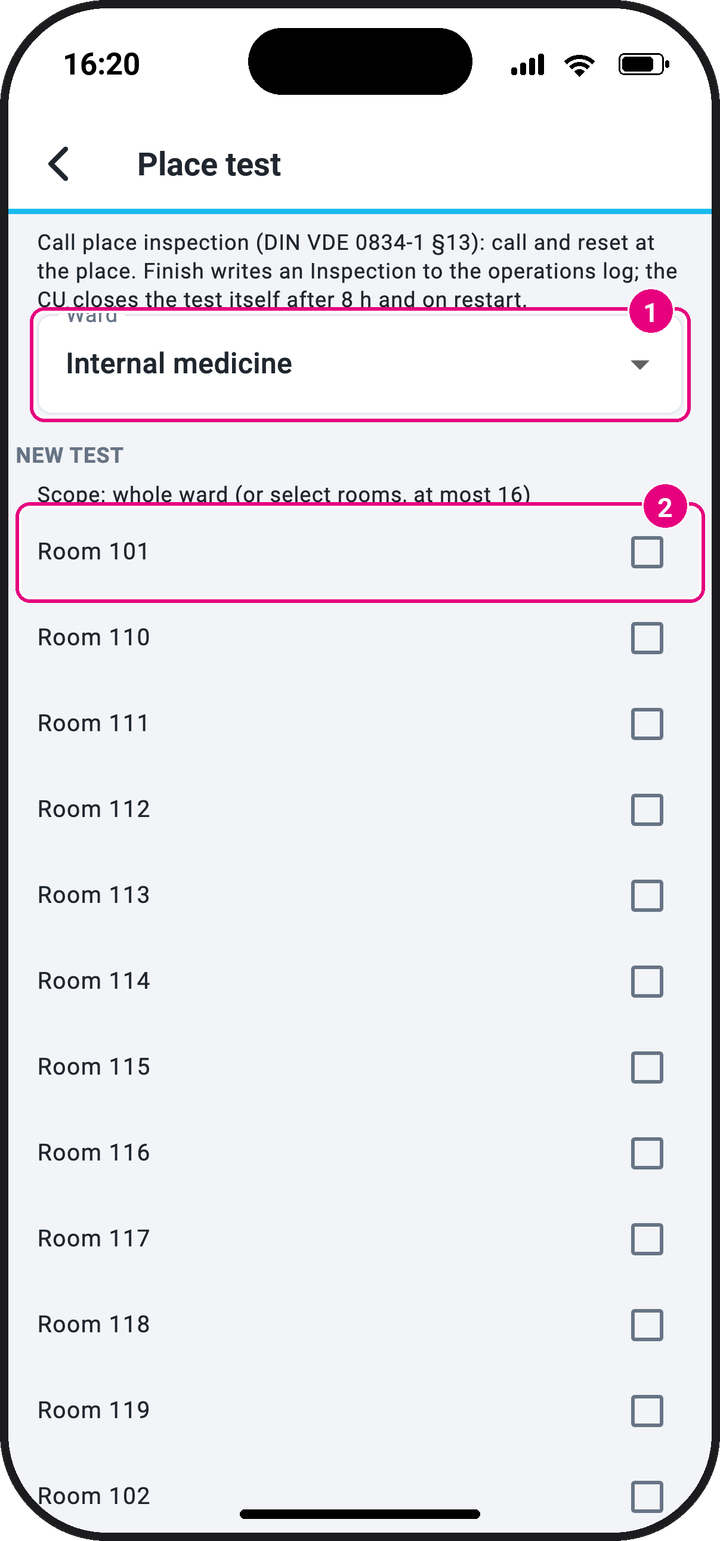
Testing of call points (DIN VDE 0834-1 §13): at every place a call is made and cleared at the place. The CU itself records which places have been tested.
- 1The ward you are testing.
- 2Rooms: the whole ward or chosen rooms (up to 16). Then start the test with the button at the bottom.
At the end the CU writes the test into the operations log. A test nobody finishes is closed by the CU after 8 h, and on restart.
8. Files and operations log
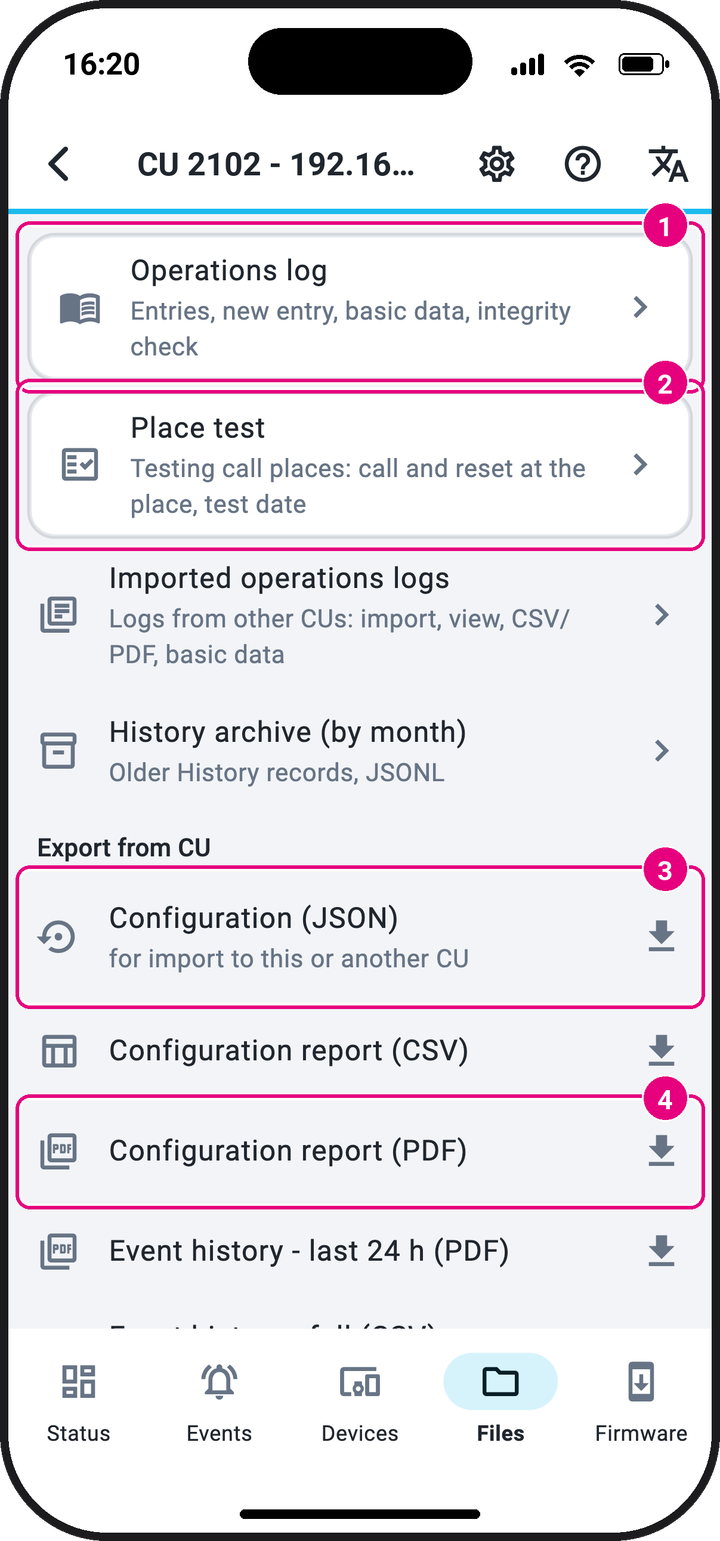
- 1Operations log: basic data, entries, new entry, integrity check.
- 2Place test (same as under Devices).
- 3Configuration (JSON): export for import on the same or another CU. Share the file like any other.
- 4Configuration reports (CSV, PDF) and event history (PDF).
After a download the app offers Share: on iPhone Mail, Messages, "Save to Files", AirDrop; on Android Drive, email, Viber... On Android there is also Save to Downloads: the file stays on the phone, in the Downloads folder. You pick a file for import from Files (iPhone), or from Downloads, Drive or another location (Android).
An imported configuration goes into the draft, then Save and Publish apply.
Below are Imported operations logs - logs of other CUs (e.g. of the old CU after a replacement, downloaded from the CU or from the PME server): import, view, CSV and PDF, and taking over the basic data into this log - and History archive (by month), older History records (administrator only). At the end of the list are the event history (PDF for the last 24 h, full in CSV) and the operations log (JSON with chain, CSV, PDF for a period). The same for CU 2101 and CU 2102; a CU 2101 keeps one imported log of up to 192 KB.
After you download the operations log (JSON), a CU 2101 offers Archive: the downloaded entries are archived on the CU and the log chain continues.
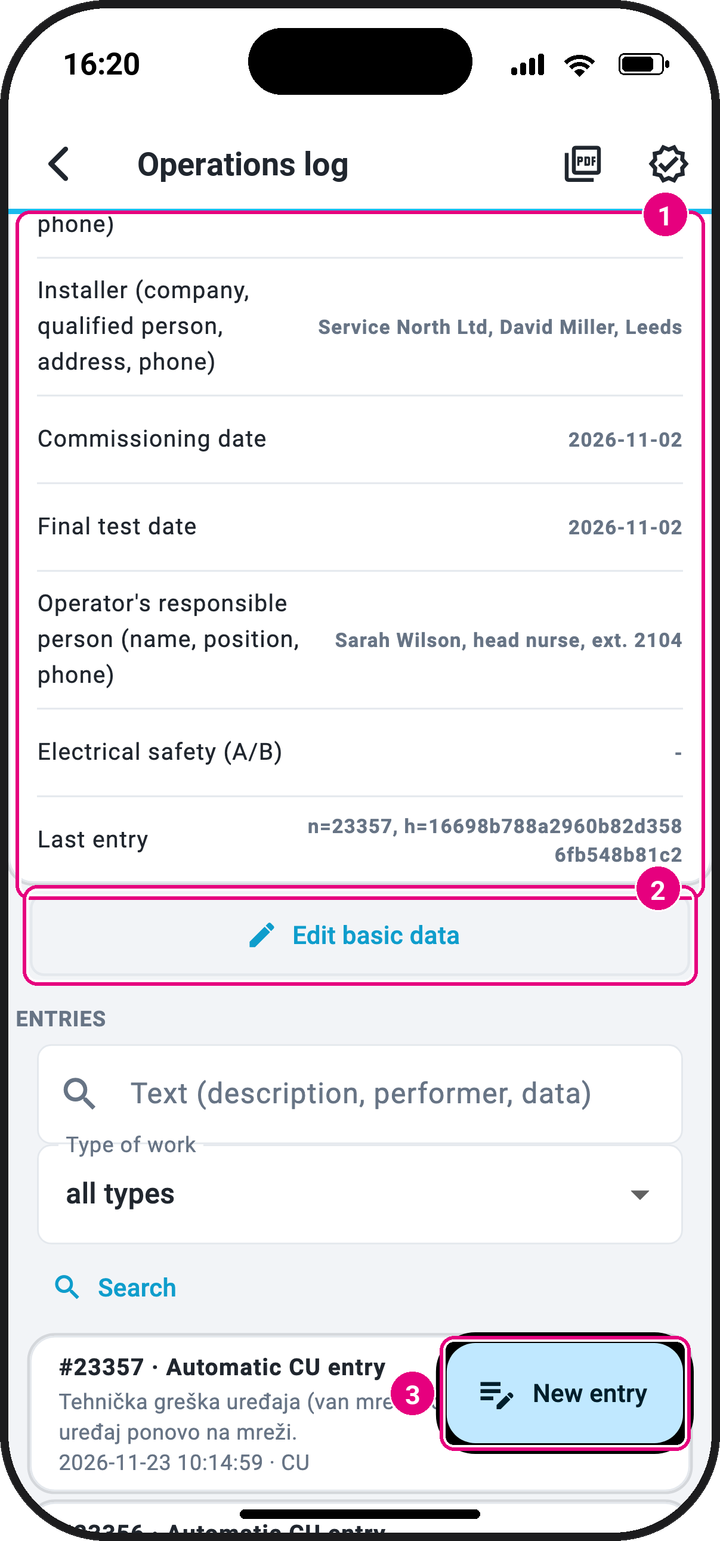
- 1Basic data (DIN VDE 0834-1 §13.9): manufacturer, designer, installer, commissioning and final test dates, responsible person, electrical safety.
- 2Edit basic data.
- 3New entry: type of work (inspection, annual check, maintenance, fault clearing, change, test, training...), description and who did it.
Entries are never changed or deleted. Configuration publishing, device binding and a new CU version are written by the CU itself. PDF of the log for a period: the PDF button at the top right.
9. Device firmware and CU settings
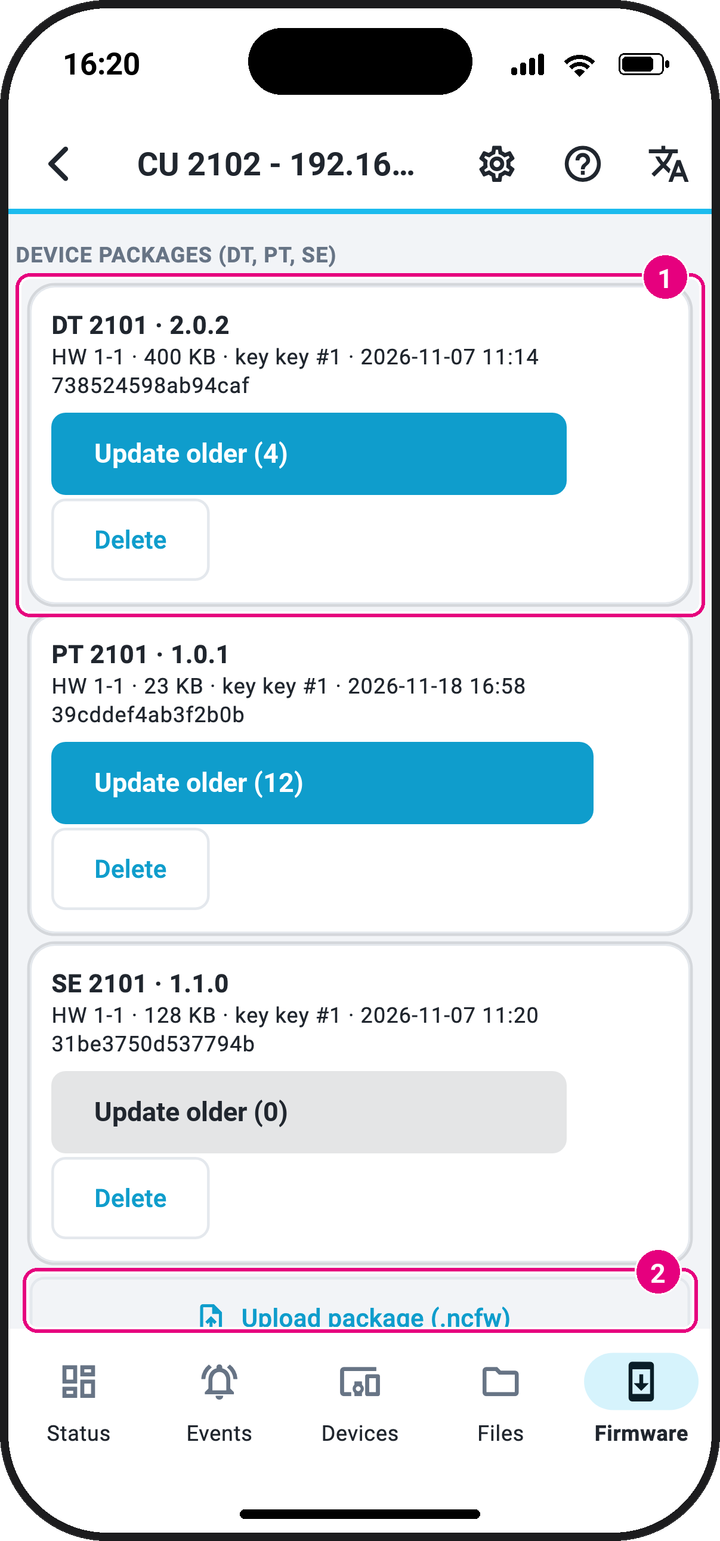
- 1A device package (DT, PT, SE): version, size, signature. Update older sends it to every device of that type with an older version.
- 2Upload package (.ncfw): a signed package from the phone.
The software of the CU itself (CU 2101 and CU 2102) is updated through the PME server (chapter 14), with an install window and automatic return to the old version.
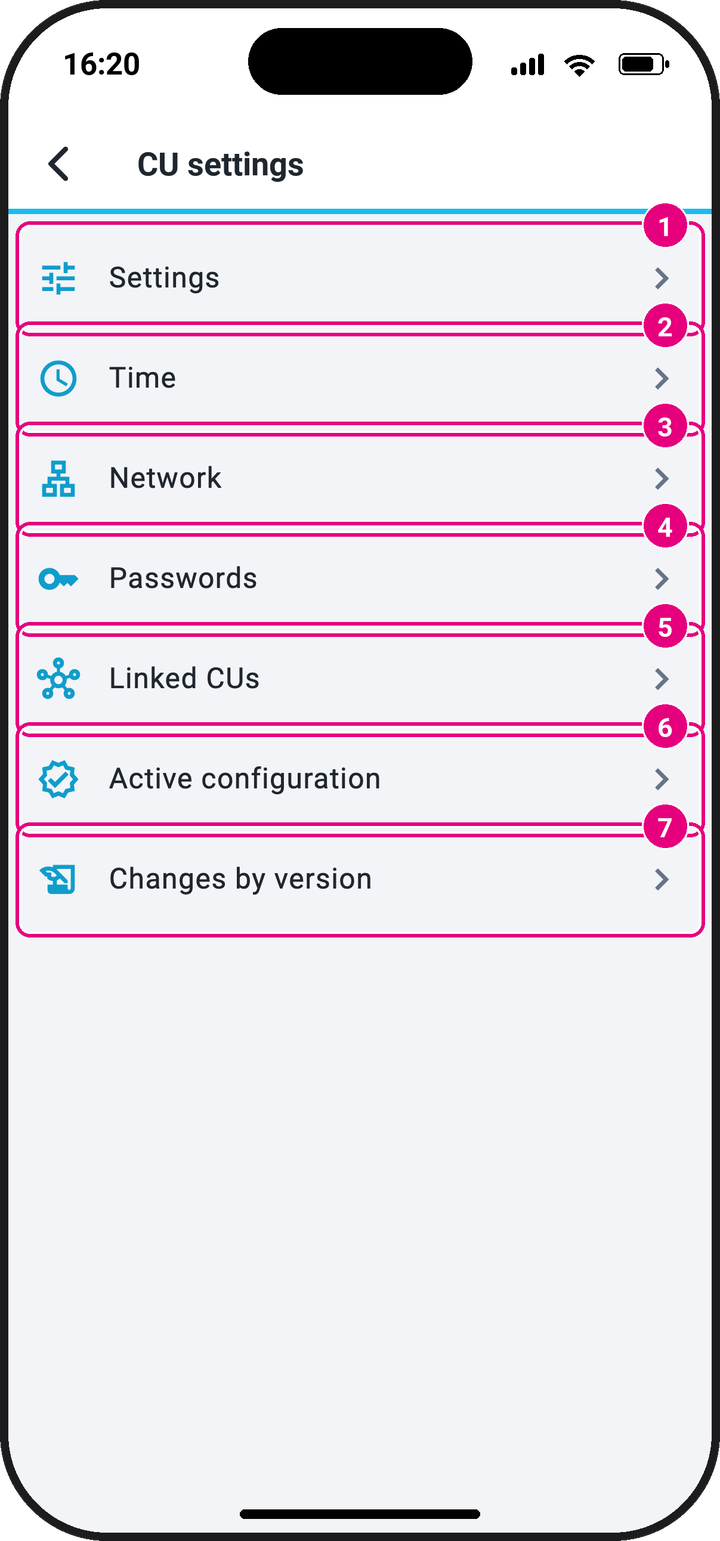
- 1Settings: service Wi-Fi, PME server (publishing, periodic publishing and minimum interval, remote changes switch), LTE, Modbus TCP for the BMS, master key, service reminder, temperature thresholds, maximum number of History events, CU language; on a CU 2102 also voice (telephone exchange). Next to the PME server the CU also shows the last operations log copy confirmed by the server.
- 2Time: CU clock, synchronisation (PME server or NTP), time zone.
- 3Network: the CU address on the site network.
- 4Passwords: administrator, viewer, on-call technician (local only).
- 5Linked CUs: calls of other CUs on these terminals.
- 6Active configuration: what the devices use right now.
- 7Changes by version of the CU.
A CU 2102 over the PME server has two more items: Voice part: status (extension states and calls in progress) and Voice part: extensions (Asterisk: rename and delete extensions, Load from CU2102 configuration, broadcast extension). A new extension and extension SIP passwords are changed only locally, on the CU voice web. Changes need the remote changes switch, like the other settings, and are written to the operations log.
10. PME server: sign-in and sites
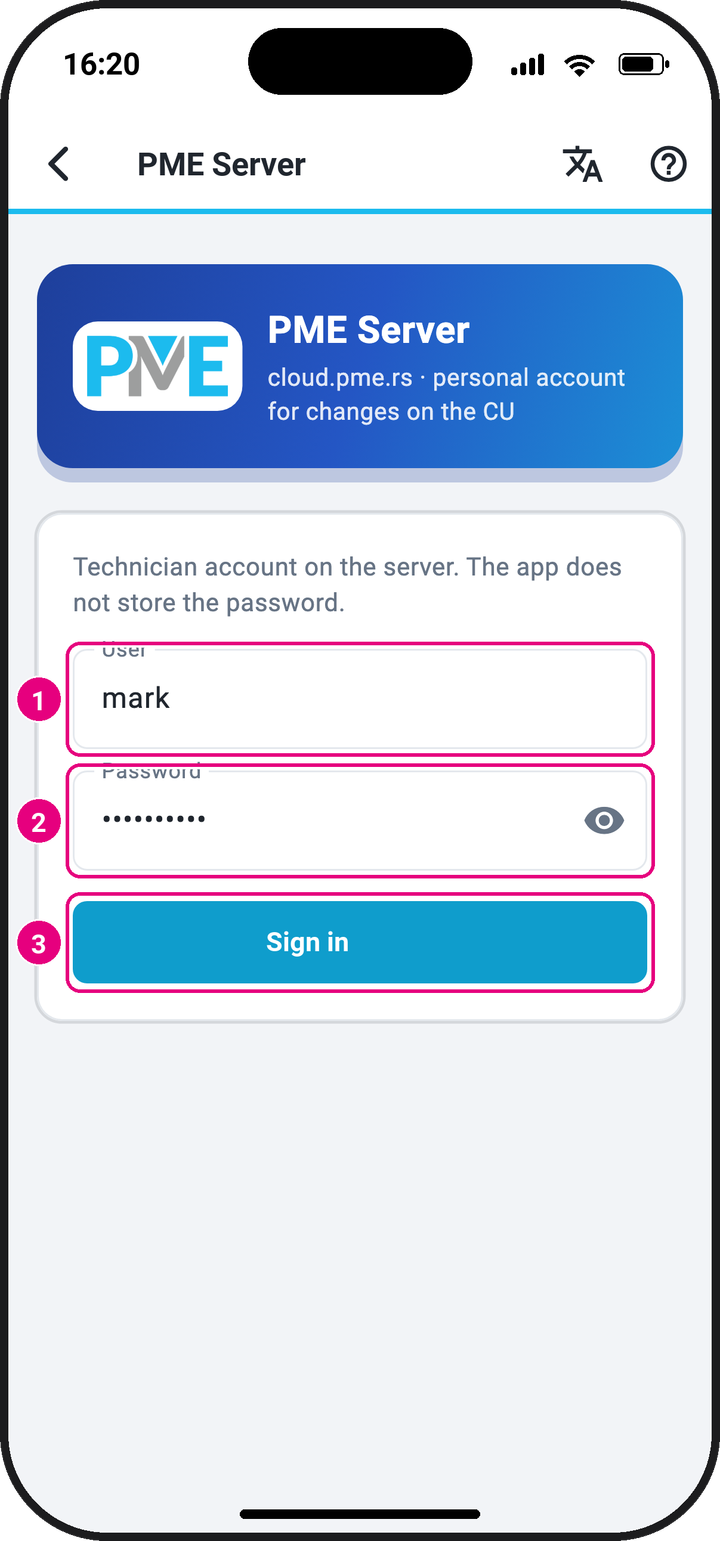
- 1User from the email.
- 2Password. On first sign-in the app asks you to replace it with your own.
- 3Sign in.
After sign-in an iPhone registers with the server for push notifications (chapter 15). Android has no push for now - notifications arrive by email.
The same works in a computer browser, with the same account - see the web guide.
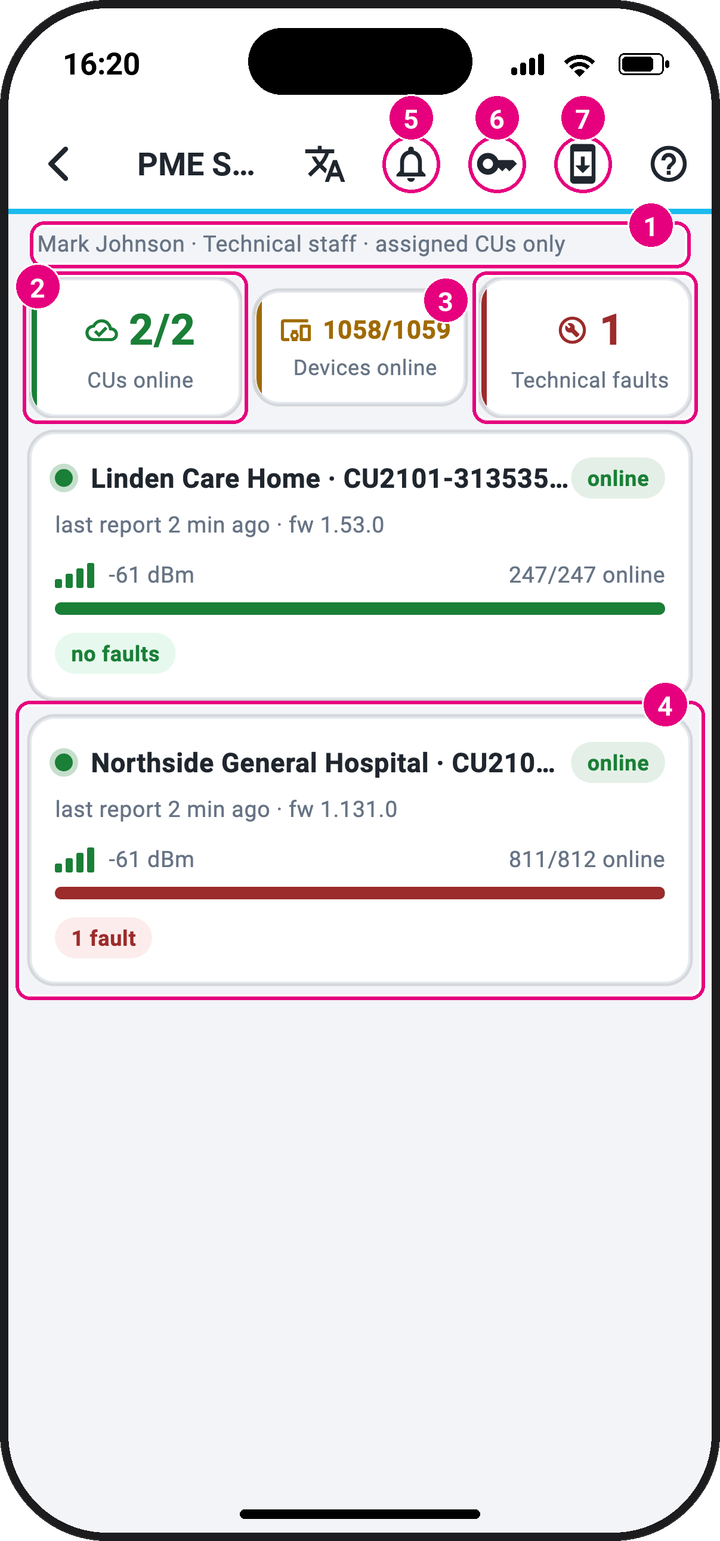
- 1Who is signed in and the account type. Technical staff see only the CUs assigned to them.
- 2Totals: CUs online and devices online across all sites.
- 3Technical faults in total.
- 4A site: connection state (online, not reporting, signed off), last report, firmware, LTE signal, devices online and labels (faults, CU faults, maintenance). Tap for details.
- 5Notifications (chapter 15).
- 6Change password (key, chapter 16).
- 7Firmware (chapter 14).
The question-mark icon at the end of the bar opens Help with quick answers about the state of the CUs (chapter 17).
11. CU details on the server
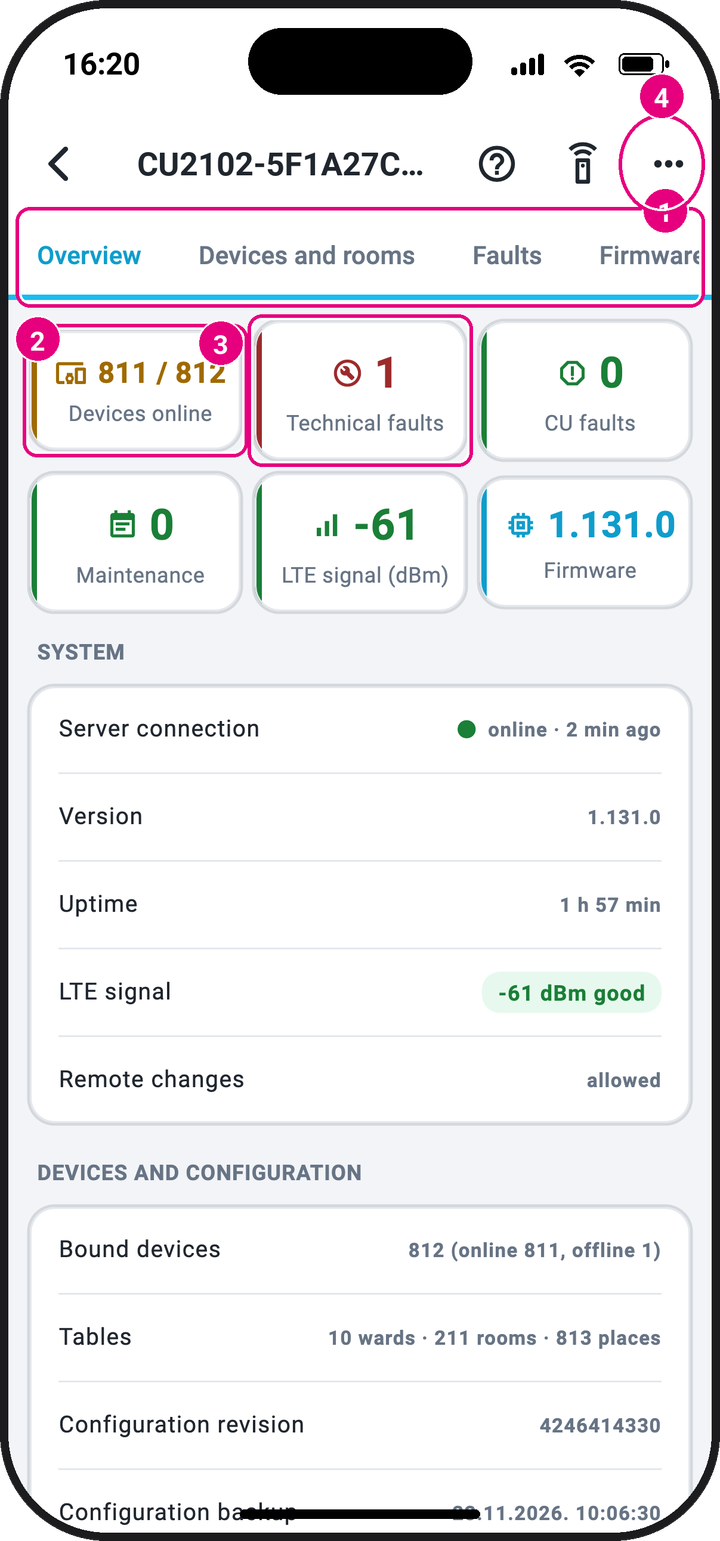
- 1Tabs: Overview, Devices and rooms, Faults, Firmware and backup, Remote changes, Data usage, Log.
- 2Devices online.
- 3Technical faults. Other tiles: CU faults, maintenance, LTE signal and firmware.
- 4More: received messages (raw). A CU is removed from the server by the PME server administrator (e.g. when the board is replaced).
The server shows what the CU reports (a CU 2101 over LTE, a CU 2102 over the site internet or LTE). Remote changes are made only with signed commands (chapter 12).
Devices and rooms: places by ward and room, with state and firmware. Data usage: SIM plan usage per day (CU 2102 only with an LTE modem). The tabs are the same for CU 2101 and CU 2102; the only differences are voice (CU 2102) and the number of devices.
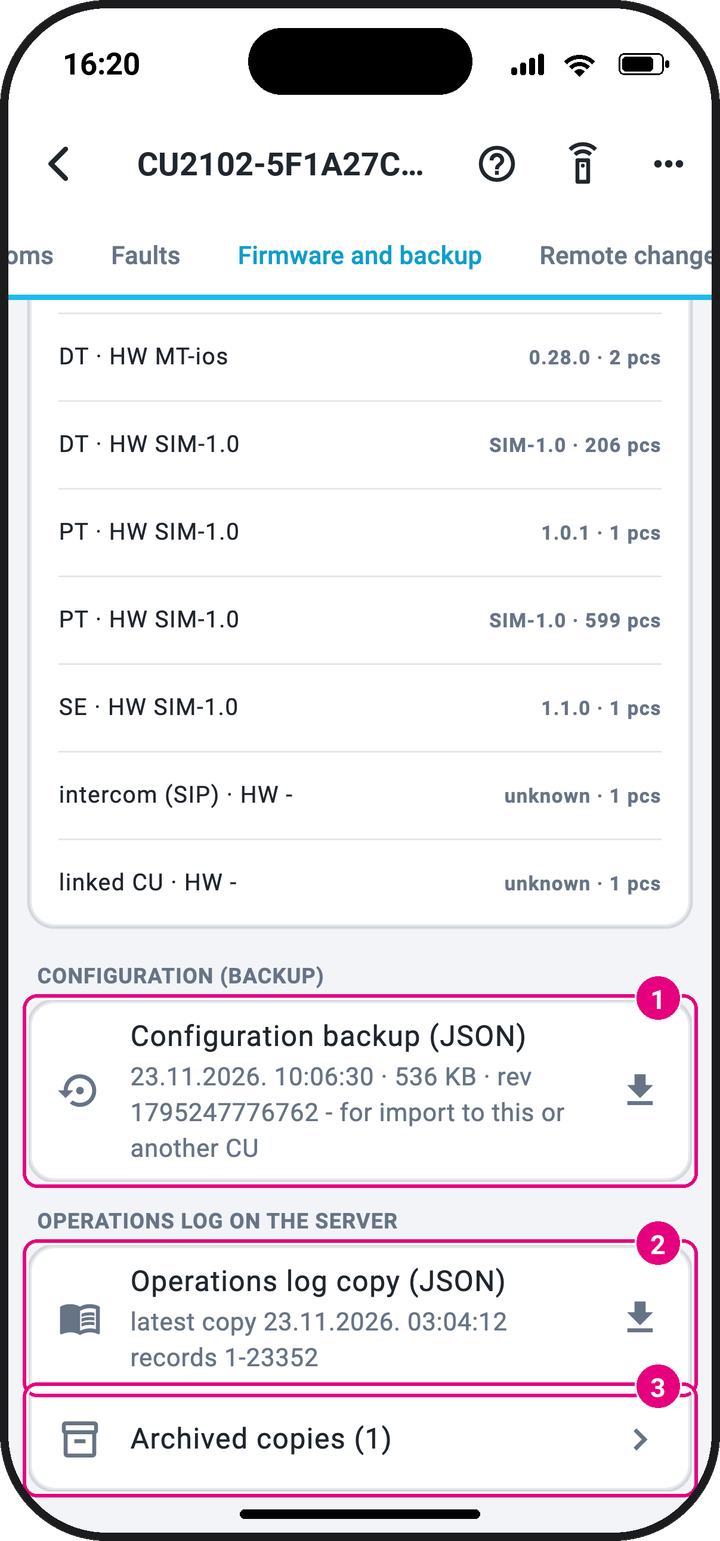
- 1Configuration backup: the latest configuration the CU sent to the server by itself (2 min after a change, at most once every 15 min). Tap to download a file for import on this or another CU.
- 2Operations log copy: the latest copy (the CU sends it at night and after connecting, new records only) and which records are on the server. Tap to download a file that is imported into a CU as a downloaded log, e.g. on a replacement CU.
- 3Archived copies: when the log on the CU does not continue the copy (board replaced, gap in the log), the server keeps the old copy here and starts a new one - nothing is deleted.
If the log copy is more than 48 h overdue while the CU is online, the icon turns orange, the description says "copy overdue since …" and technical staff get a notification. The same for CU 2101 and CU 2102; no copy is made on USB.
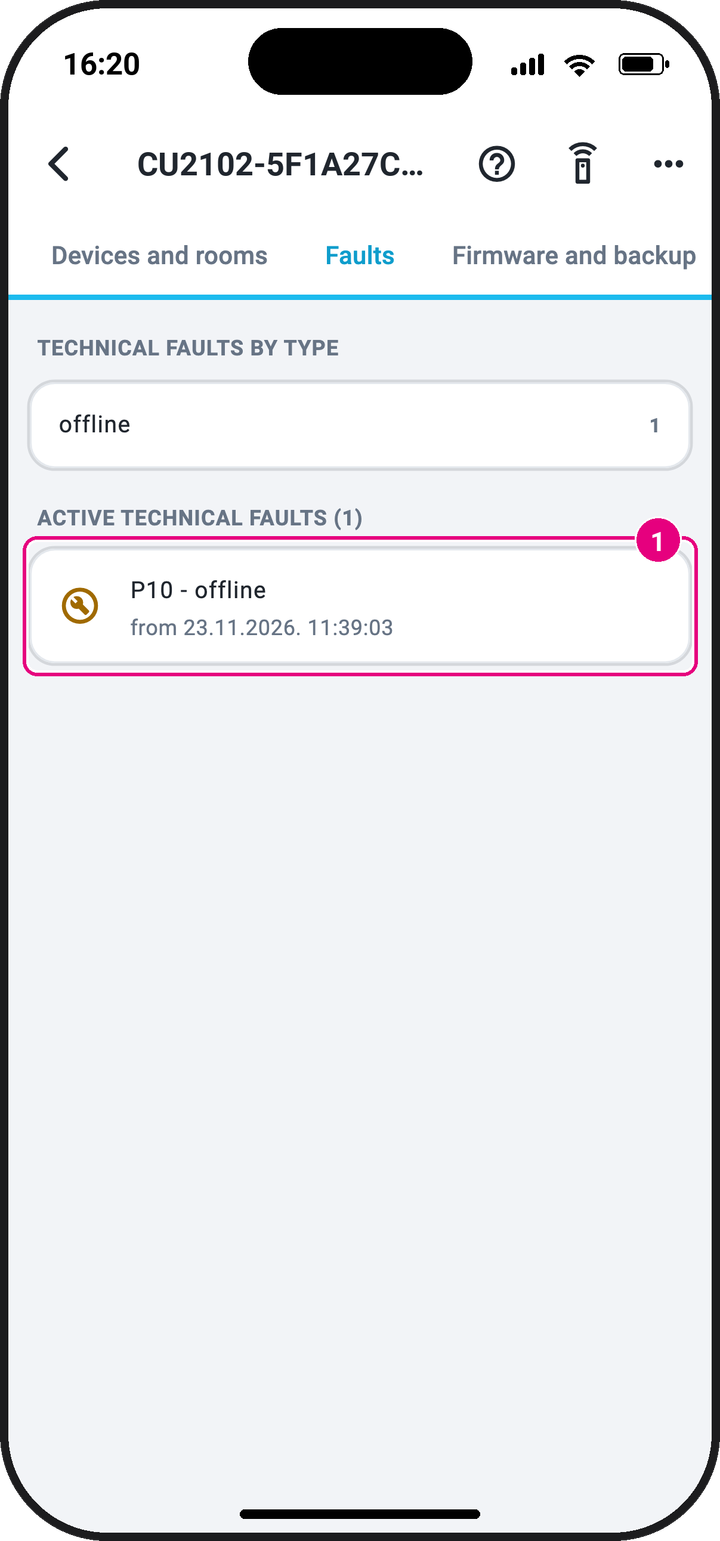
- 1An active technical fault: place P10 has been offline since 15:28. Above is the count of faults by type.
The fault is fixed on site, at the device. When the device comes back online, the fault disappears here too.
12. Remote changes and log
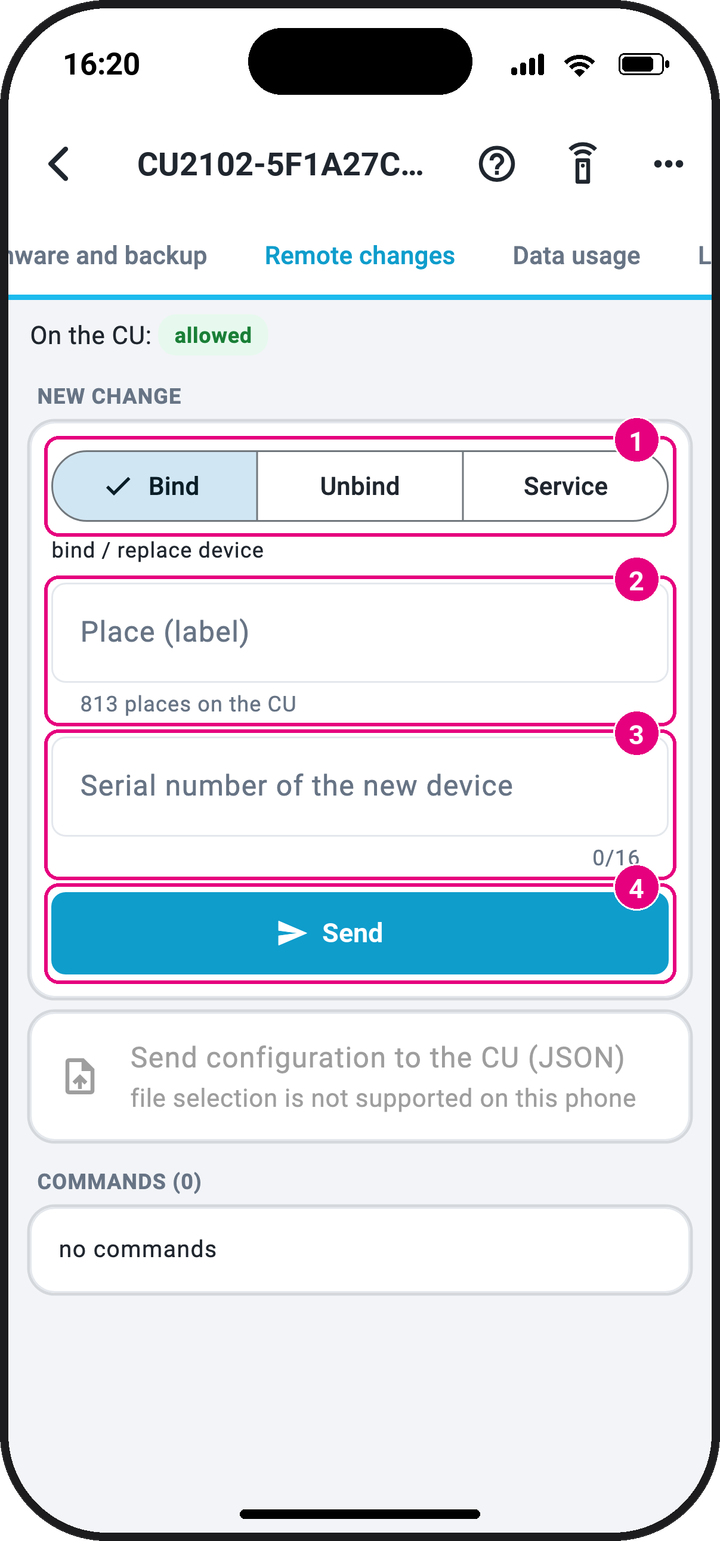
At the top it says whether remote changes are allowed on that CU. The switch is on the CU (Settings), and without it the CU refuses every command.
- 1Bind (device replacement), Unbind or Service.
- 2Place: the place label (e.g. P10).
- 3Serial number of the new device (for Bind).
- 4Send. The command is signed with your account. Its outcome is shown below (waiting, done, refused and why).
Only the personal account of a qualified person can send a command (DIN VDE 0834-1 §13.3.5). The CU checks it itself and writes it into the operations log.
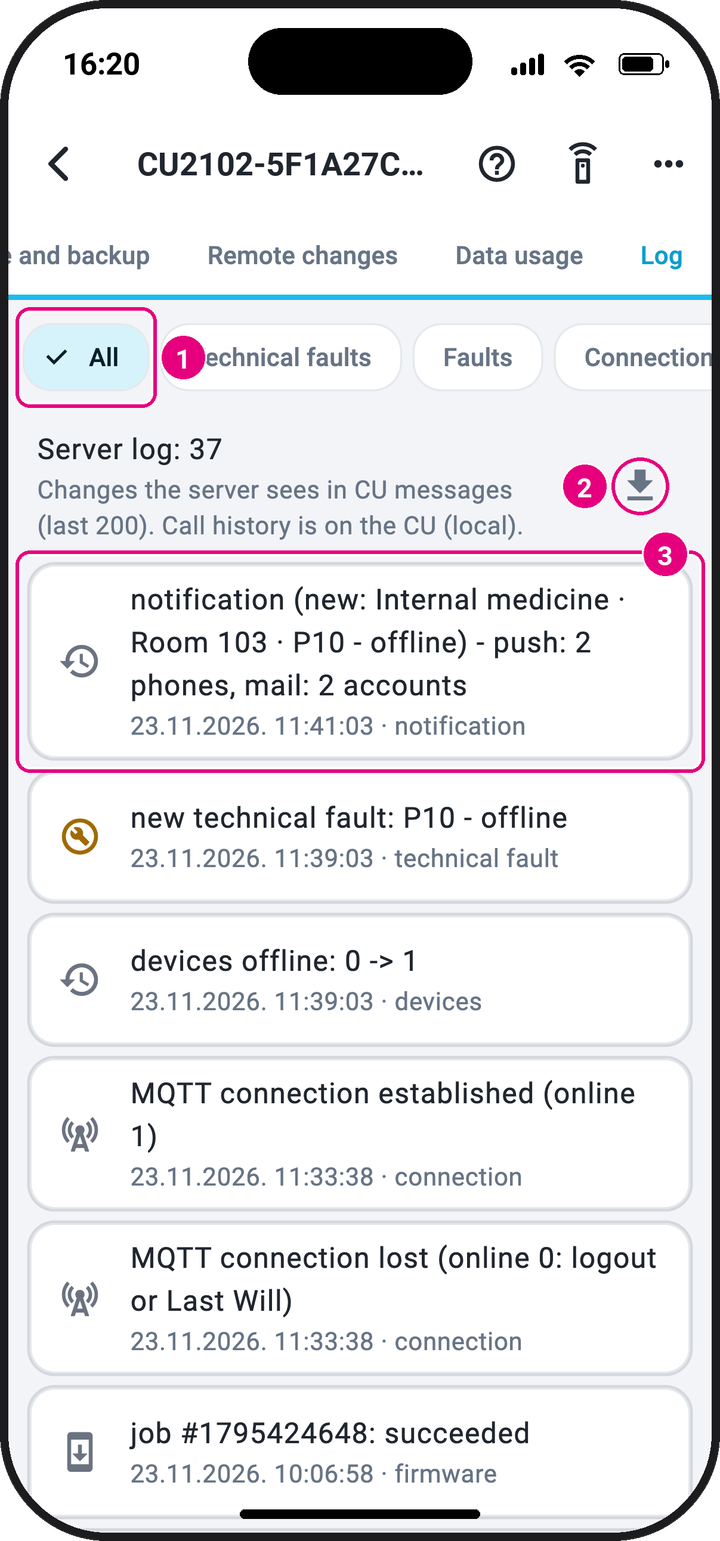
- 1Filter: all, technical faults, CU faults, connection...
- 2Download the log (CSV).
- 3A record: what the server saw in the CU messages and when (new and resolved fault, connection, firmware, notifications sent).
The call history is on the CU (PME Local → Events → History).
13. Live from the CU
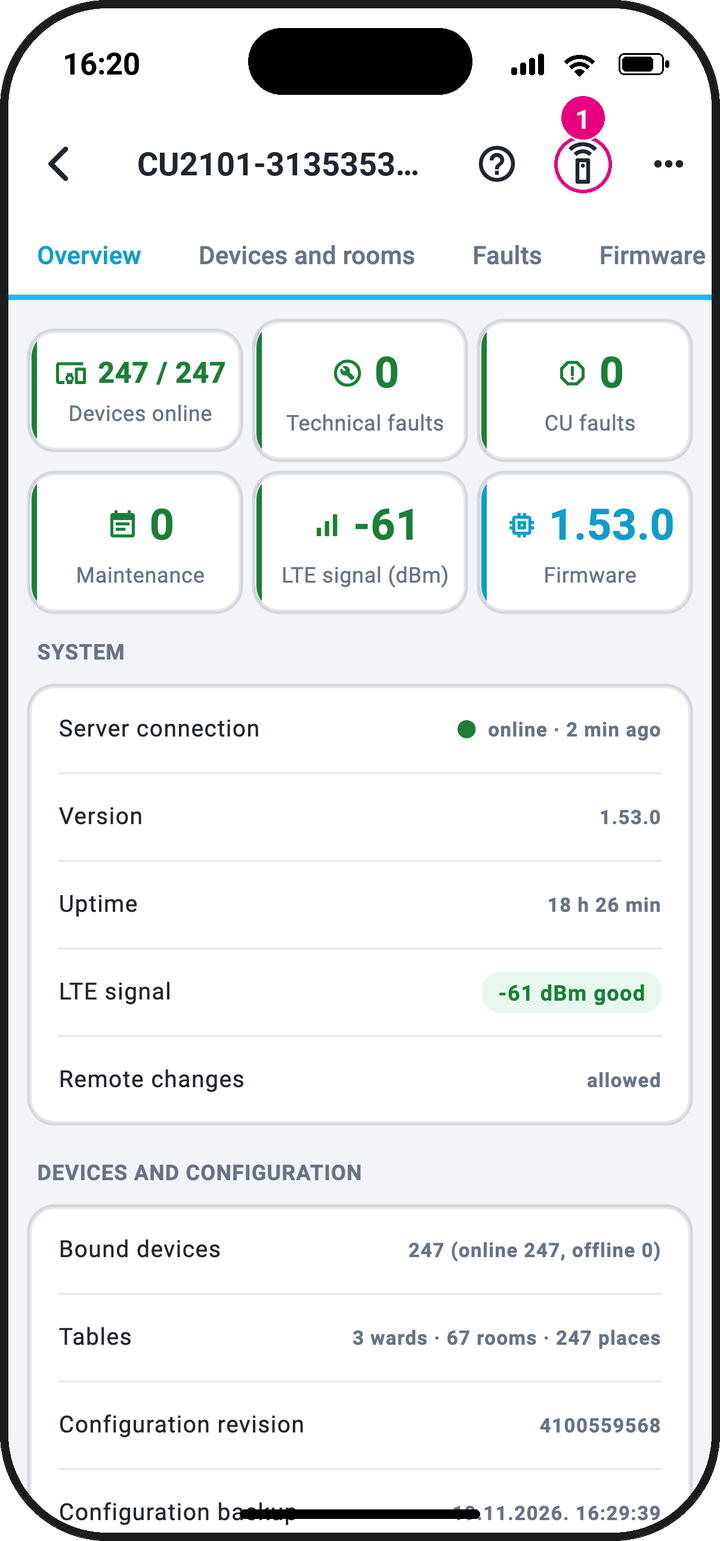
- 1Live from the CU (CU 2101 and CU 2102): opens the same screens as PME Local, through the server.
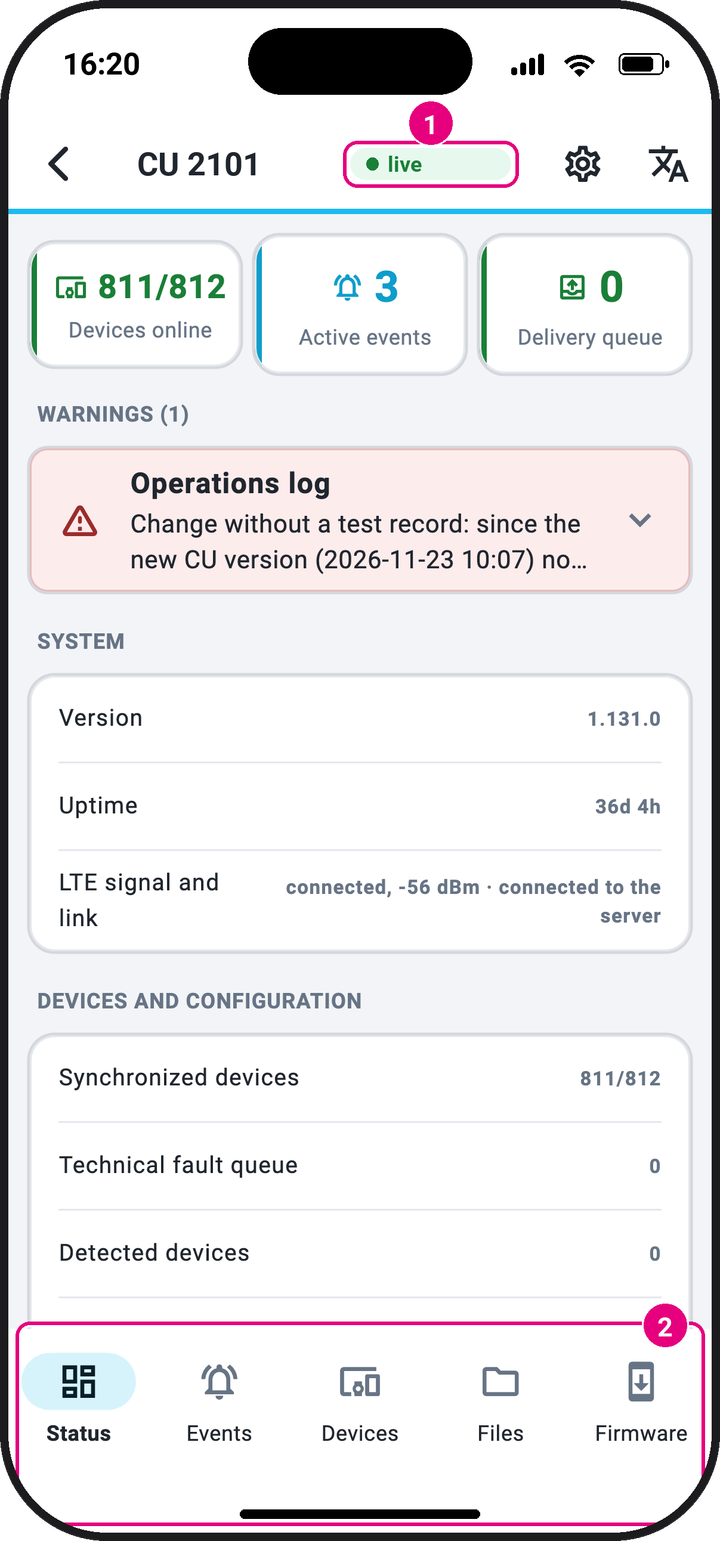
- 1The live label: the data comes from the CU through the server.
- 2The same tabs as locally.
Over LTE, lists arrive 10 rows at a time and refresh less often, because the SIM data plan is used (Data usage tab). Only the personal account of a qualified person can make changes, and only when remote changes are allowed on the CU. CU passwords are changed only locally.
14. Firmware through the server
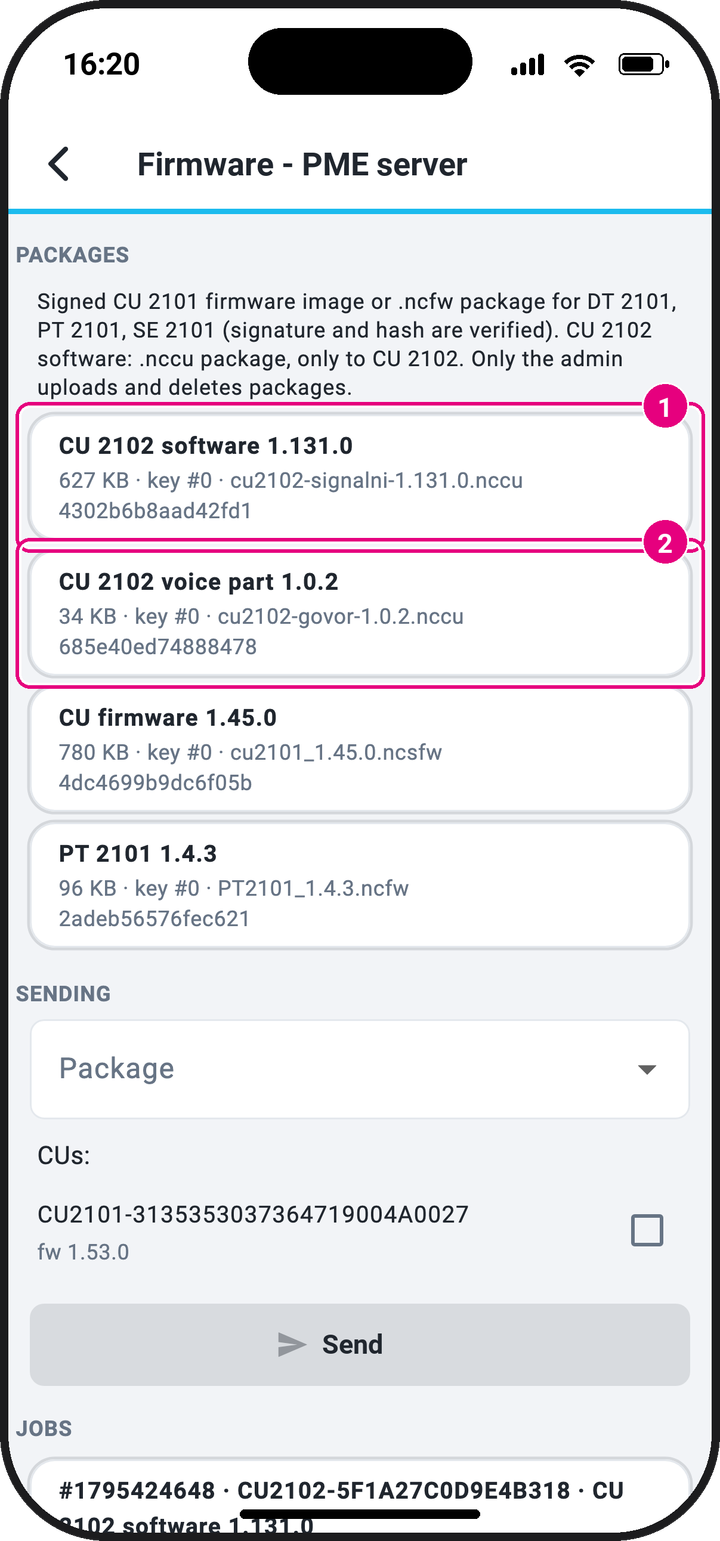
- 1A package on the server: type and version (signed CU 2101 firmware, a device package
.ncfwfor DT, PT, SE, or CU 2102 software and voice part.nccu), size, key and hash. - 2Each package is its own card. Packages are uploaded and deleted by the PME server administrator; technicians send them to CUs (below, Send).
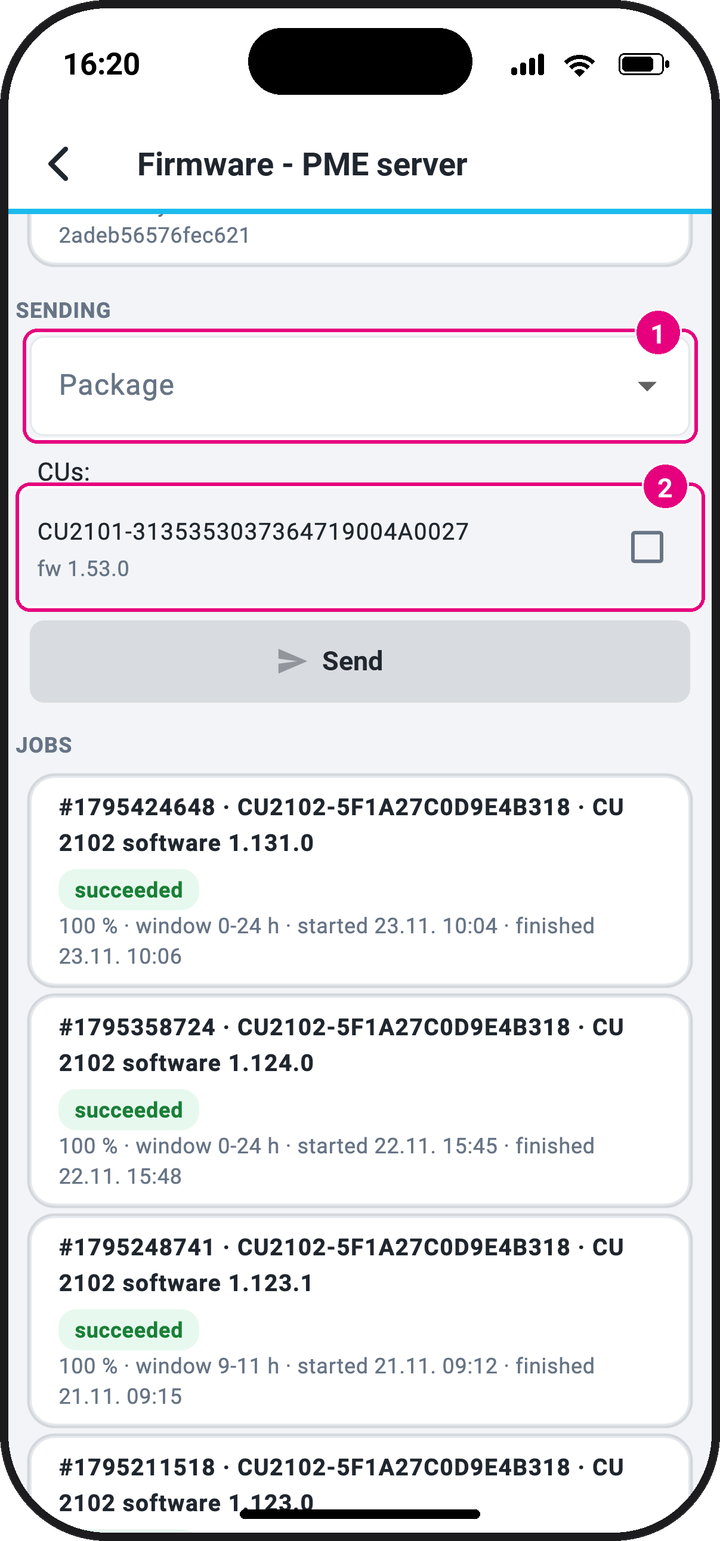
- 1The package to send. For device packages you can also pick single devices.
- 2The CUs it goes to. Then the install window (hours) and Send.
Below are the Jobs: offered, downloading, waiting for the window, installing, succeeded or failed and why. The CU installs only inside the window and when there are no calls. If the new version does not report in, the CU goes back to the old one by itself.
15. Notifications
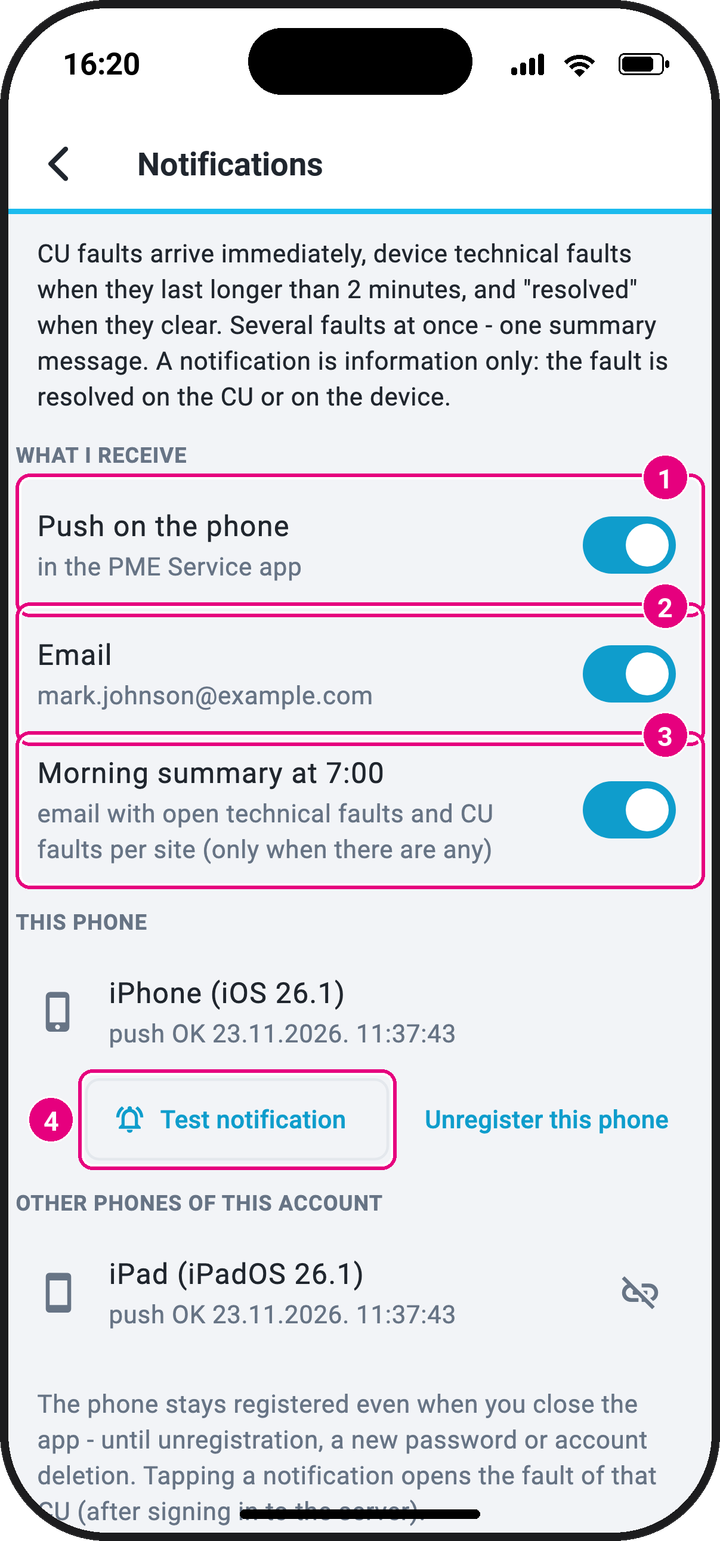
CU faults arrive at once. Device technical faults arrive when they last longer than 2 minutes, and "resolved" when they clear. Several faults at once arrive as one message. If the operations log copy on the server lags behind the CU for more than 48 hours while the CU is online, "Operations log copy on the server is overdue" arrives.
- 1Push on the phone (PME Service).
- 2Email to the account address.
- 3Morning summary at 7:00: email with open faults per site, only when there are any.
- 4Test notification to this phone. Unregister this phone when you no longer use it.
Tapping a notification opens the Faults tab of that CU (after signing in to the server). A notification is information only: the fault is fixed on the CU or at the device.
iPhone: if notifications are turned off, a Notifications are turned off on the phone bar appears at the top with a Settings button (Settings → PME Service → Notifications); until then faults arrive by email only.
16. Account and password
The PME Service app is for technical staff. An PME server account is personal: the name goes into the CU operations log with every change (DIN VDE 0834-1 §13.3.5). The account, the assigned CUs and the initial password are given by the PME server administrator; the initial password arrives by e-mail and is changed at the first sign-in.
- Change password: the key in the PME Server screen bar - current password and the new one, twice (8-128 characters). The account's other sessions are signed out.
- Assigned CUs only: technical staff see and change only the CUs the administrator assigned to them. If there are none, the screen says so - the administrator changes the assignment.
- An administrator account is not used in the app: the app refuses it. For technical work the administrator also has a technical staff account.
- Suspended account: the administrator can suspend an account temporarily; sign-in and every request then show "The account is suspended - contact the administrator." Notifications for that account stop. Once the account is restored, sign-in works as before, with the same password.
- Clinical staff do not use PME Service - only the NCS Staff app.
17. Help
Help answers questions about working with the app, like a chat. Open it with the Help button on the start screen or with the question-mark icon in the bar of the PME Server screen and of a CU screen (questions about that CU, below). The answers come from this guide and are built into the app, so topics and search work without internet as well (also on site, on the CU's Wi-Fi). Help does not use artificial intelligence.
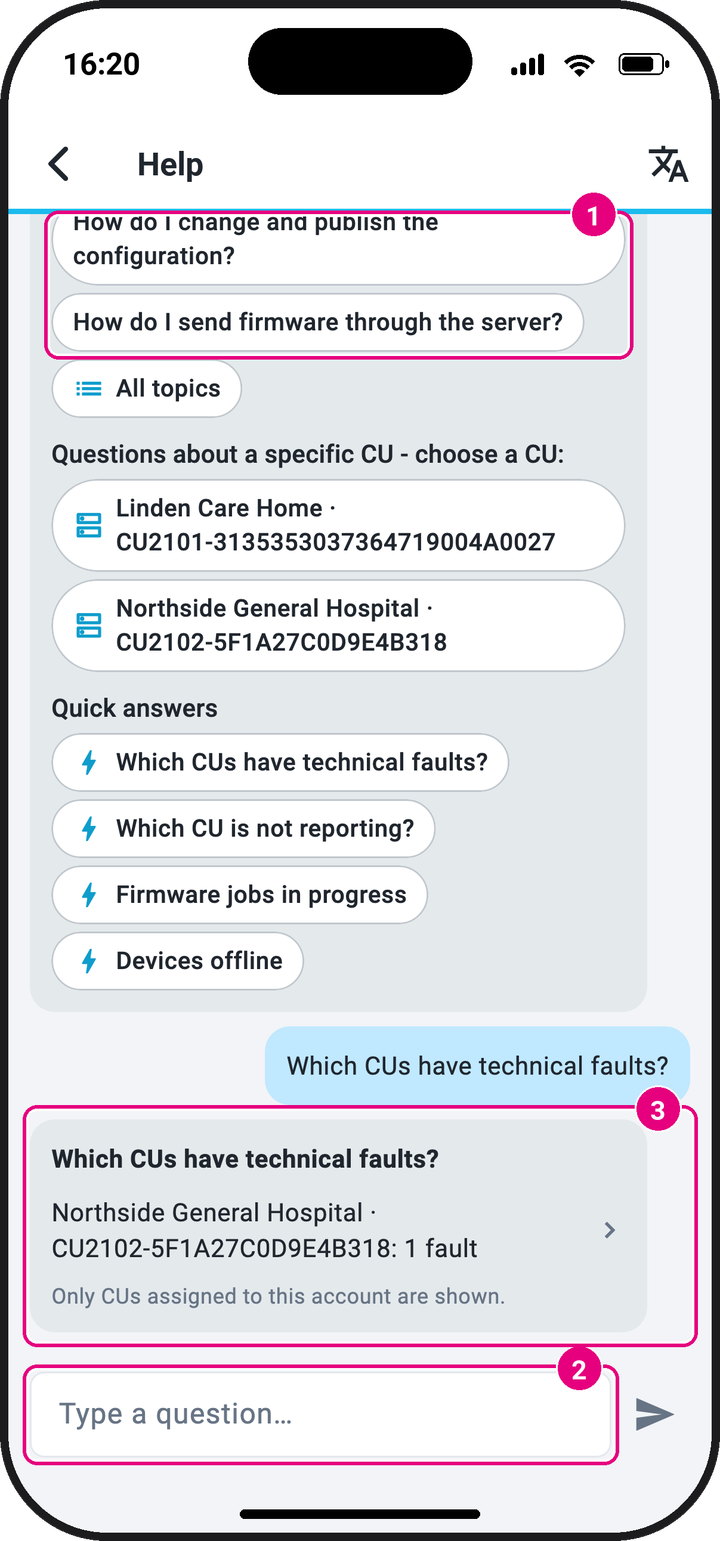
- 1Topics: the most common questions (CU Wi-Fi, technical faults, a CU not reporting, replacing a faulty device, configuration, firmware through the server). All topics shows the full list. Tap a topic to get the answer.
- 2Type a question…: your question in your own words, in any of the app's 25 languages, then the arrow. Accents, word forms and a single typo do not matter. The answer has an Open guide button (that part of the guide in the browser) and, below it, Closest topics: or You may also want to know:. If nothing matches, Help offers the list of topics and the guide.
- 3Quick answers from the current state of the PME server: Which CUs have technical faults?, Which CU is not reporting?, Firmware jobs in progress and Devices offline. Tap a row to open that CU's details; firmware jobs also come with a Firmware button.
Quick answers work only when Help is opened from the PME Server screen (after signing in); from the start screen Help says "Quick answers are available after signing in to the PME server." The question goes to the server at the moment you tap, and only CUs assigned to your account are shown. Without a connection the answer says "Data not available".
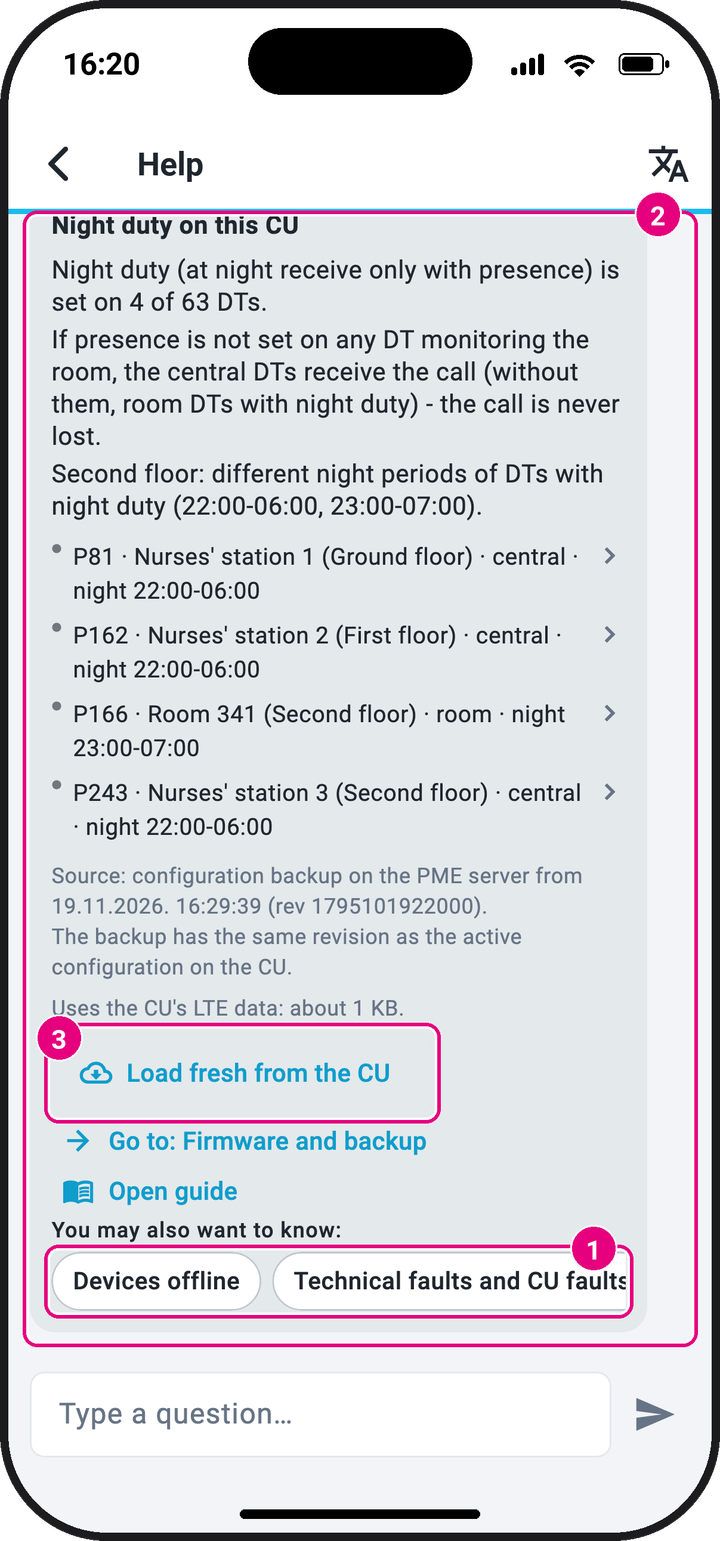
Questions about a specific CU (configuration and status): the question-mark icon in the bar of a CU screen - local (CU Wi-Fi) or in the CU details via the PME server. Help from the PME Server screen offers Questions about a specific CU - choose a CU:, and Another CU switches the CU. At the top is Questions about CU ... with buttons for the most common questions.
- 1You may also want to know: other questions about the same CU (for example Devices offline, Technical faults and CU faults). The row scrolls sideways.
- 2The answer from that CU's data: a summary, an explanation and a list (here the DTs with night duty, their room, role and night period, and a warning when DTs of the same department have different night periods). Tap a row to open the device at that place. Below is Source: - where the answer comes from and how old it is: via the server, configuration backup on the PME server from a date and revision, and whether the backup has the same revision as the active configuration on the CU (if not, a new backup arrives automatically after publishing). The Go to: ... button opens the screen where you see or change it, and Open guide opens that part of the guide.
- 3Load fresh from the CU (via the server only): reads the same question directly from the CU, only when you tap the button. Before the tap it shows an estimate (Uses the CU's LTE data: about ..., usually 1-8 KB), afterwards Received from the CU: .... Lists arrive 10 rows at a time. If reading fails, the answer from server data stays, with an error message.
Where the answers come from. Locally (CU Wi-Fi) the answer comes straight from the CU, from the same data as the app screens. Via the PME server the answer first uses what the server already has: the configuration backup (the CU sends it by itself, 2 min after a change), the latest status and the log - without using the CU's LTE data. Reading fresh from the CU uses the CU's LTE data, which must last for years, so only on request. Before the first backup, departments, rooms and devices come from the server's place table, and for DT settings Help offers a fresh read from the CU or a local answer (CU Wi-Fi). Locally, signed in as viewer or on-call technician, configuration questions report that the configuration cannot be read from the CU; status questions work.
Questions (buttons or your own words, with the name of a department, room, place, a serial number or a device type): departments; rooms and places of a department; devices by type (DT, PT, SE, BIS, intercom); DT roles and central DTs; configuration check (departments and rooms without a central DT); night duty; call and presence buttons; multi-bed rooms and wards; voice, intercoms and directory; configuration revision and last publish; device at a place and who receives its calls; devices offline; technical faults and CU faults; active calls and latest events; firmware versions and outdated devices; place test; LTE signal and internet; CU time; devices in servicing; CU version and uptime. Examples: "who receives calls from room 12", "P166", "which DTs are central on the Second floor", "which devices have an old version". Passwords from the configuration are never shown.