PME Service in the browser
Everything the PME Service app does through the PME server also works in a computer browser: all sites and CUs, technical faults, firmware, remote changes, configuration backup and operations log copy. This guide follows the pages in order, with screenshots.
Download the PDF for printing · Srpski · All guides
Video guide (1:14)
Before you start
- A browser on a computer and the address cloud.pme.rs.
- A personal technician account on the PME server. The server administrator creates it, and you receive the username and a first password by email. Clinical staff accounts work only in NCS Staff.
- Language: the web has 25 languages, the same set as the app. This guide exists in English and Serbian.
- Notifications (push) do not reach the web - you get them in the app on iPhone and by email (on Android the app has no push yet - email only). Working on site over the CU Wi-Fi (PME Local) is only in the app - see the app guide.
1. The cloud.pme.rs start page
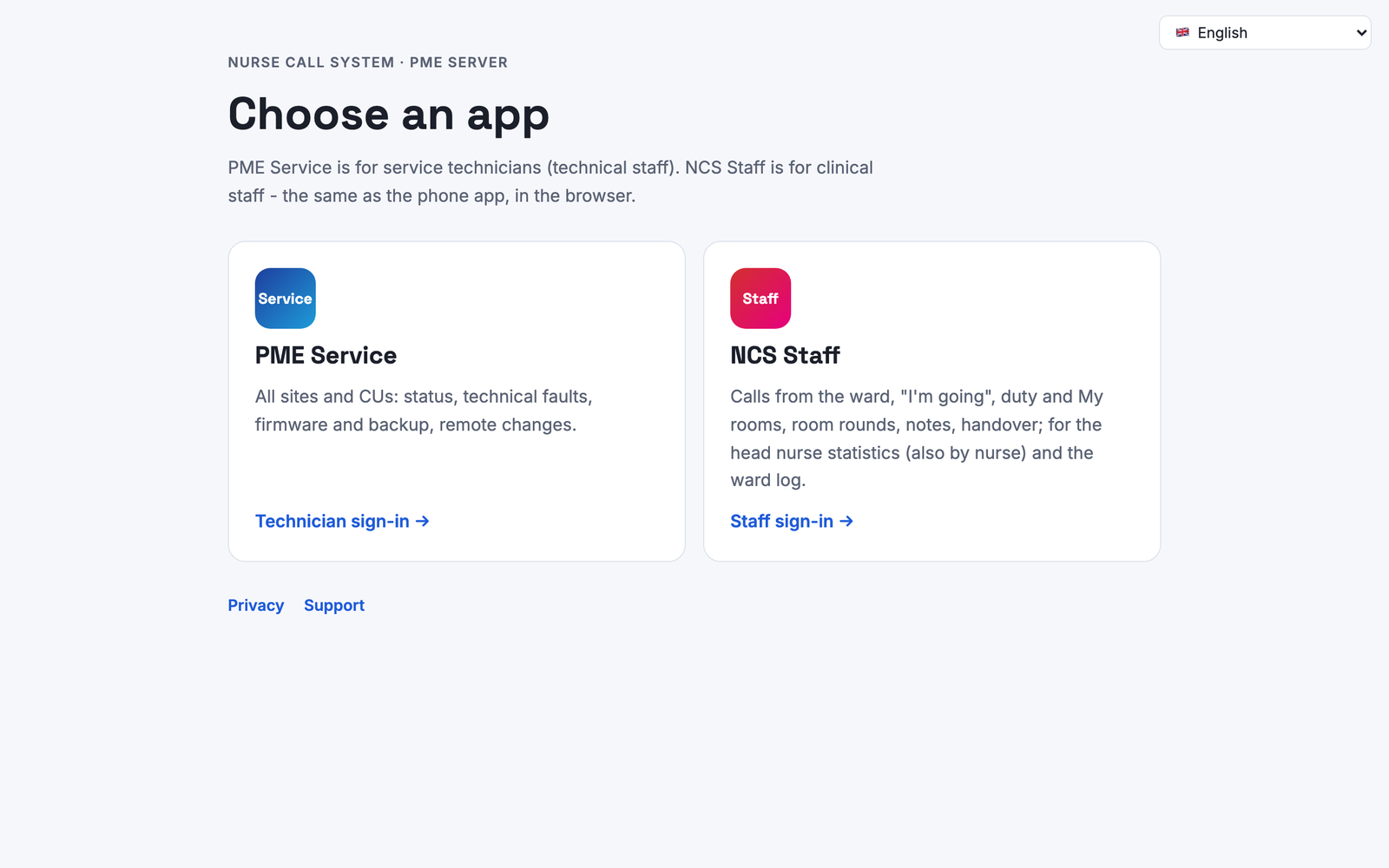
Open cloud.pme.rs. On the start page you choose the app: PME Service is for service technicians (technical staff), NCS Staff for clinical staff. Click Technician sign-in.
2. Sign-in and language
Enter the Username and Password from the email (show displays what you typed) and click Sign in. On the first sign-in, and after a password set by the administrator, the server asks you to choose your own password before you continue.
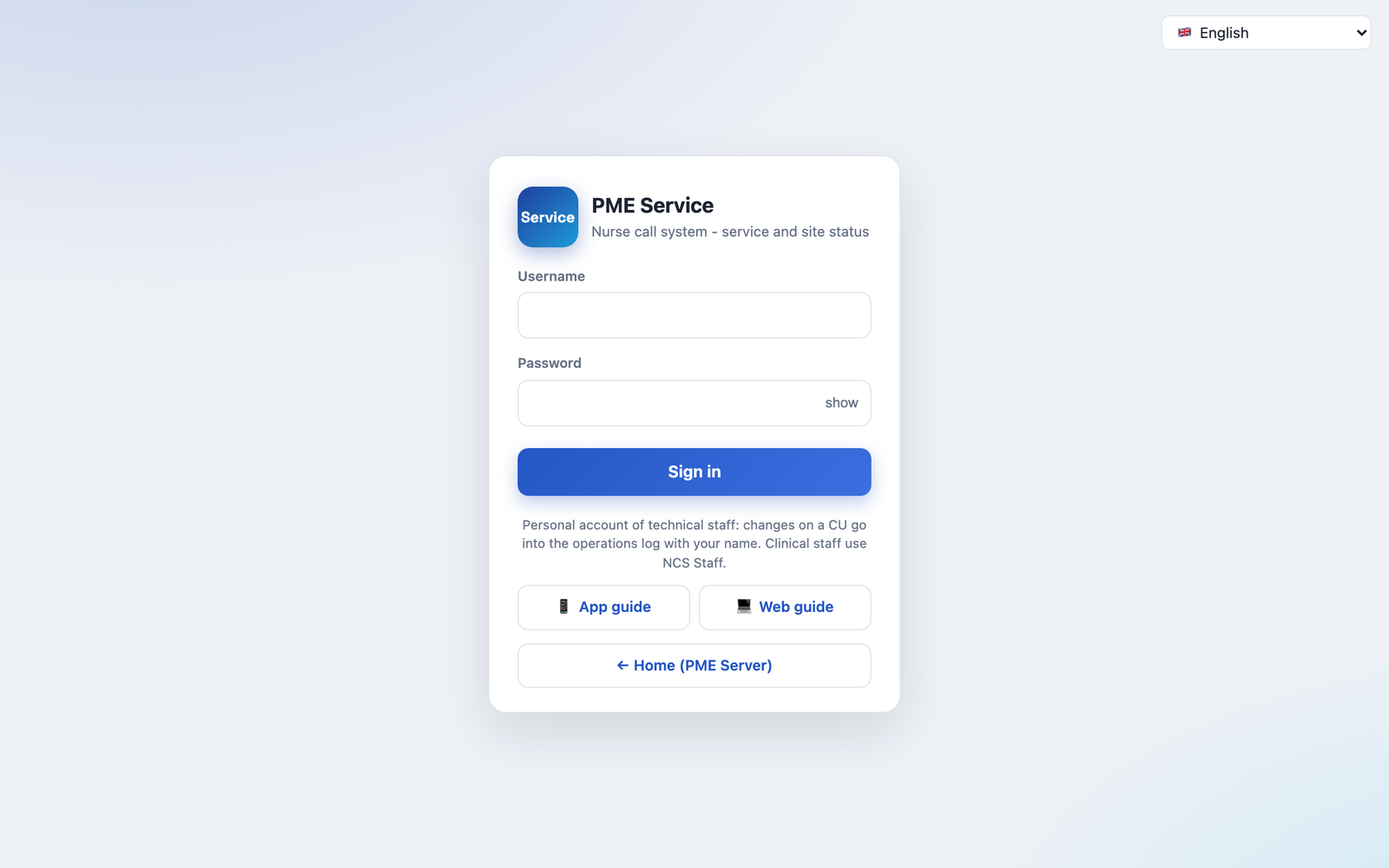
Choose the language from the list at the top right of every page; after sign-in it is at the right end of the blue bar. There are 25 languages, the same as in the app.
3. Devices (all sites)
After sign-in the Devices page opens. The blue bar has the pages Devices, Firmware and Archive. On the right are the server's connection to the broker (broker connected), the server version, the menu with your name and the language.
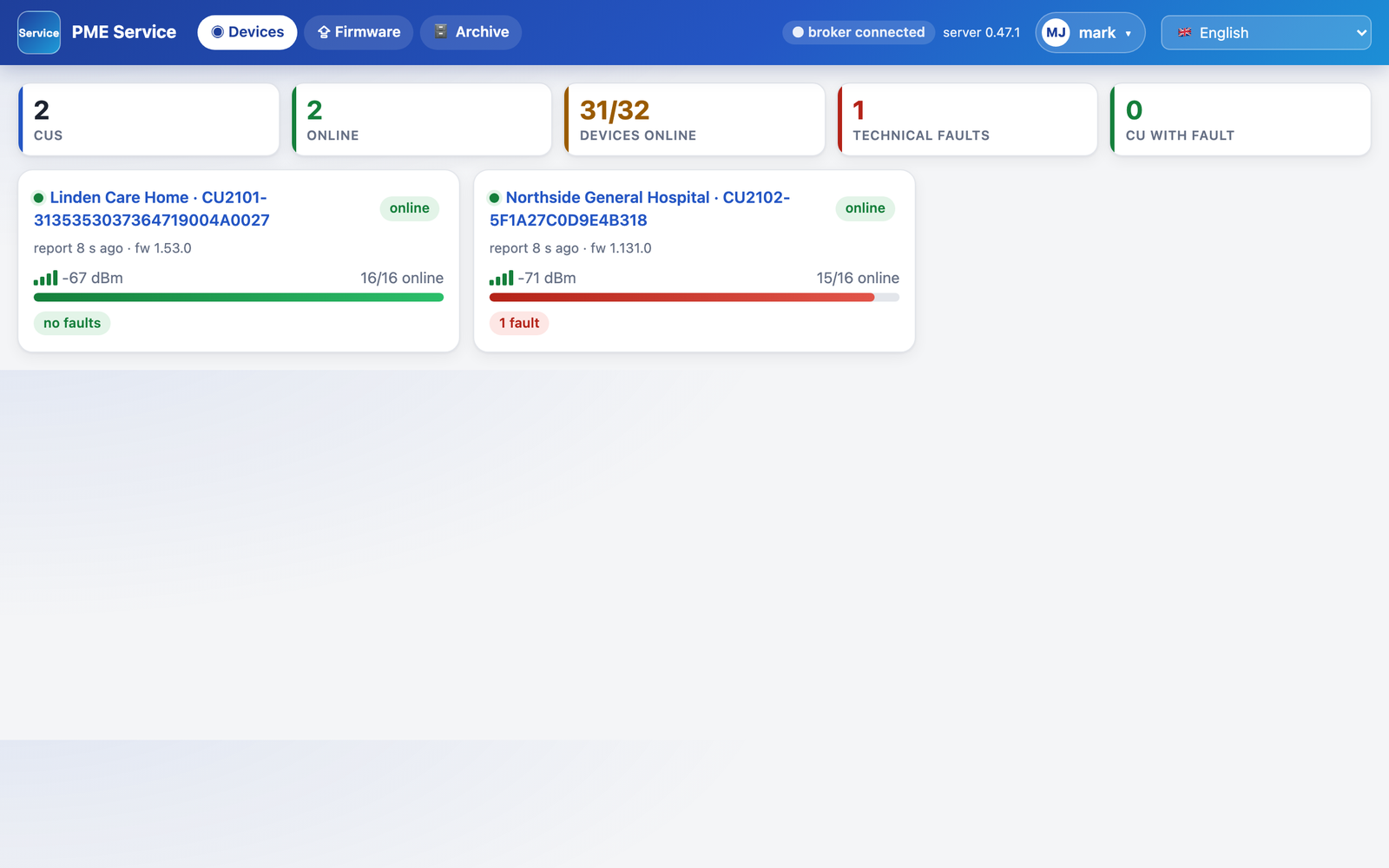
- Totals: CUs, online, devices online, technical faults and CUs with a fault.
- Site card: site and CU serial number, connection state, last report, firmware, LTE signal (CU 2101, and CU 2102 with an LTE modem) or internet connection (CU 2102 without a modem), devices online and a fault label. Click it to open the CU details.
- Technical staff see only the CUs assigned to them. The page refreshes by itself.
4. CU details
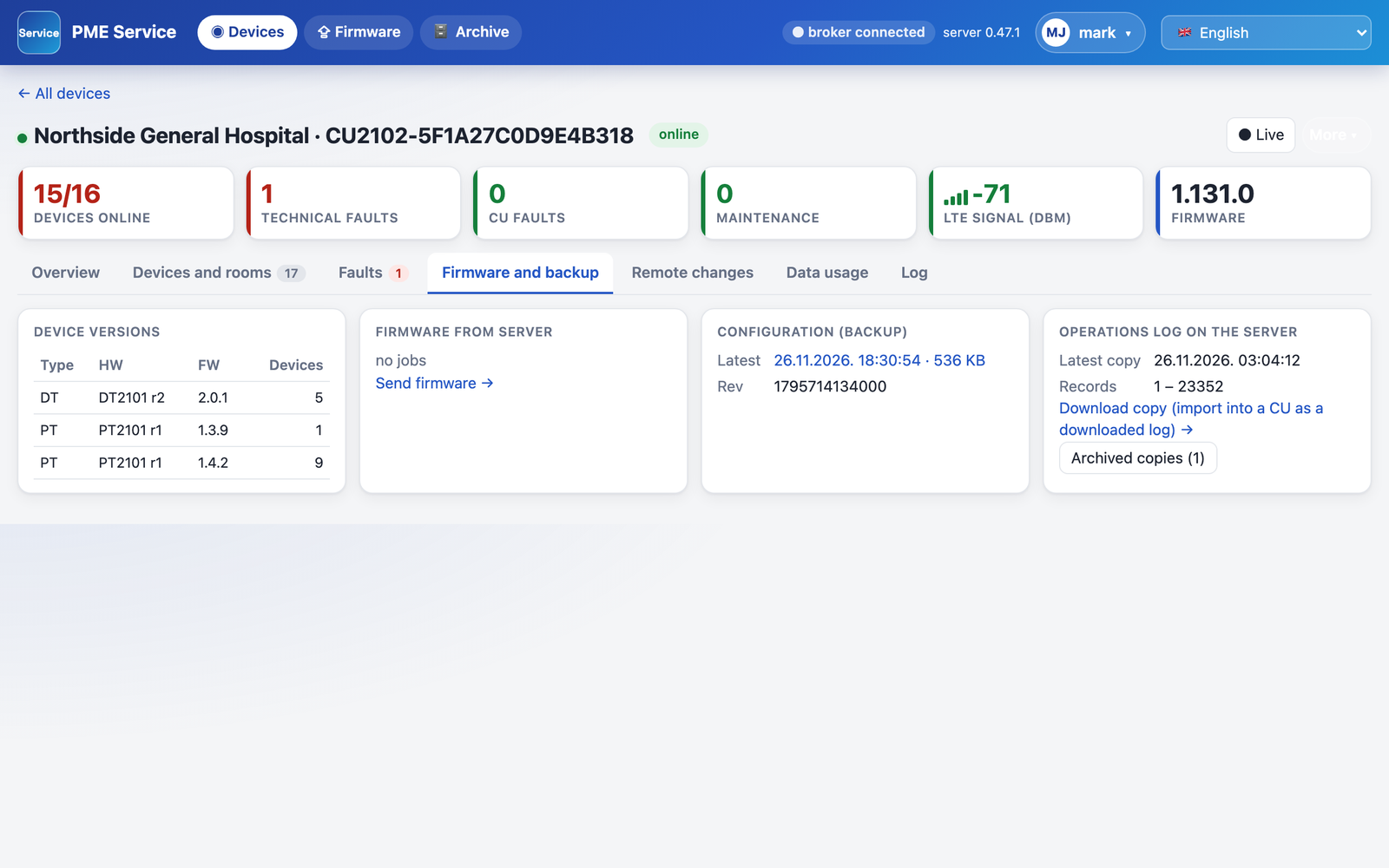
At the top are ← All devices, the site name with the serial number and the connection state, and on the right the Live and More buttons (raw received messages). Below are tiles: devices online, technical faults, CU faults, maintenance, LTE signal and firmware.
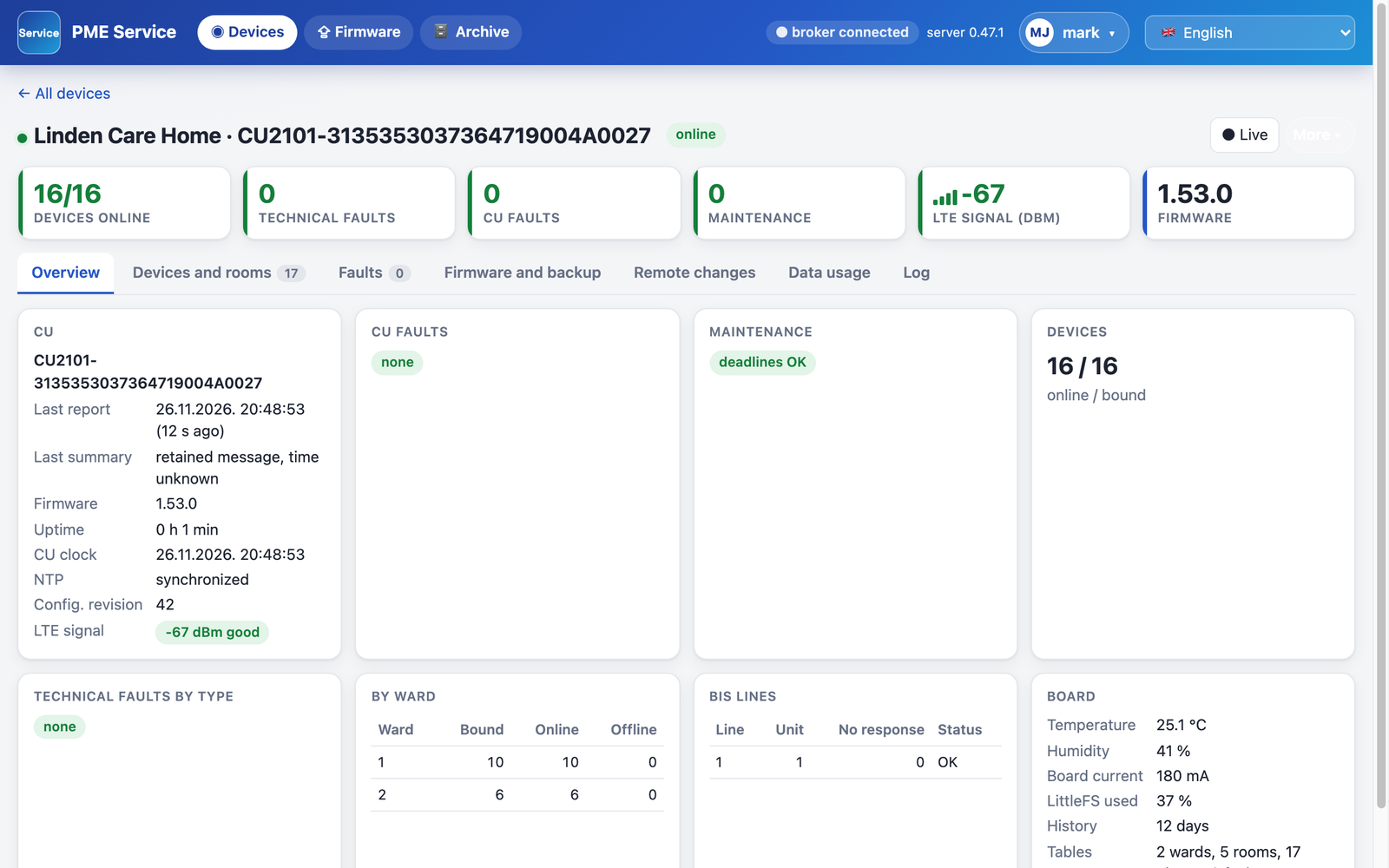
- Overview: CU data (last report, firmware, uptime, clock, NTP, configuration revision, LTE signal), CU faults, maintenance, devices, technical faults by type, devices by ward, BIS lines and the board.
- Devices and rooms, Faults (active technical faults), Firmware and backup, Remote changes, Data usage (SIM plan) and Log - the same as in the app. The same for CU 2101 and CU 2102; a CU 2102 has Data usage only with an LTE modem.
- Firmware and backup: the latest configuration backup and the Operations log on the server - a copy of the operations log the CU sends at night and after connecting (latest copy, records, whether it is overdue). Download copy gives a file that is imported into a CU as a downloaded log; Archived copies are earlier copies that do not continue the CU's log (e.g. after the board is replaced). If the copy is overdue for more than 48 hours, a notification arrives.
- Remote changes: commands signed with your account (bind, unbind, service). The CU accepts them only when its remote changes switch is on, checks them itself and writes them into the operations log. CU passwords are changed only locally.
- Live: the CU pages (dashboard, events, operations log, devices, configuration, settings...) through the server. Over LTE, lists arrive 10 rows at a time, and only the dashboard and events refresh by themselves, because this uses the SIM plan. For a CU 2102 the list also has Voice part: status and Voice part: extensions (Asterisk: extension name and deletion, Load from CU2102 configuration, broadcast extension); a new extension and SIP passwords only locally, and every change goes to the CU operations log.
5. Firmware through the server
CU software and device firmware are updated through the PME server, on the Firmware page.
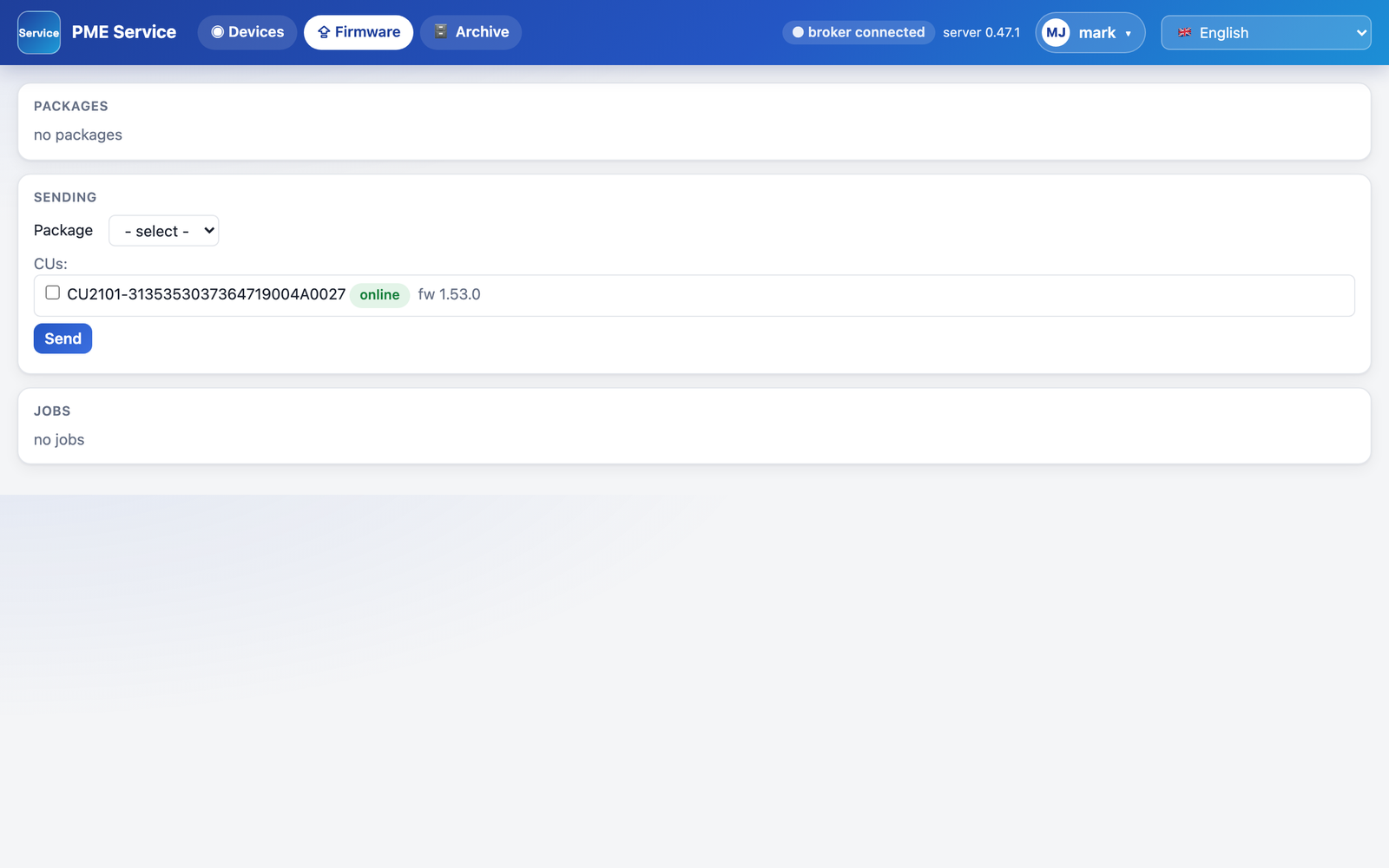
- Packages on the server: signed CU 2101 firmware, CU 2102 software or voice part (
.nccu), or a.ncfwdevice package (DT 2101, PT 2101, SE 2101) - version, size, key. Packages are uploaded and deleted by the PME server administrator; the server checks the signature. - Sending: choose the Package and the CUs, for CU software also the installation window, then Send. For device packages you can also choose individual devices.
- Jobs: progress and outcome of each sending. The CU installs only within the window and when there are no active calls; if the new version does not report, the CU returns to the old one by itself.
6. Archive and account
- Archive (view only): CUs removed from the server (e.g. when the board is replaced), with their log and last configuration backup, and CU requests for a server account.
- Account: technical staff see and change only the CUs assigned to them by the PME server administrator. Accounts, CU assignment, adding and removing CUs and firmware packages are handled by the administrator, outside PME Service.
- An administrator account does not work in PME Service (neither web nor app). For technical work the administrator also has a technical staff account.
- Suspended account: the session ends at once (an open page returns to sign-in), sign-in shows "The account is suspended - contact the administrator." and notifications stop. Once the account is restored, sign-in works as before, with the same password.
7. Password and sign-out
The menu with your name at the top right has the guides (📱 App guide, 💻 Web guide), 💬 Help (section 8), Change password (current password and the new one, 8-128 characters, twice) and Sign out. After a password change, the account's other sessions (other browsers, phones) are signed out.
8. Help
💬 Help in the menu with your name opens help on the right: questions and answers from the guide, like a chat, the same as in the app. Help does not use artificial intelligence.
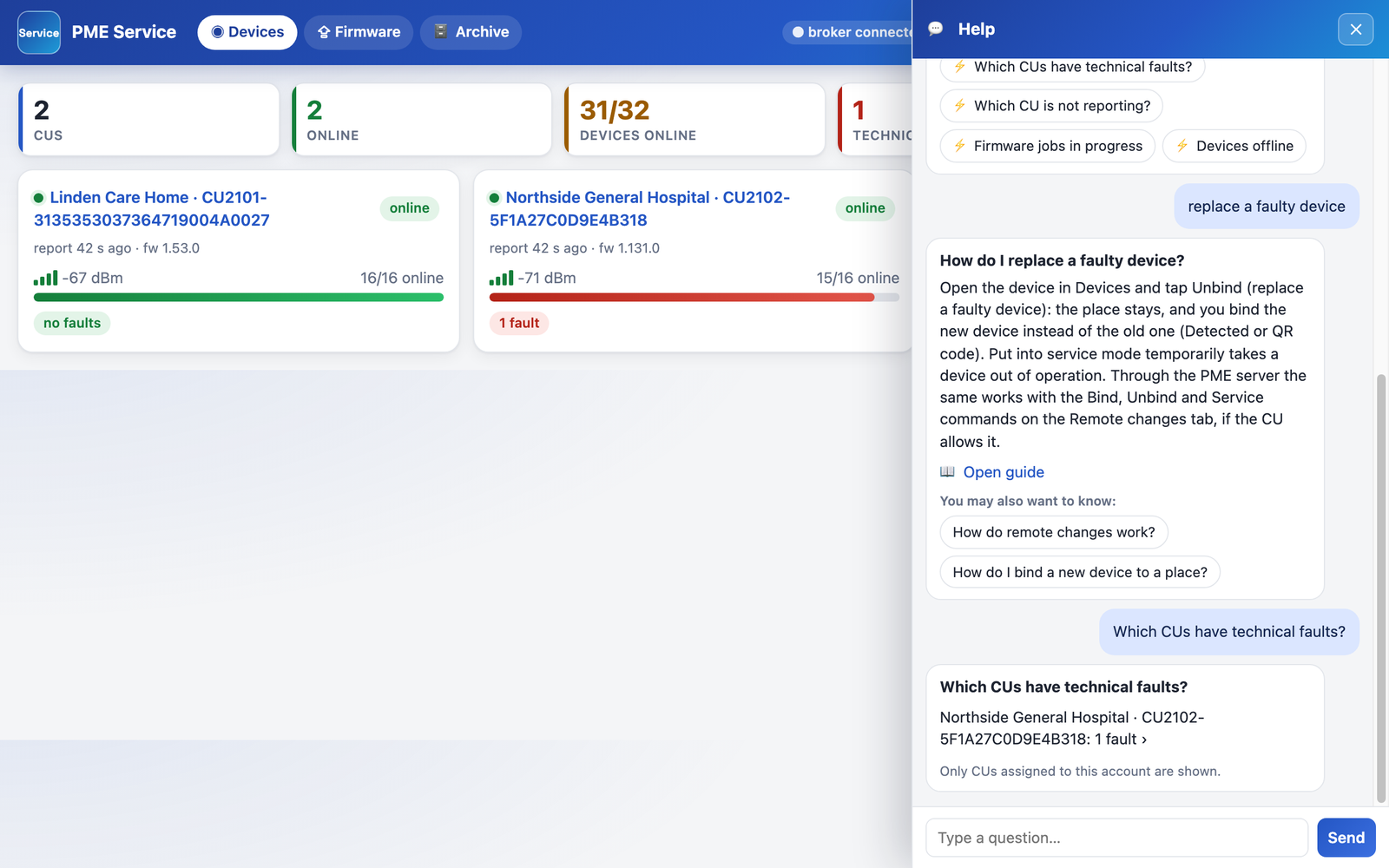
- Topics: the most common questions come first (CU Wi-Fi, technical faults, a CU not reporting, replacing a device, configuration, firmware through the server), and ☰ All topics shows the full list.
- Type a question…: your question in your own words, in any of the 25 languages, then Send. The answer comes with 📖 Open guide and You may also want to know: (or Closest topics:).
- Quick answers from the current server state: Which CUs have technical faults?, Which CU is not reporting?, Firmware jobs in progress, Devices offline. Clicking a row opens that CU's details. Only CUs assigned to your account are shown.
Questions about a specific CU
On a CU page, Help offers Questions about CU ... at the top (configuration and status of that CU); on other pages first Questions about a specific CU - choose a CU:.
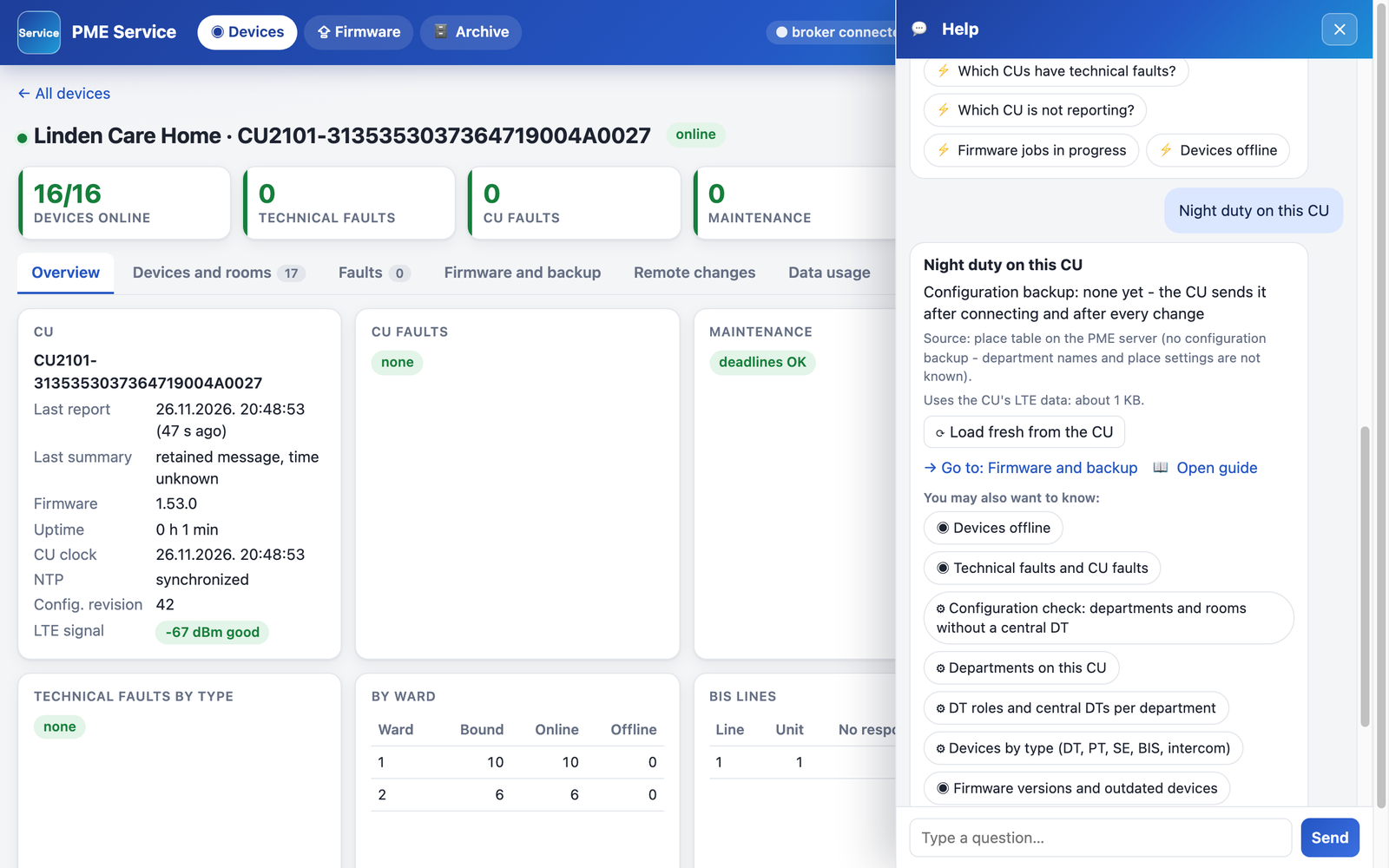
- Questions: departments, rooms and places, devices by type, DT roles and central DTs, configuration check, night duty, call and presence buttons, multi-bed rooms, voice and directory, configuration revision, device at a place and who receives its calls, devices offline, technical faults and CU faults, active calls and events, firmware versions, place test, LTE and internet, CU time, servicing, CU version and uptime. You can also use your own words, with the name of a department, room, place (e.g. P166), a serial number or a device type.
- Source: the answer comes from data the server already has, without using the CU's LTE data: the configuration backup (the CU sends it by itself, 2 min after a change; the date, the revision and whether the backup has the same revision as the active configuration on the CU are shown), the latest status and the server log. Before the first backup, departments, rooms and devices come from the server's place table, and for DT settings Help offers a fresh read from the CU or a local answer (the PME Service app on the CU's Wi-Fi).
- ⟳ Load fresh from the CU: reads the answer directly from the CU, only on click, because it uses the CU's LTE data. Before the click it shows an estimate (Uses the CU's LTE data: about ..., usually 1-8 KB), afterwards the amount received; lists 10 rows at a time. If it fails, the answer from server data stays, with the error.
- → Go to: ... opens the CU tab where you see or change it, 📖 Open guide that part of the guide; below are other questions about the same CU. Passwords from the configuration are never shown.
Help only shows information and changes nothing. ✕ (or Esc) closes help.