NCS Staff Guide
NCS Staff brings calls from your department to your phone. You see who is calling and from where, who is already on the way, and you let colleagues know you are going. Where talk is enabled, you can also talk to a device in a room from the app. This guide takes you step by step from your first sign-in, with screenshots and marked fields.
Download the PDF for printing · Srpski · All guides
Video guide (6:04)
Before you start
- Account: your personal account is created by the PME server administrator. You receive your username and initial password by e-mail. There are no shared accounts.
- App: works on iPhone and on Android phones, with the same screens and the same account. iPhone: open the App Store, search for NCS Staff and install it. Android: install the app you receive from the PME server administrator (installation file) - the administrator also tells you how to install it.
- Computer: NCS Staff also works in a browser, with its own guide: NCS Staff in the browser.
- Notifications: when the app asks on first launch, choose Allow (iPhone and Android). Without this, calls do not reach the phone.
- Android - important: on an Android phone, call notifications are for now given by the app itself - while it is open and for at most 10 minutes after you leave it or lock the phone. After that, calls do not reach the phone until you open the app again (section 15). Calls are always signalled on terminals and lamps.
- The screenshots in this guide are from an iPhone. Where iPhone and Android differ, it is stated; the Live Activity and the widget exist only on iPhone.
1. First sign-in
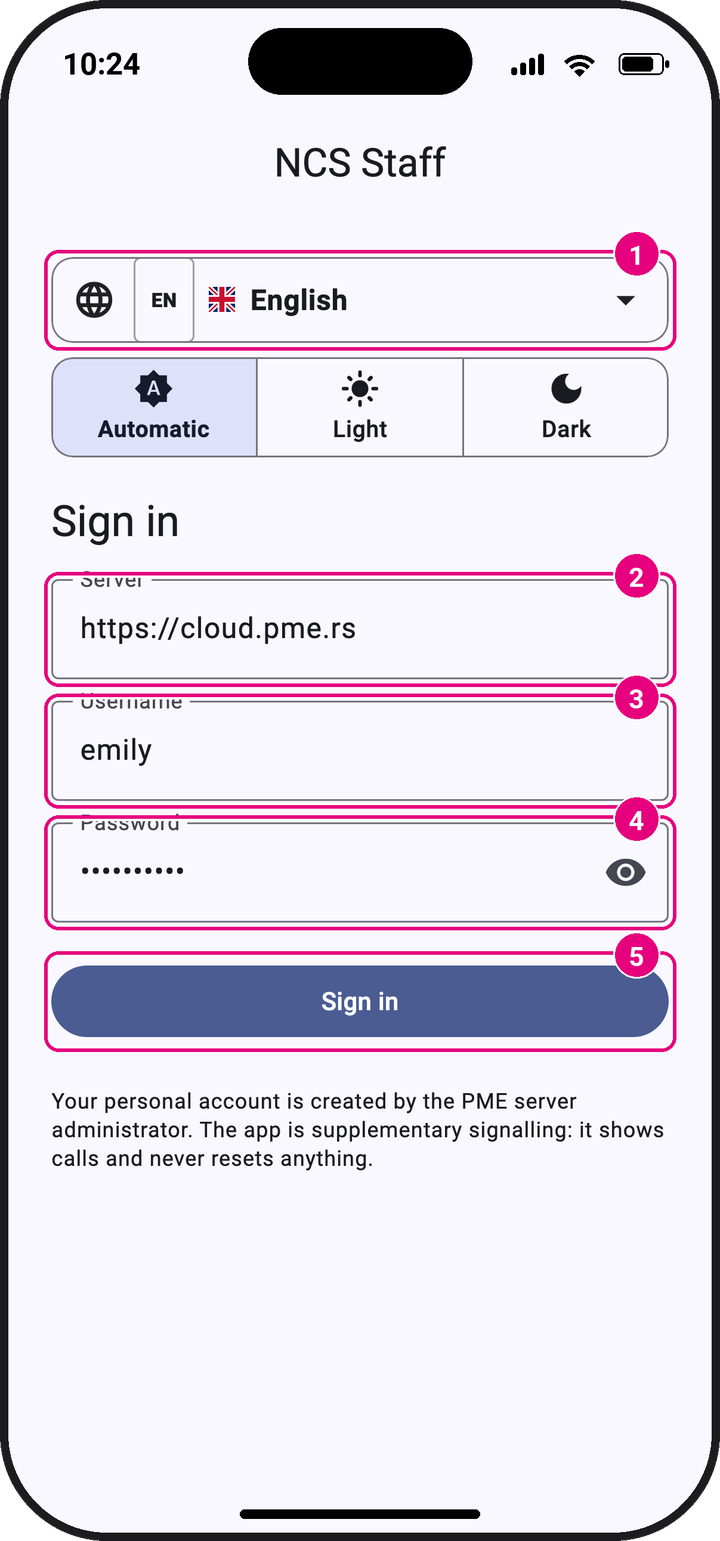
- 1Language. Choose the app language (25 languages). The choice is kept on the phone and you can change it later in the menu. Below the language is the theme: Automatic (follows the phone), Light or Dark.
- 2Server.
https://cloud.pme.rsis already filled in. Do not change it unless your administrator tells you to. - 3Username from the e-mail you received.
- 4Password. The eye icon shows what you typed, so you can check it.
- 5Tap Sign in.
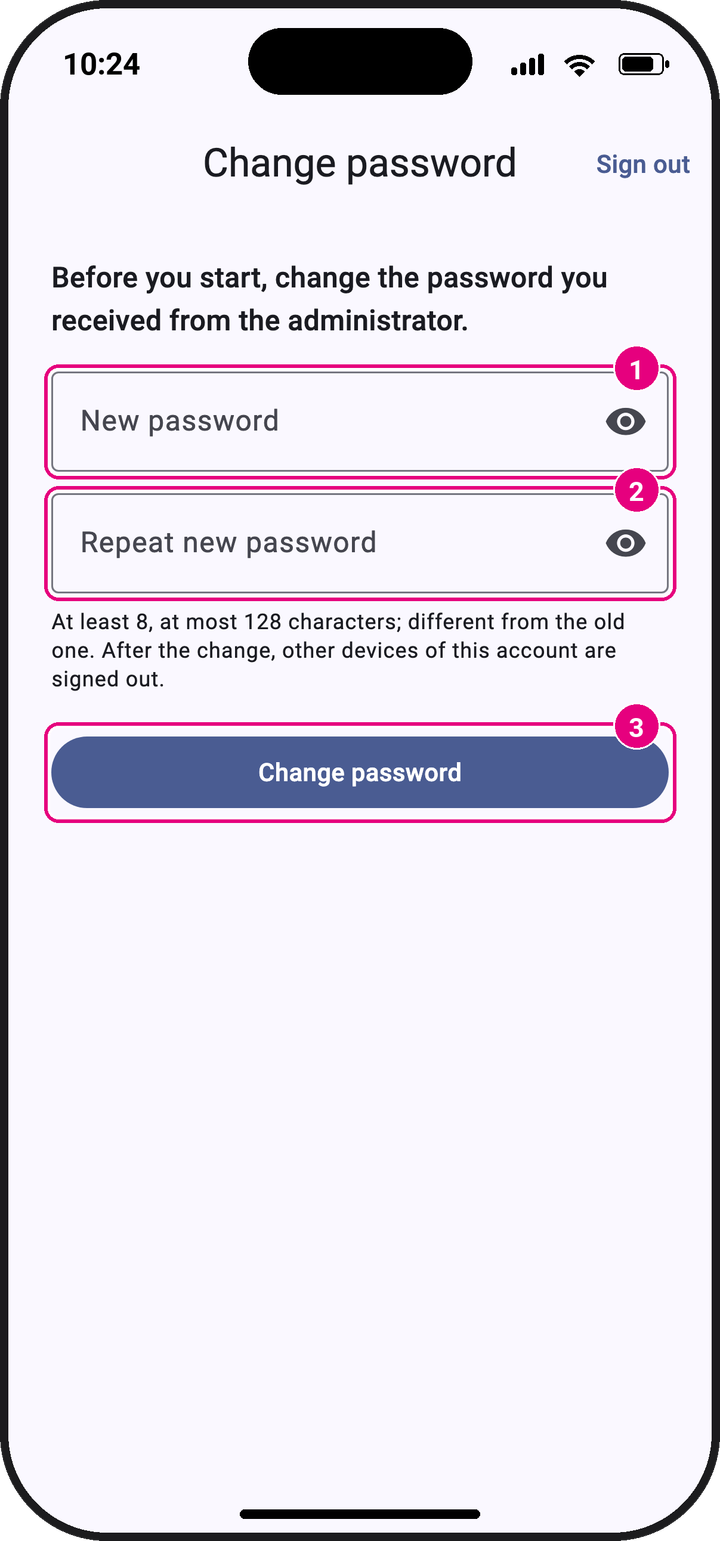
On first sign-in the app asks you to replace the password you got from the administrator with your own.
- 1New password: 8 to 128 characters, different from the old one.
- 2Repeat the same password.
- 3Tap Change password. The main screen opens.
You can change your password later in Profile. After a password change, your other phones are signed out.
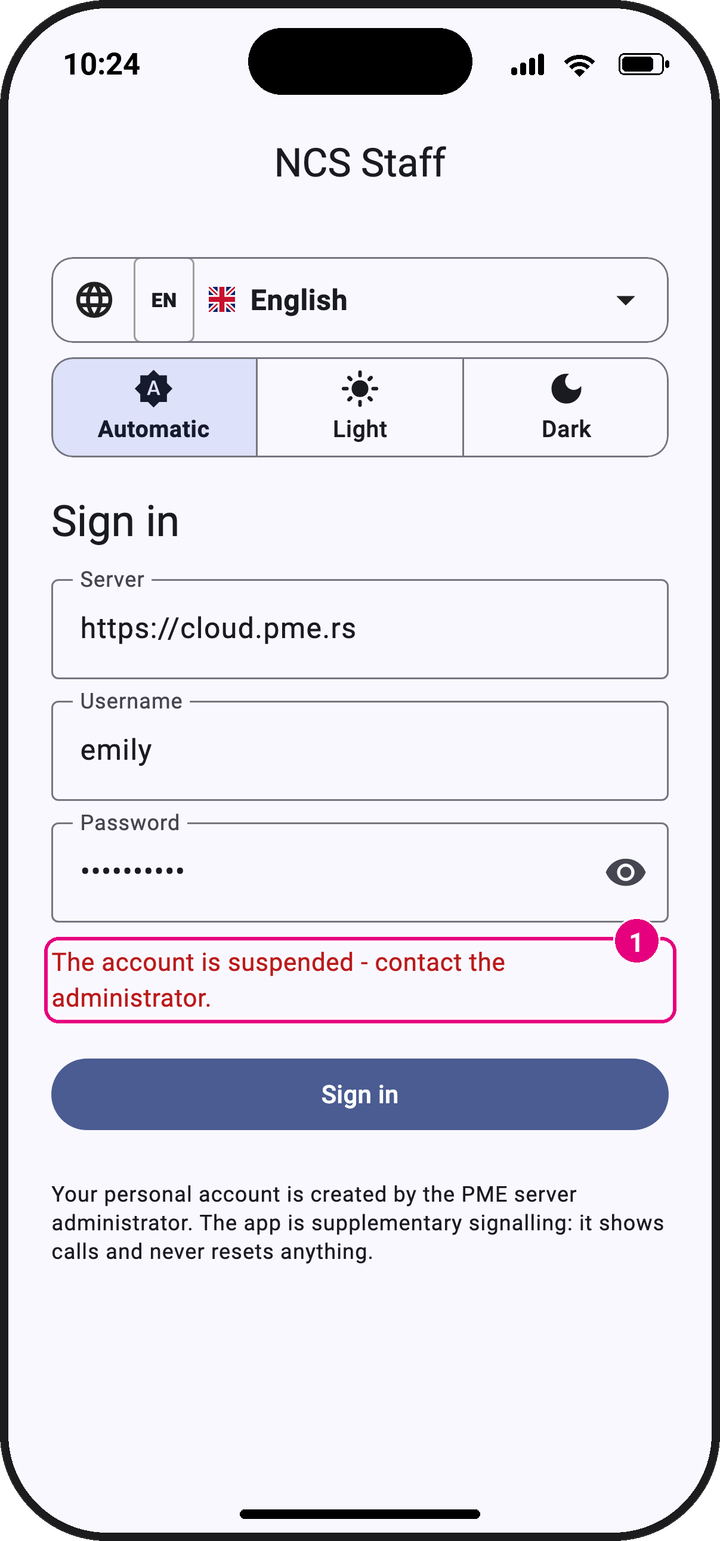
If sign-in fails, the message below the fields says why.
- 1The account is suspended - contact the administrator. The administrator has temporarily disabled your account (e.g. while you are on leave). All your phones are signed out, your duty ends and your "I'm going" is cancelled, so that call goes straight back to your colleagues. When the administrator restores the account, you sign in with the same password.
Wrong username or password. - check what you typed (eye icon). Nobody can tell you your password; if you forgot it, the administrator sets a new initial password for you.
Your sign-in has expired - please sign in again. - the app went back to sign-in, for example after a password change on another phone or an account suspension.
2. Main screen
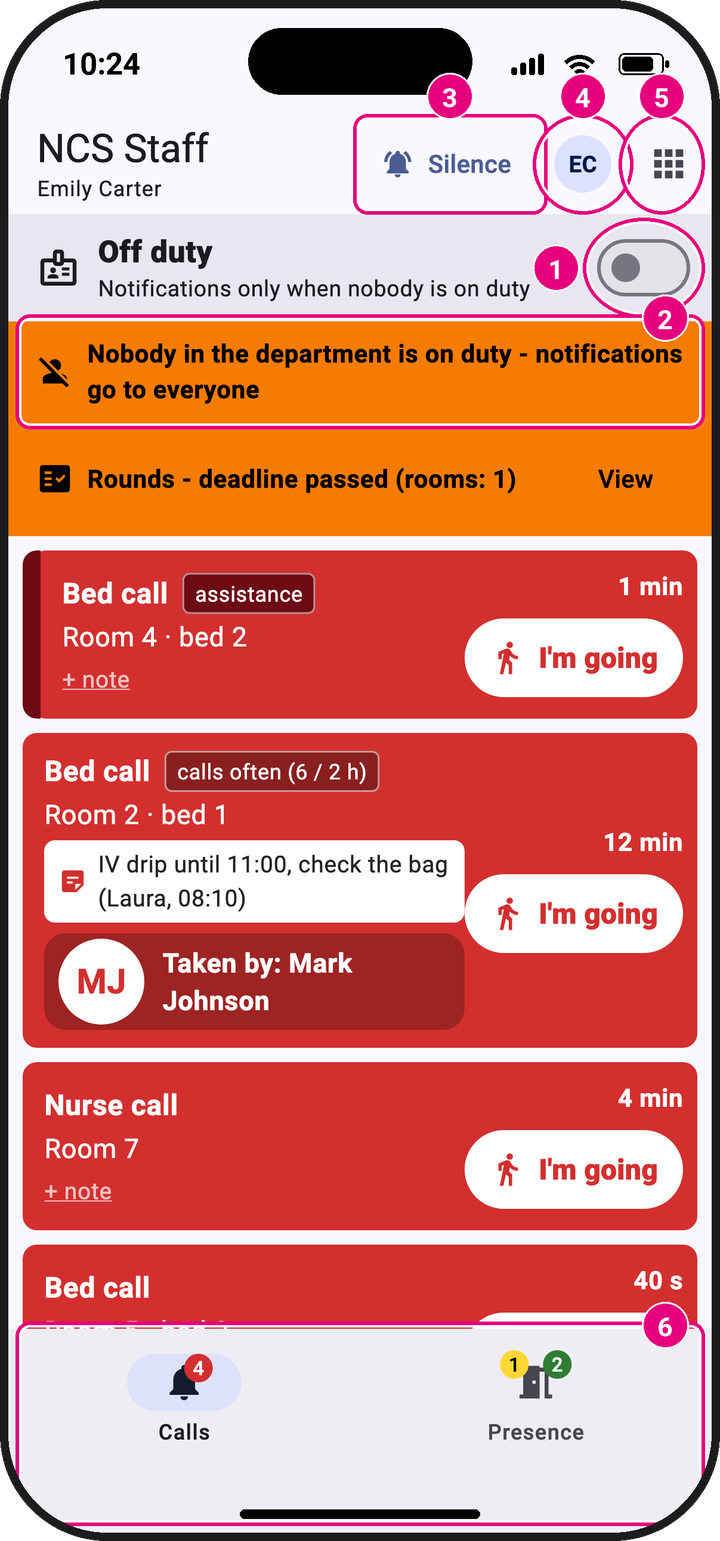
After signing in you see the list of active calls in your departments. The list is always visible, even when you are not on duty.
- 1Duty switch. Grey Off duty (below it: Notifications only when nobody is on duty), green On duty (next section).
- 2Nobody in the department is on duty: until someone switches on, call notifications go to everyone in the department.
- 3Silence notifications of normal calls for 3 minutes (section 6).
- 4Profile: your photo or initials.
- 5Menu with all other screens (section 8).
- 6Tabs: Calls (red number = active calls), Presence (green number = rooms with a nurse, yellow = rooms with a doctor; at night also night duty).
3. Starting duty and My rooms
At the start of your shift, turn on the duty switch. Call notifications go only to staff on duty in that department. Colleagues who are not on duty do not get them, unless nobody in the department is on duty.
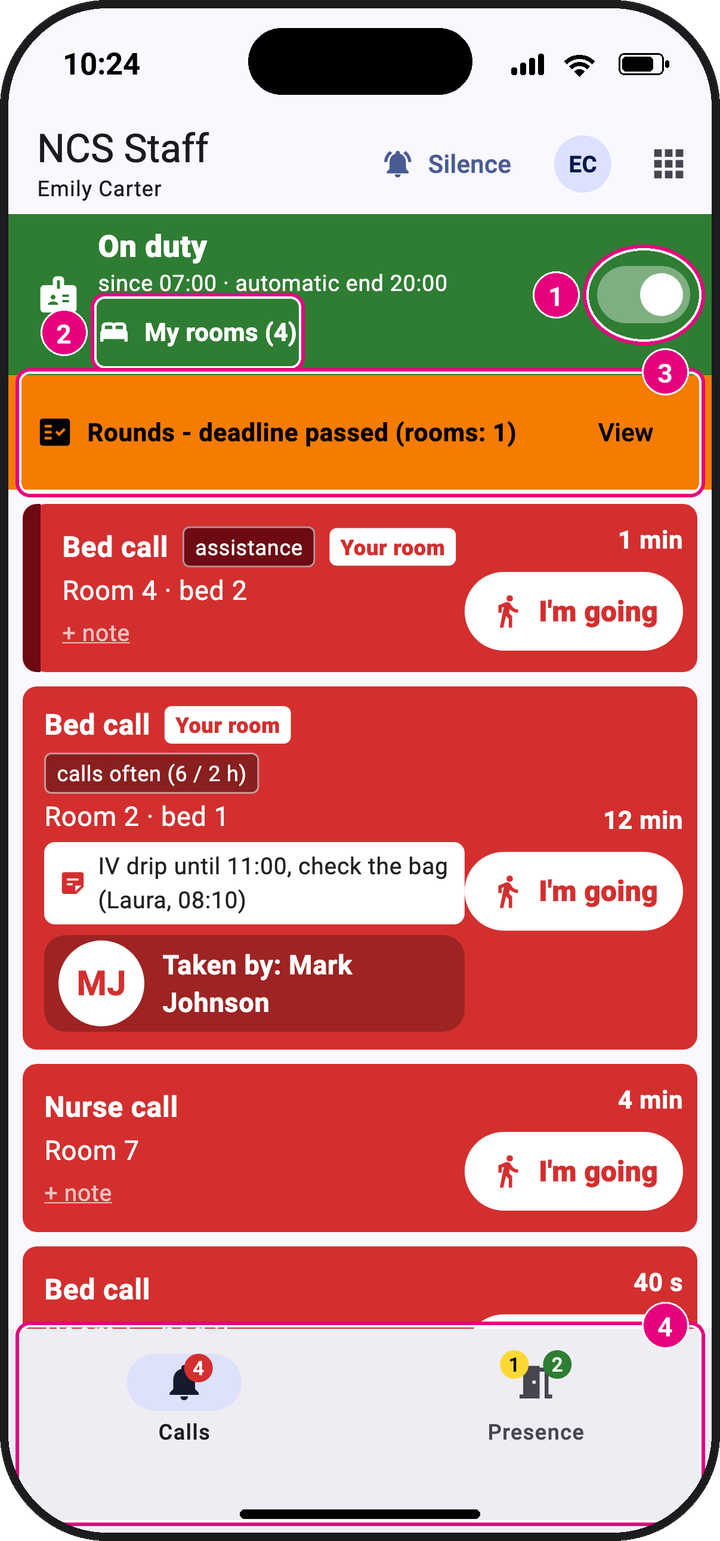
- 1The switch is on and the bar is green. Below it you see since when you are on duty and when duty ends automatically (after 13 h).
- 2My rooms (4): how many rooms you look after today. Tap to change the selection.
- 3Rounds - deadline passed: a room is past its round deadline. View opens Room rounds (section 9).
- 4The numbers on the tabs update by themselves.
The list refreshes by itself every few seconds. To refresh right away, pull the list down.
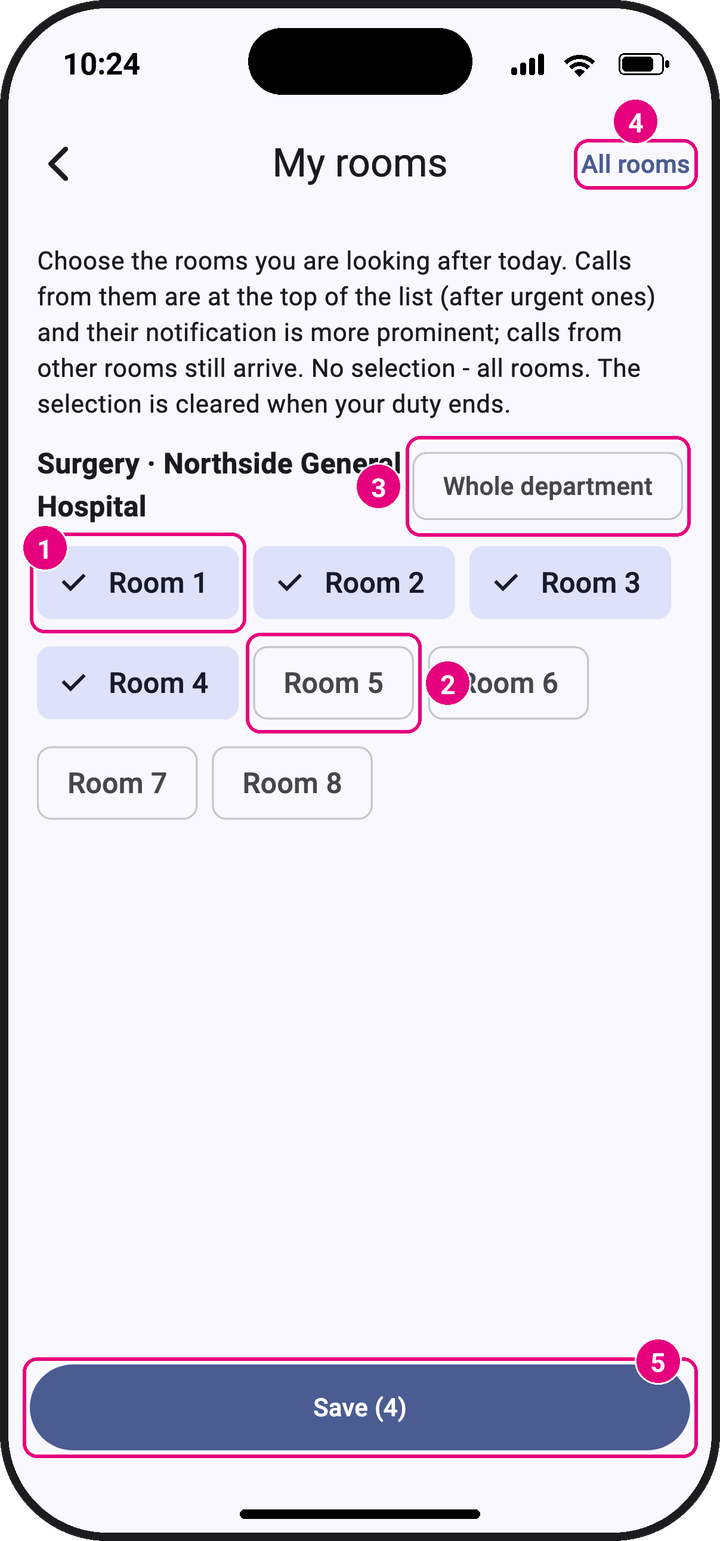
Choose the rooms you look after today. Their calls go to the top of the list (right after urgent ones), are marked Your room, and their notification is more prominent. Calls from other rooms still arrive.
- 1A selected room has a check mark.
- 2A room without a check mark is not selected. Tap to select or deselect it.
- 3Whole department selects all rooms at once.
- 4All rooms clears the selection. With no selection, all rooms are treated equally.
- 5Save. The selection is cleared automatically when your duty ends.
Rooms can only be chosen while you are on duty. The server builds the room list by itself from the calls it has seen.
4. Reading a call
Urgent calls (bathroom SOS, assistance, emergency) are always at the top of the list. Then come calls from your rooms, then the rest. Within each group the oldest call is first.
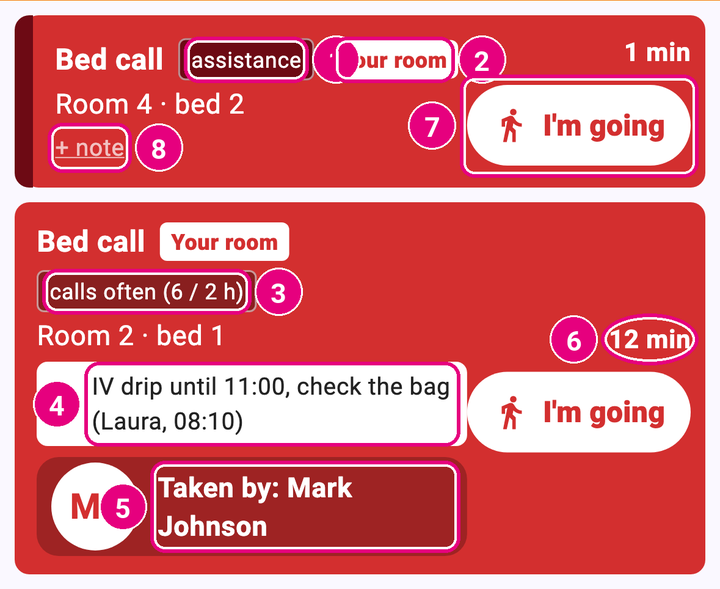
- 1Priority, if not normal: assistance (dark red edge on the left) or emergency (blue edge). The card title is the call type: bed call, nurse call, doctor call or bathroom SOS. Below it is the place: room and bed.
- 2Your room: the call comes from one of the rooms you chose.
- 3Calls often (6 / 2 h): the same bed called 6 times in the last 2 hours. The label only draws attention. The threshold is set by the administrator.
- 4A colleague's note on the room or bed, with name and time. Tap to open it (section 10).
- 5Taken by: the colleague who tapped "I'm going", with photo or initials.
- 6How long the call has been active. The server measures the time, so changing the phone's clock does not affect it.
- 7I'm going: tell others you are going to the call (section 5).
- 8+ note: add a note to the room or bed.
5. "I'm going" - taking a call
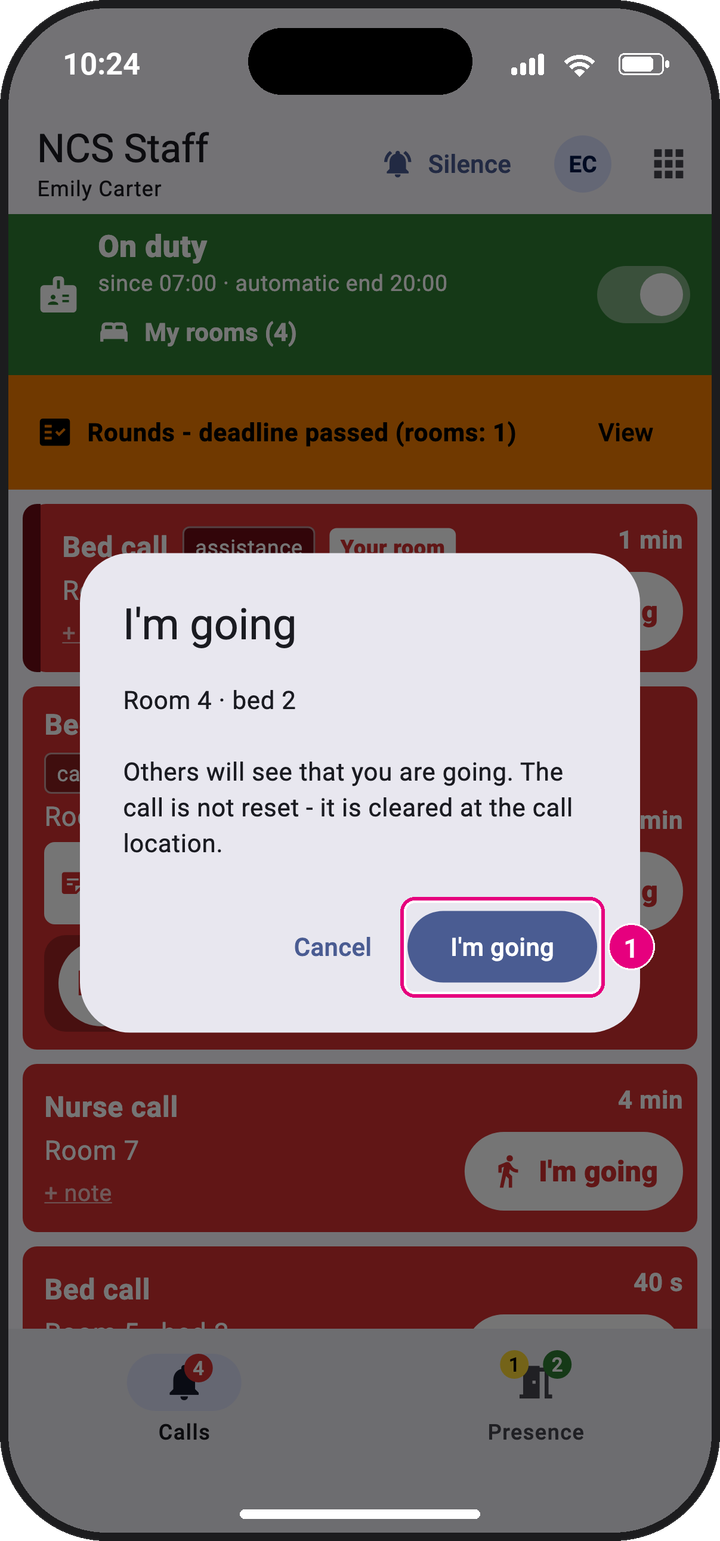
- 1Tap I'm going on the call, then confirm. Others see on their phones that you are on your way, and their notification for that call disappears.
"I'm going" does not cancel the call. The call stays active until you clear it in the room.
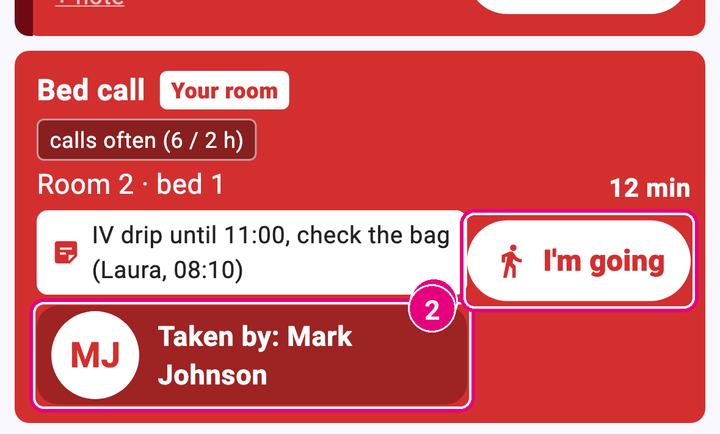
- 1Taken by: the name of the colleague on the way, with their photo (or initials). Your notification for that call disappears, and the call stays in the list until it is cleared in the room.
- 2You can still tap I'm going, e.g. if you are closer. You then take the call, and everyone, your colleague included, sees your name.
If your colleague does not get there, "I'm going" expires after 5 min (urgent calls after 3 min) and the call goes back to everyone with a notification. If your colleague cancels, the notification arrives again at once.
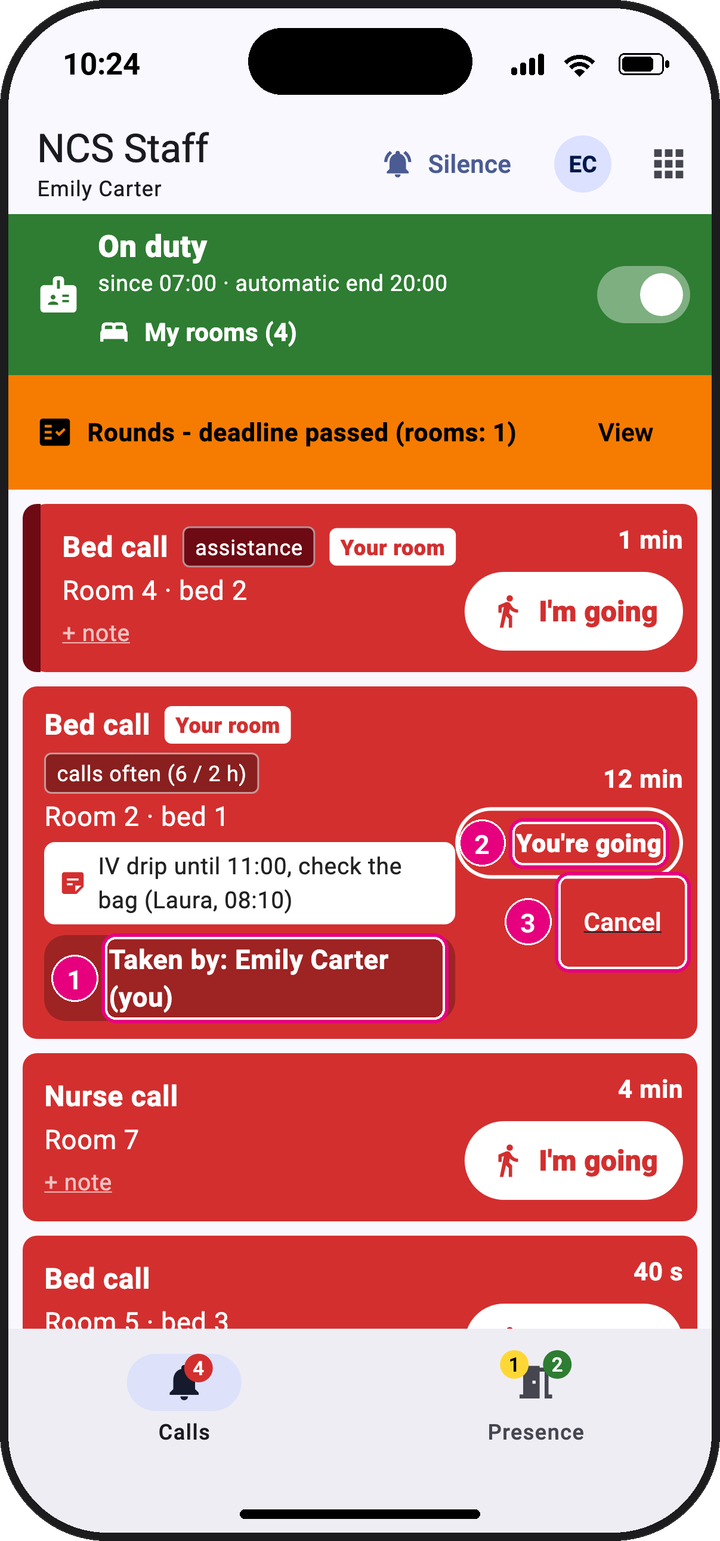
- 1Taken by: your name (you).
- 2You're going replaces the I'm going button.
- 3Cancel, if you can't go after all. The others get the notification again right away.
| What happens | When |
|---|---|
| Nobody said "I'm going": the notification repeats to everyone in the department | after 3 min (urgent: after 1 min), then every 3 min |
| You said "I'm going" and the call is still active: a reminder to you only | every 2 min |
| "I'm going" expires and the call returns to everyone | after 5 min (urgent: after 3 min) |
Repeated notifications and reminders come through the server, so for now an Android phone does not get them (section 15). The time limits still apply, and the list in the app always shows the current state.
6. Silence
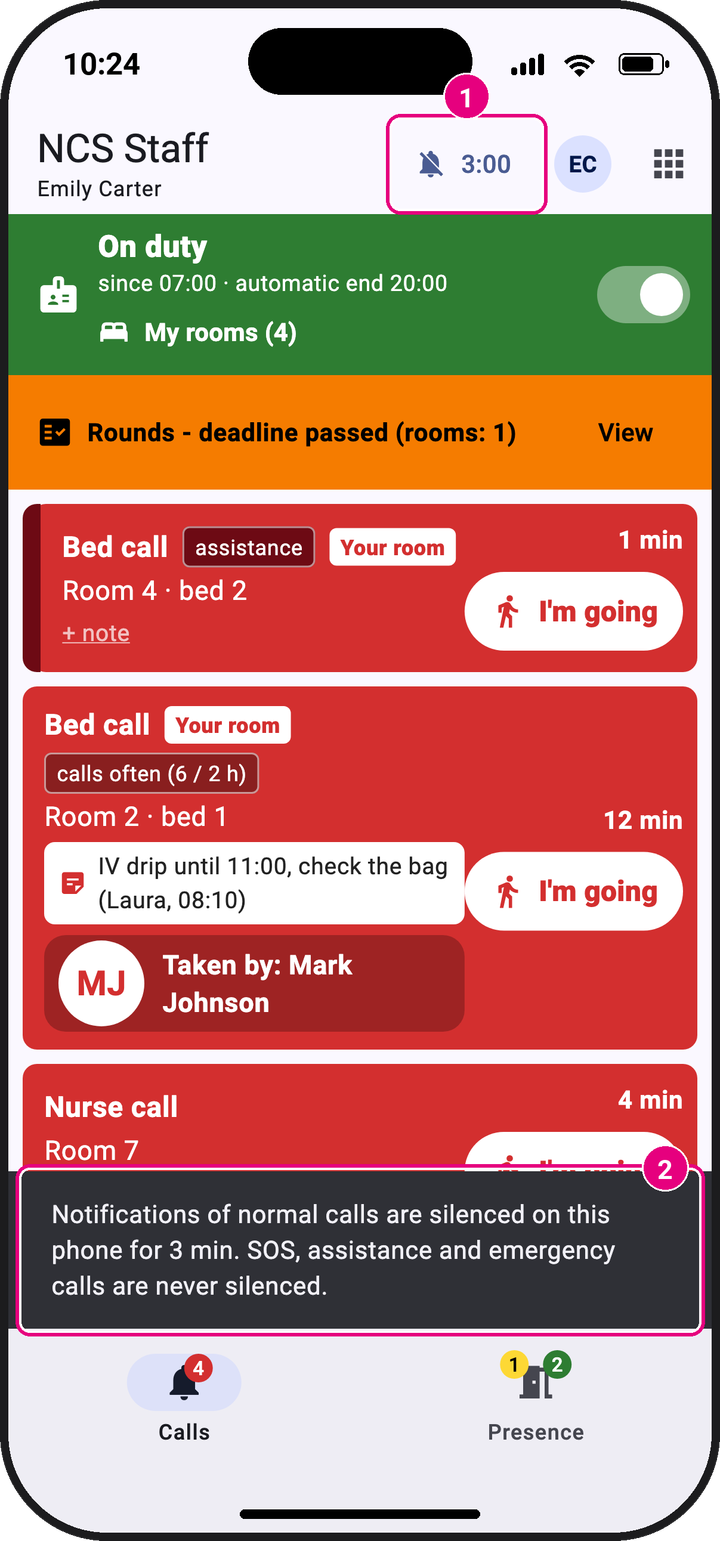
- 1After you tap Silence, the button counts down the remaining time. Tap again to bring the sound back immediately.
- 2A message explains what is silenced.
Silence applies only to this phone and only to normal calls. Bathroom SOS, assistance and emergency calls are never silenced.
7. Presence and night duty
At night the nurse is on duty in one of the duty rooms (nurses' station, central desk). So that patients elsewhere are not woken, the terminal in a duty room shows and sounds calls at night only while presence is switched on there - the nurse switches it on with the presence button on entering the room. Which rooms are duty rooms and when the night is (usually 22:00-06:00) is set by the service technician on the CU.
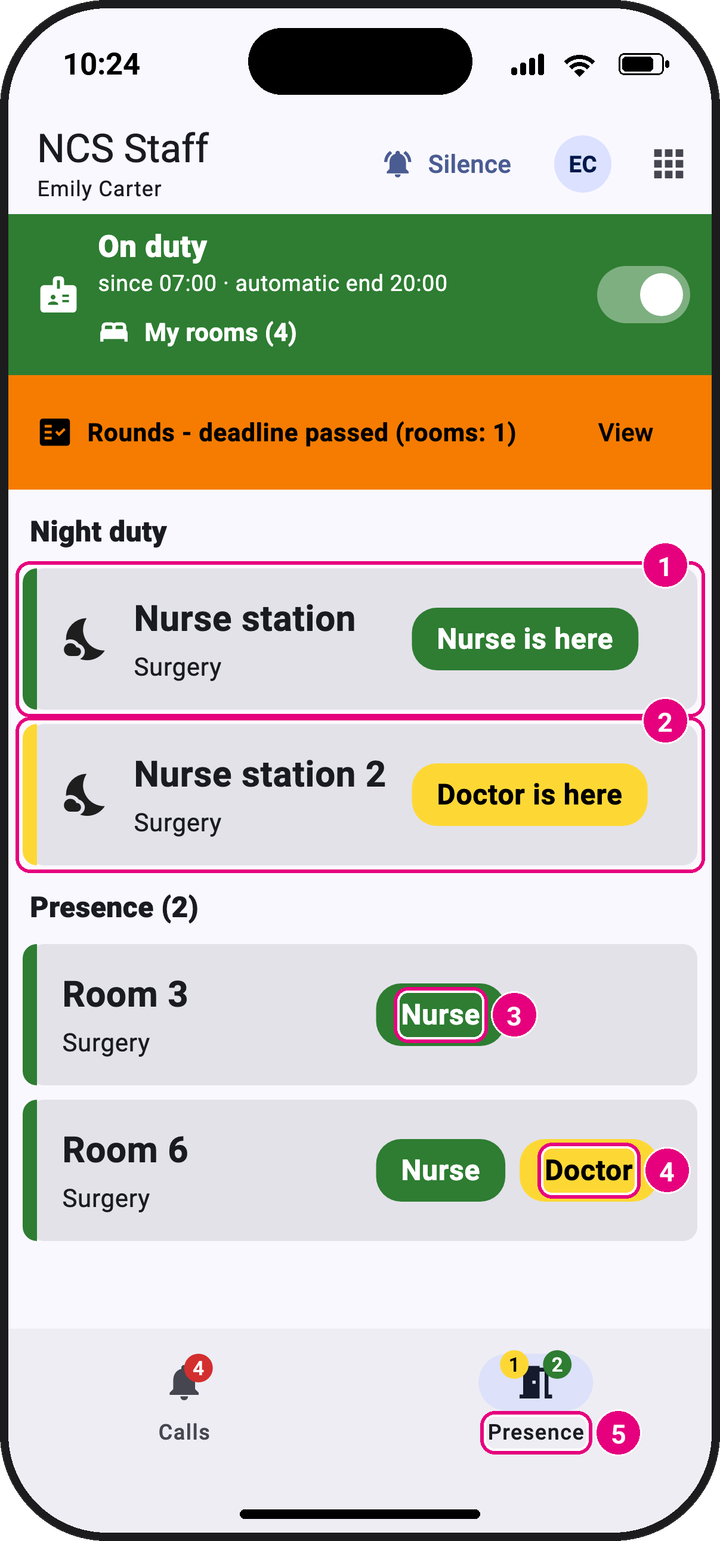
At night the Presence tab has two parts. At the top is Night duty - the duty rooms, with the ward under the name. Below is Presence - rooms where someone has switched on the presence button. During the day there is no Night duty part.
- 1Nurse is here (green bar on the left): a nurse switched presence on, calls are shown and sounded there.
- 2Doctor is here (yellow bar): only a doctor with presence on is in the room - the terminal rings then too. When nobody is there it reads Nobody is here (grey bar) and the terminal in that room does not sound calls at night.
- 3Nurse: a nurse is in the room.
- 4Doctor: a doctor is in the room.
- 5The Presence tab in the bottom bar.
Where talk is enabled, a room card also has a Talk button - it calls the room where a colleague is (section 17).
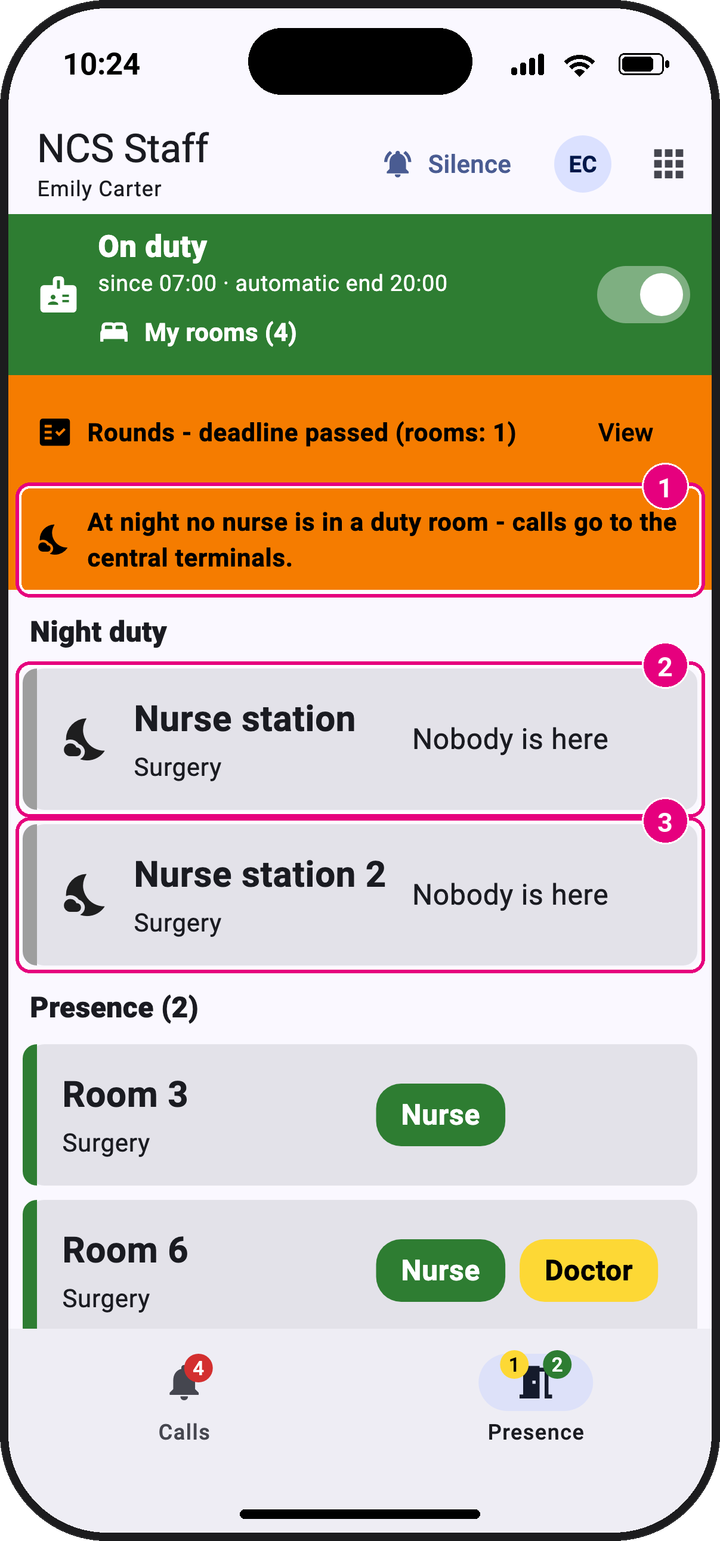
- 1Orange bar: at night no nurse is in a duty room, so calls go to the central terminals. The bar disappears as soon as a nurse switches presence on in a duty room.
- 2All duty rooms are grey: Nobody is here.
- 3The second duty room, also empty. The bar does not appear while a nurse or a doctor is in any duty room.
8. Menu
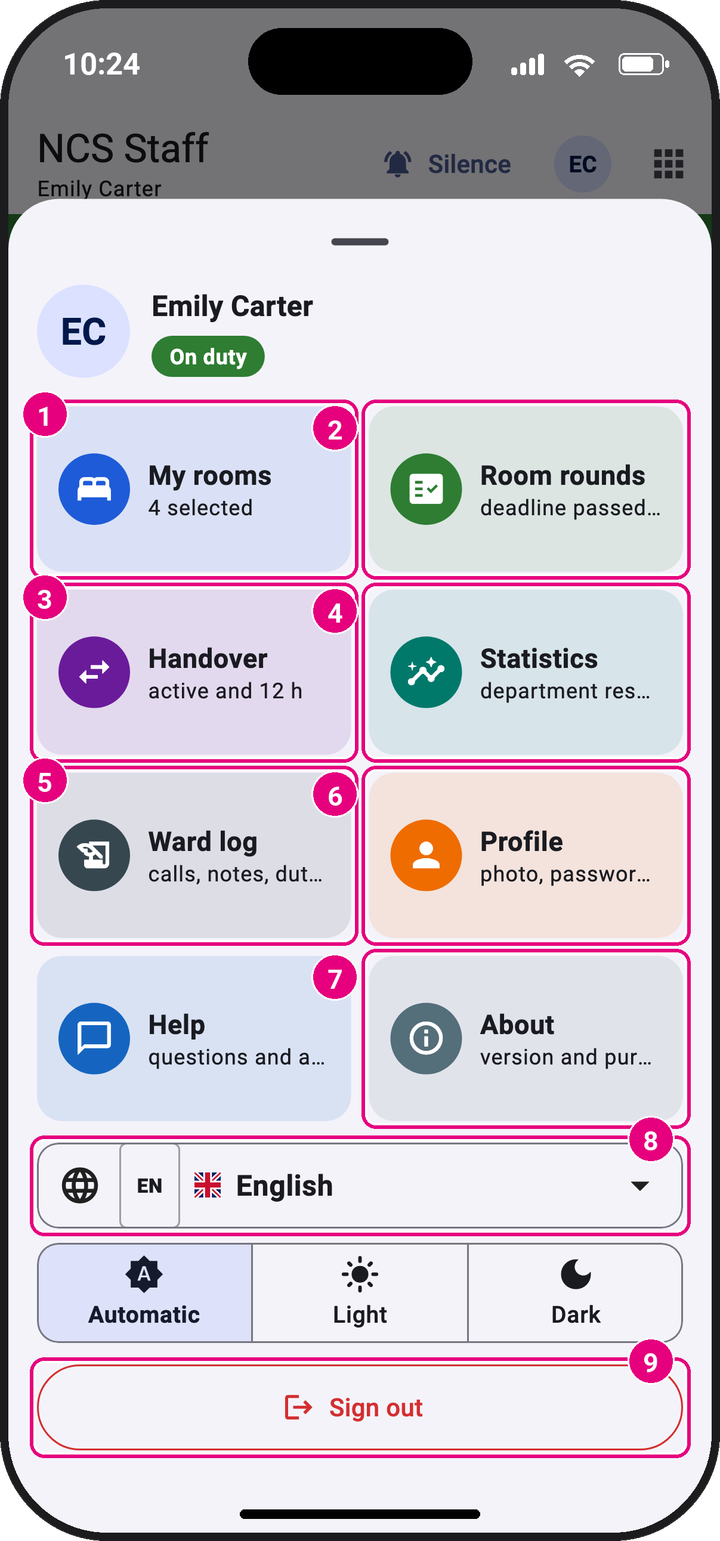
- 1My rooms: shown only while you are on duty.
- 2Room rounds: deadlines and the record of rounds.
- 3Handover: overview for handing over the shift.
- 4Statistics: shown only to the head nurse.
- 5Ward log: shown only to the head nurse (section 13).
- 6Profile: photo, password, test notification, my statistics.
- 7About: version and purpose.
- 8Language and, below it, the theme: the change applies immediately.
- 9Sign out (section 16).
The Help tile (questions and answers), between Profile and About, opens help with topics from this guide and quick answers about the state of the ward (section 18).
The Talk tile (device directory) exists only at sites with talk enabled (section 17).
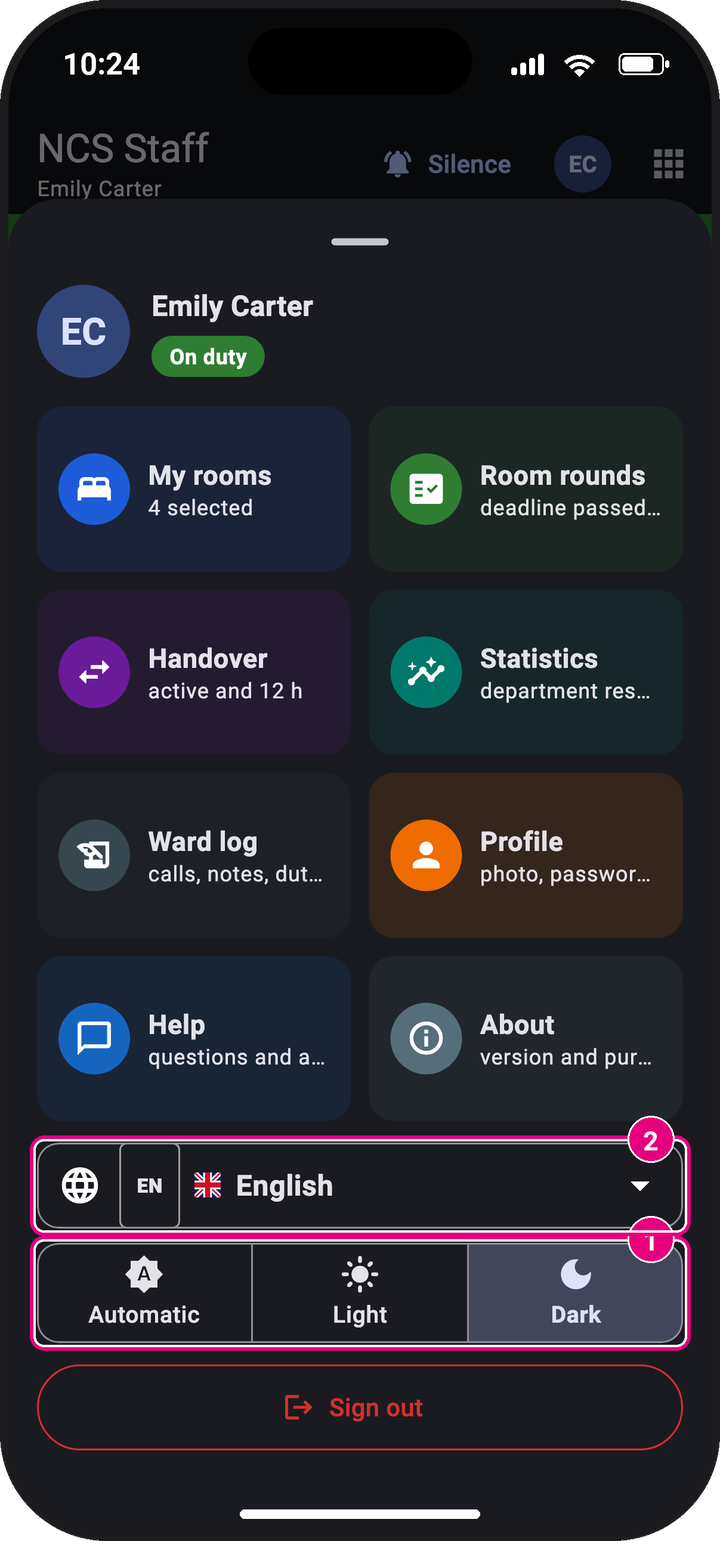
- 1Theme: Automatic follows the phone setting (light by day, dark at night if the phone is set so), Light and Dark always apply. The change applies immediately, on all screens, and is kept on the phone. The same choice is on the sign-in screen and in Profile.
- 2The app language.
Call, presence and warning colours are the same in both themes. The dark theme is less glaring at night, in the duty room.
9. Room rounds
A round is a nurse's presence in the room: when you enter the room, switch on the presence button as usual. The server works out when the next round is due. When the deadline passes, staff on duty get a reminder (first those who have the room in My rooms). The reminder repeats every 30 minutes and disappears as soon as a nurse enters the room and switches on presence. The record of rounds does not store the nurse's name.
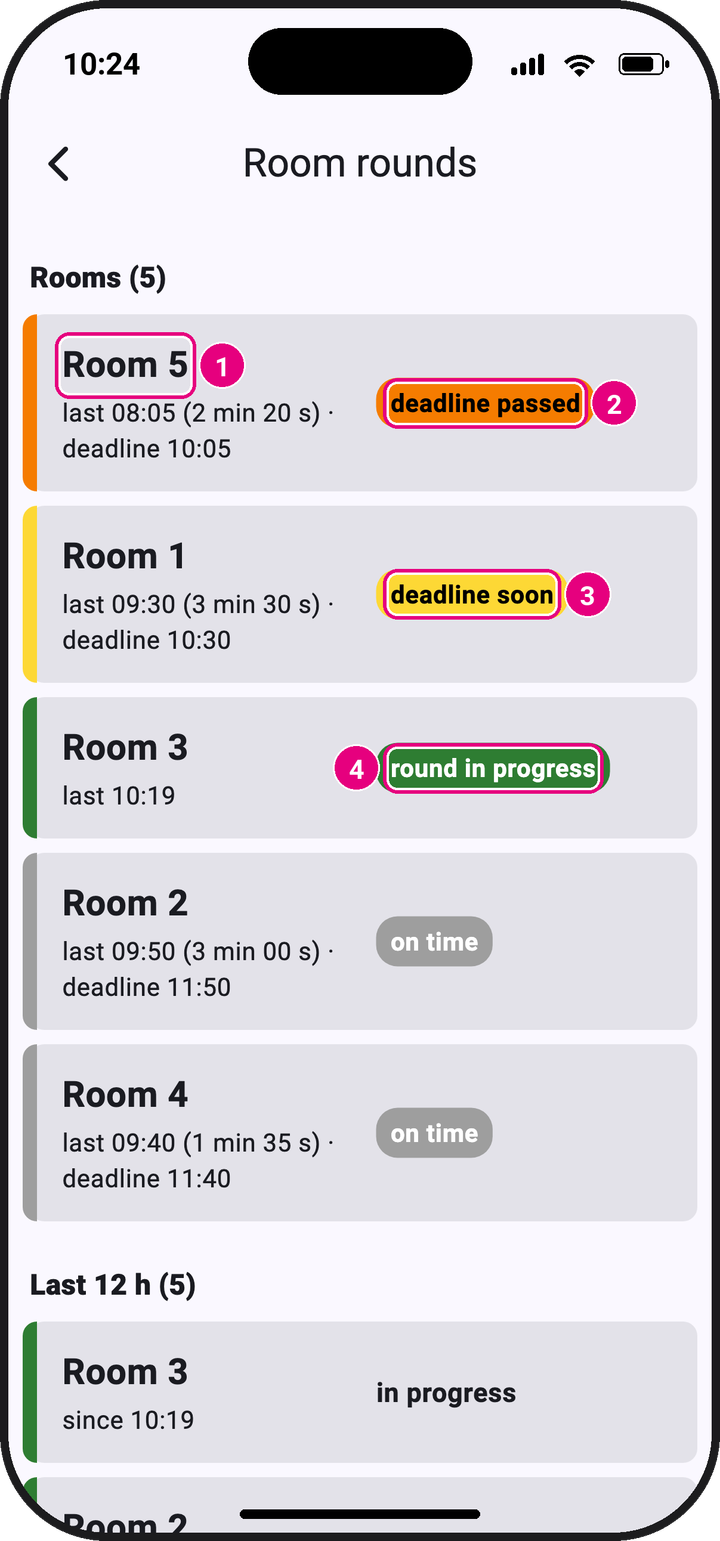
- 1The room, when the last round was and how long it took, and the next deadline.
- 2deadline passed: the room needs a round.
- 3deadline soon: the deadline is less than 15 minutes away.
- 4round in progress: a nurse is in the room now.
The grey label on time means all is well. no connection to the CU means the server is currently not getting data from that room, so the deadline cannot be checked.
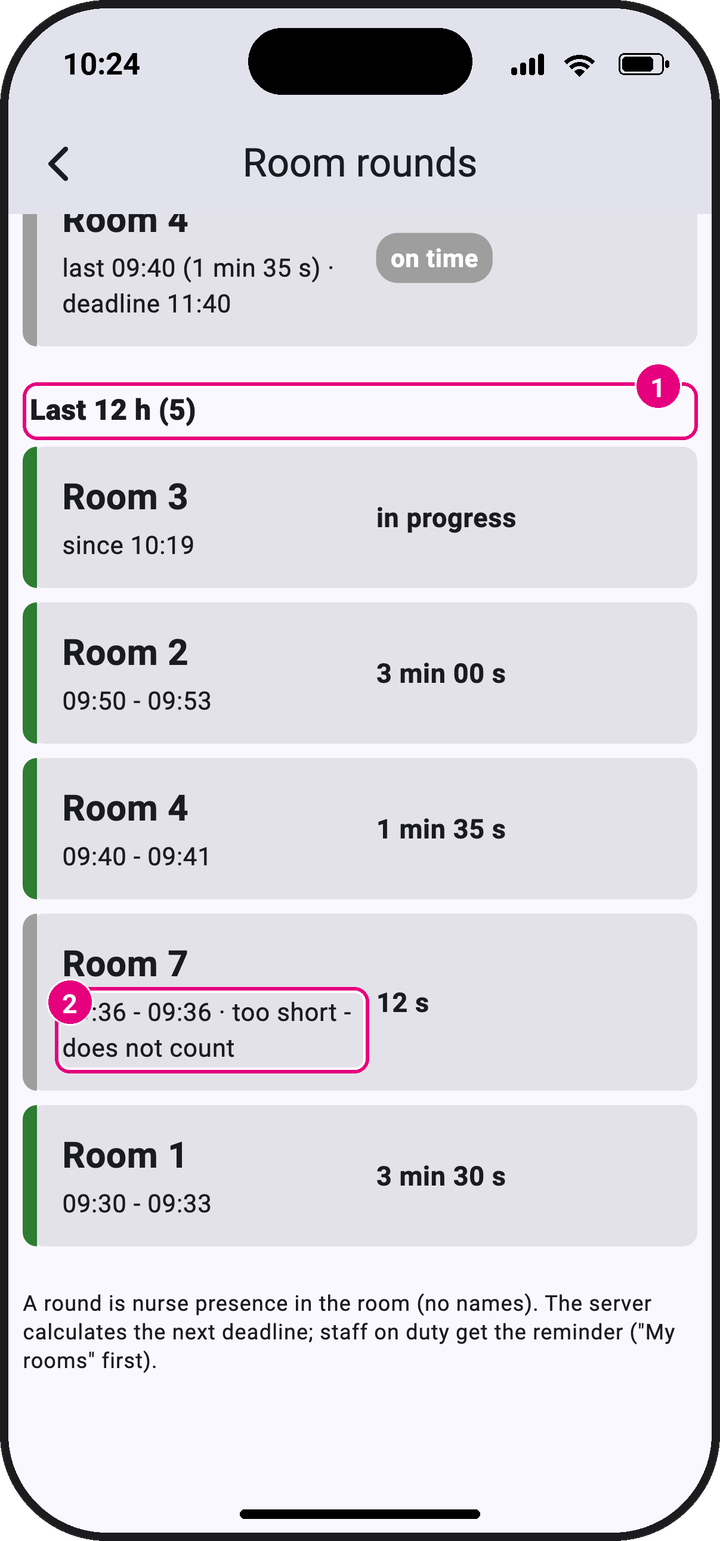
- 1Last 12 h: all rounds, with time and duration.
- 2Too short - does not count: a presence shorter than the set minimum (usually 30 seconds) does not move the deadline.
If the screen says "Rounds not set up", no rules have been set yet. The head nurse sets them (section 13).
10. Notes
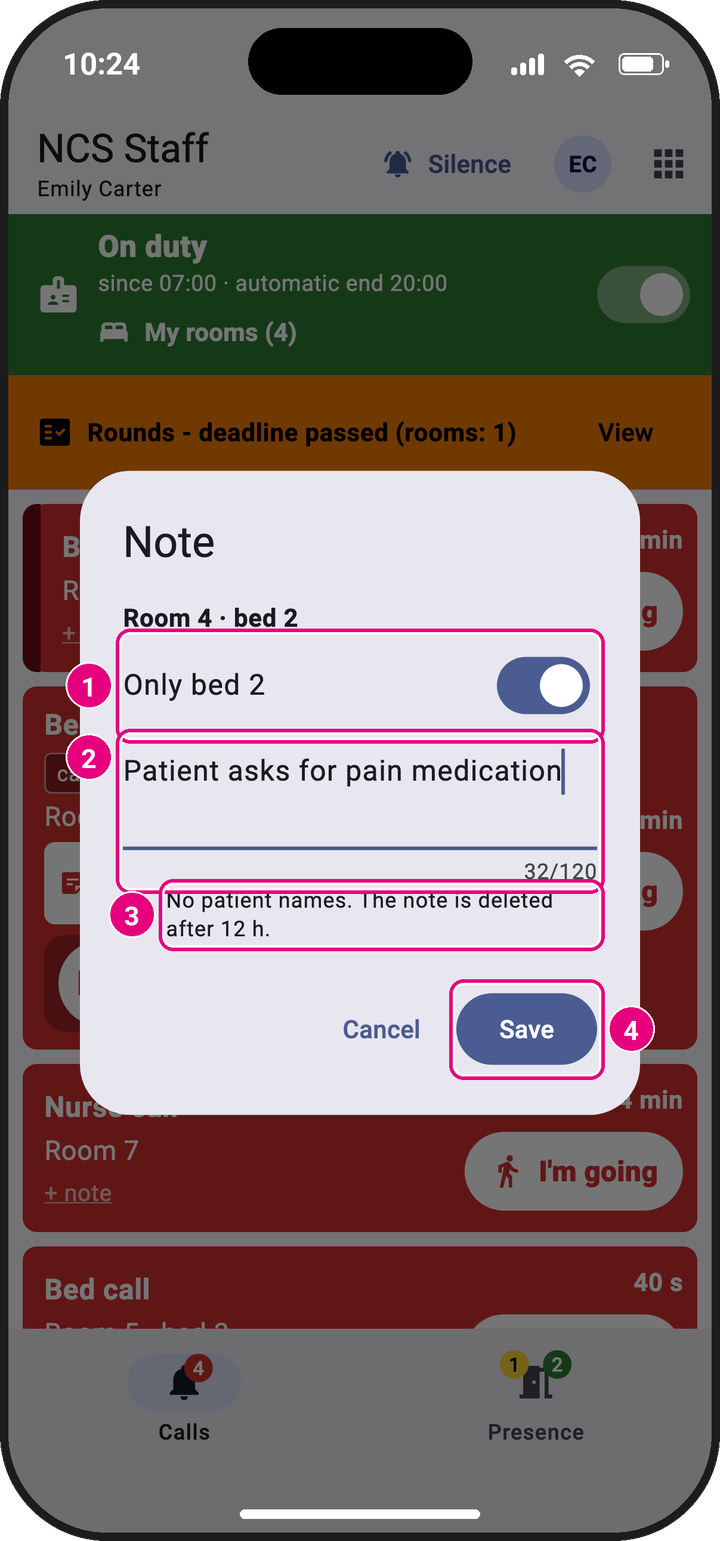
A short note for colleagues on a room or bed, for example "IV drip until 11:00". Add it by tapping + note on a call or New note in Handover.
- 1Only bed 2: the note applies to that bed. Off: the whole room.
- 2Text, up to 120 characters.
- 3No patient names. The note is deleted automatically after 12 h.
- 4Save. Colleagues in the department see it right away.
Tap a note to change it. It can be deleted by its author and by staff on duty in that department.
11. Shift handover
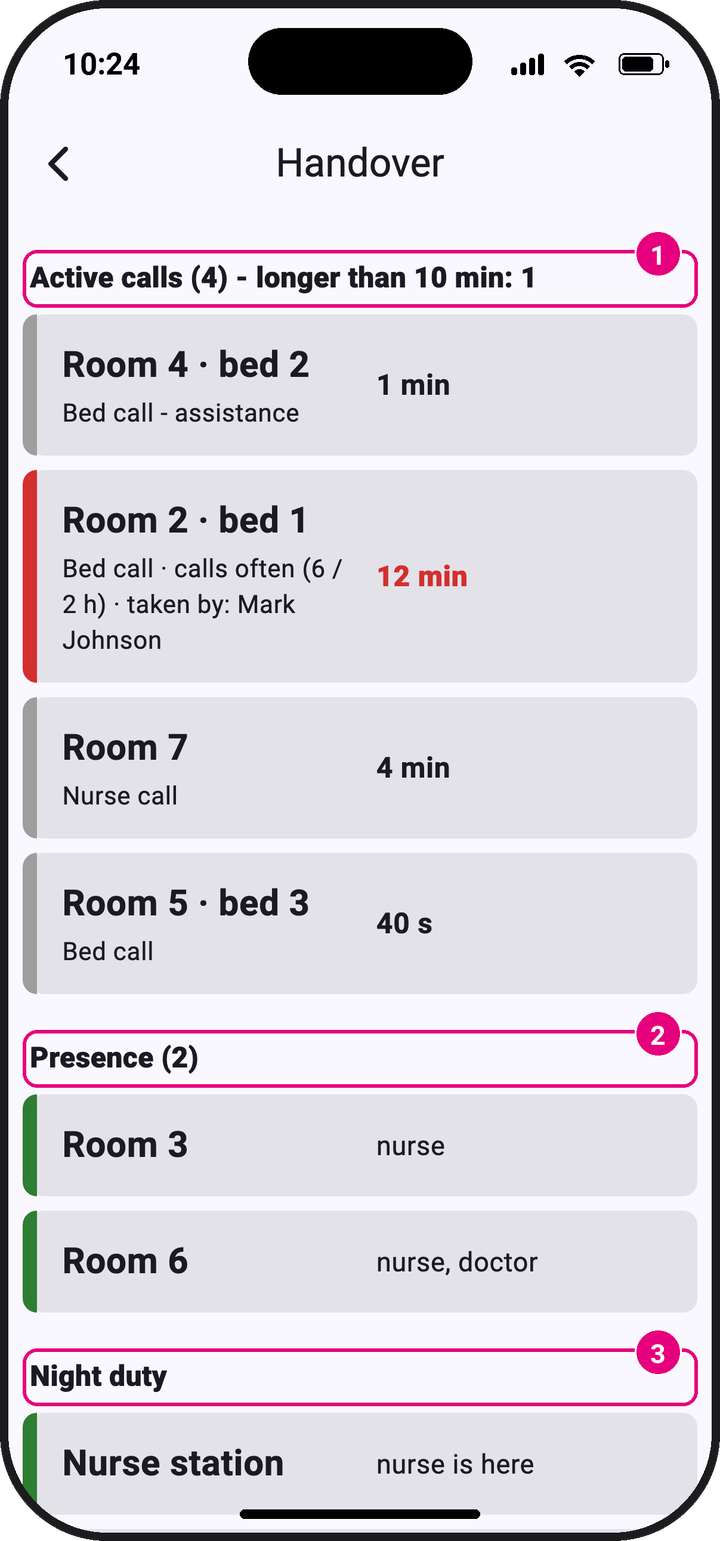
Everything the next shift needs to know, in one place.
- 1Active calls. Calls longer than 10 minutes are highlighted in red.
- 2Presence by room.
- 3Night duty.
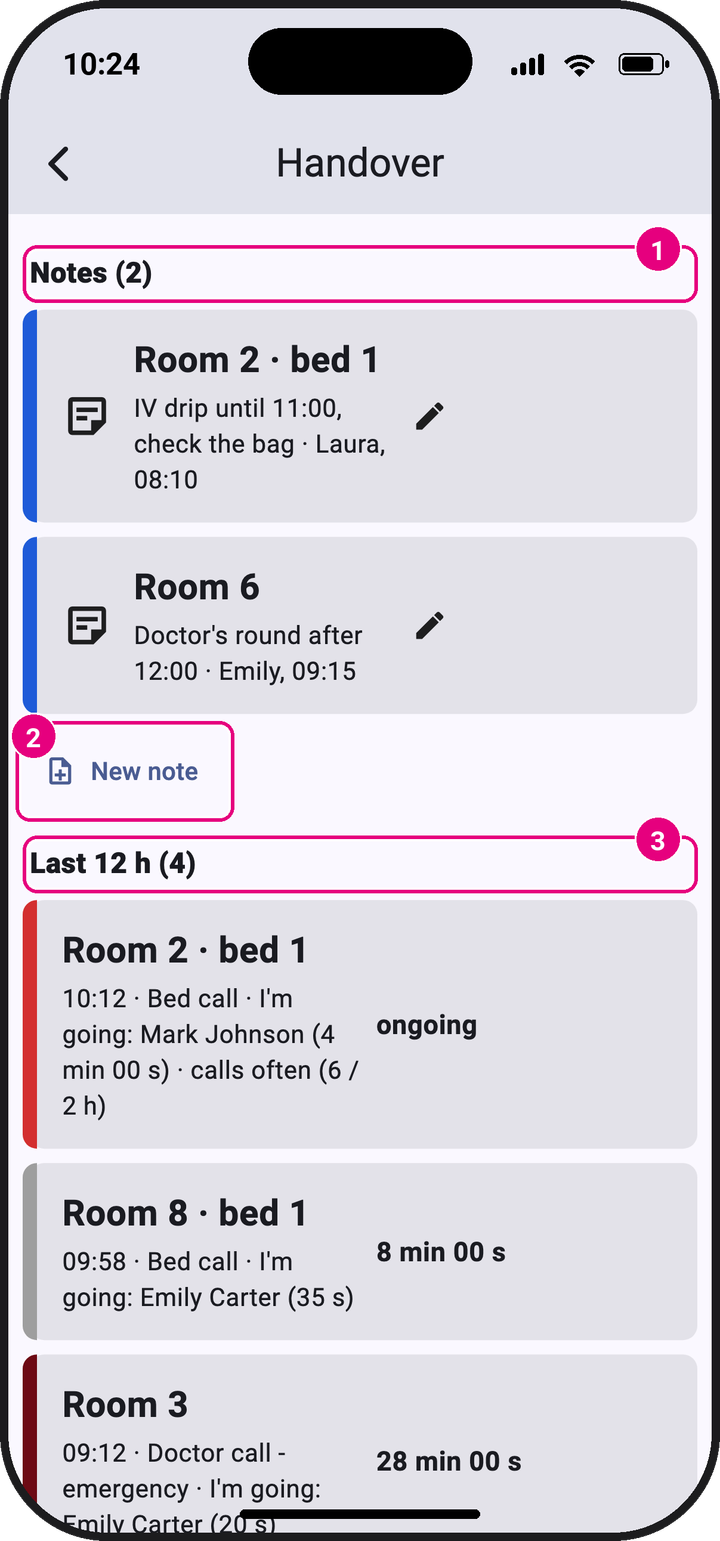
- 1Notes for all rooms in the department. Tap a note to edit it.
- 2New note: choose the room and, if needed, the bed.
- 3Last 12 h: finished calls. For each call you see who took it and how quickly, or "no I'm going", whether it was repeated (escalation) and how long it lasted.
The history keeps only the room, bed, type, times and the name of the staff member who took the call. It is deleted 12 h after the call ends.
12. Profile and my statistics
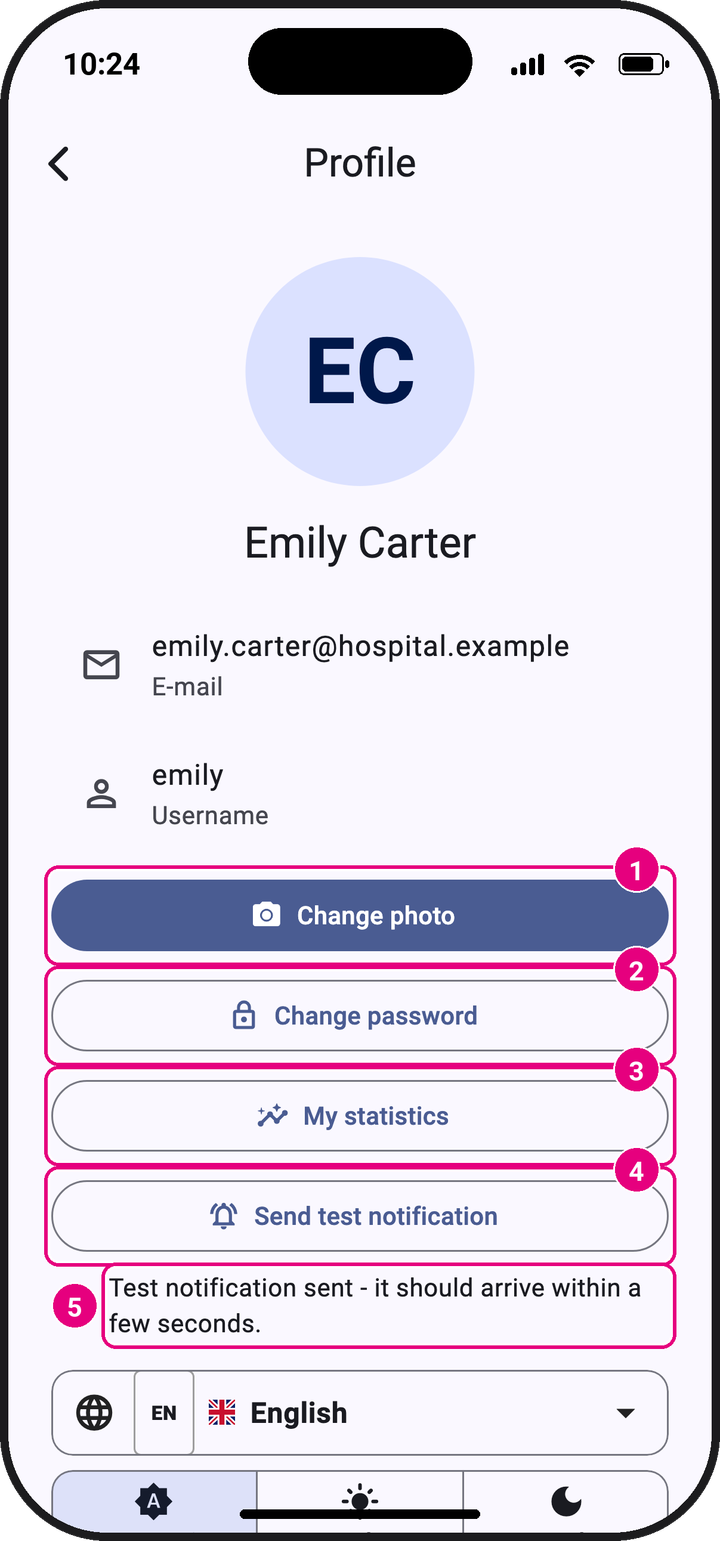
- 1Change photo (camera or gallery). Colleagues see your photo when you take a call. Without a photo they see your initials. Once you have a photo, Delete photo appears below - after that colleagues see your initials again.
- 2Change password.
- 3My statistics.
- 4Send test notification: check that notifications arrive, for example at the start of your shift.
- 5The test result. If nothing arrives within a few seconds, check the phone's Settings (section 14). The test is sent by the server, so for now it does not arrive on an Android phone - below the button it says "The phone has no push token - notifications do not arrive." (section 15).
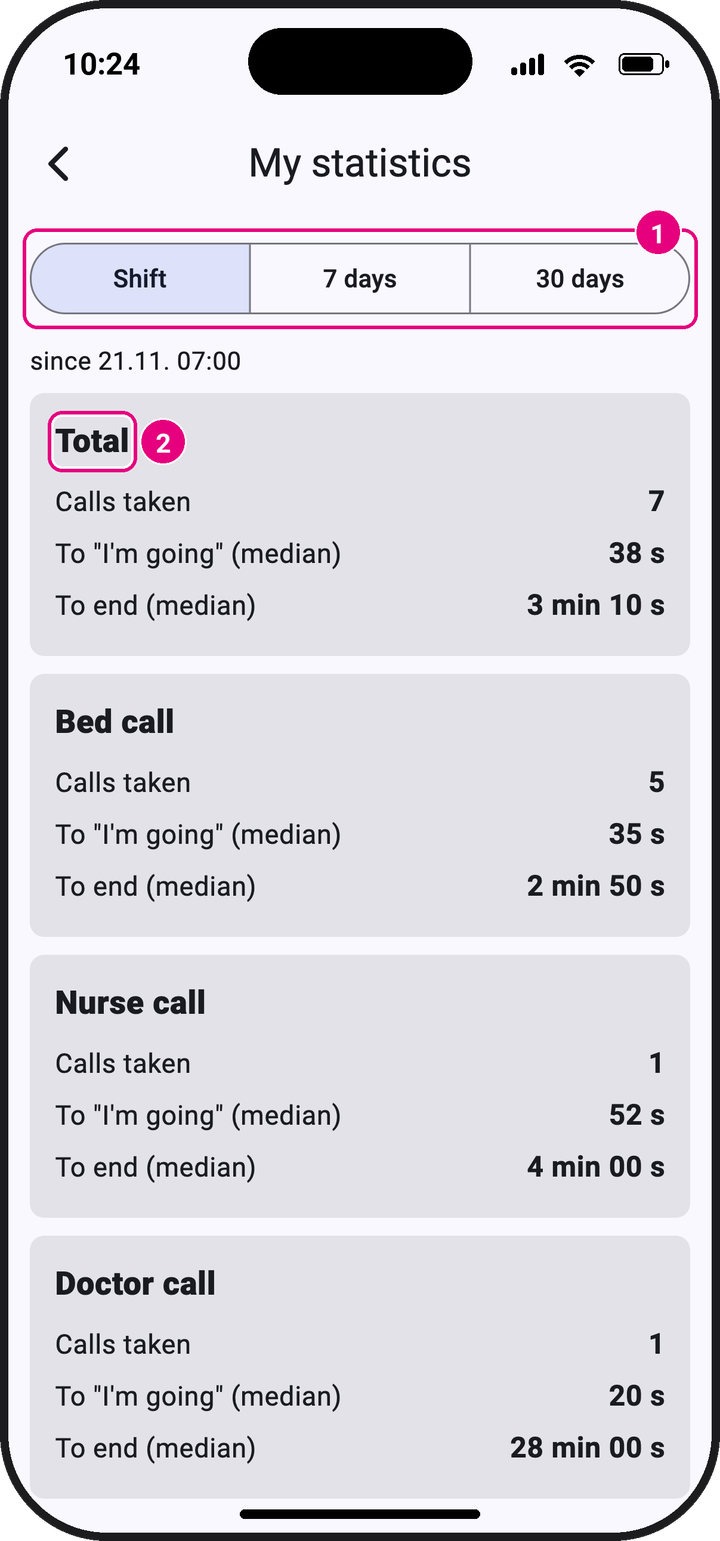
- 1Period: Shift (since the start of duty), 7 days or 30 days.
- 2Total, then by call type: how many calls you took, and how quickly (median) you said "I'm going" and reached the end of the call.
You see your own statistics. The head nurse sees the statistics of all nurses in their wards, under By nurse (section 13). No patient names.
13. For the head nurse
An account with the Head nurse right (enabled by the administrator) sets the round rules and sees response statistics (also by nurse) and the ward log. All of this is also in the browser (web guide).
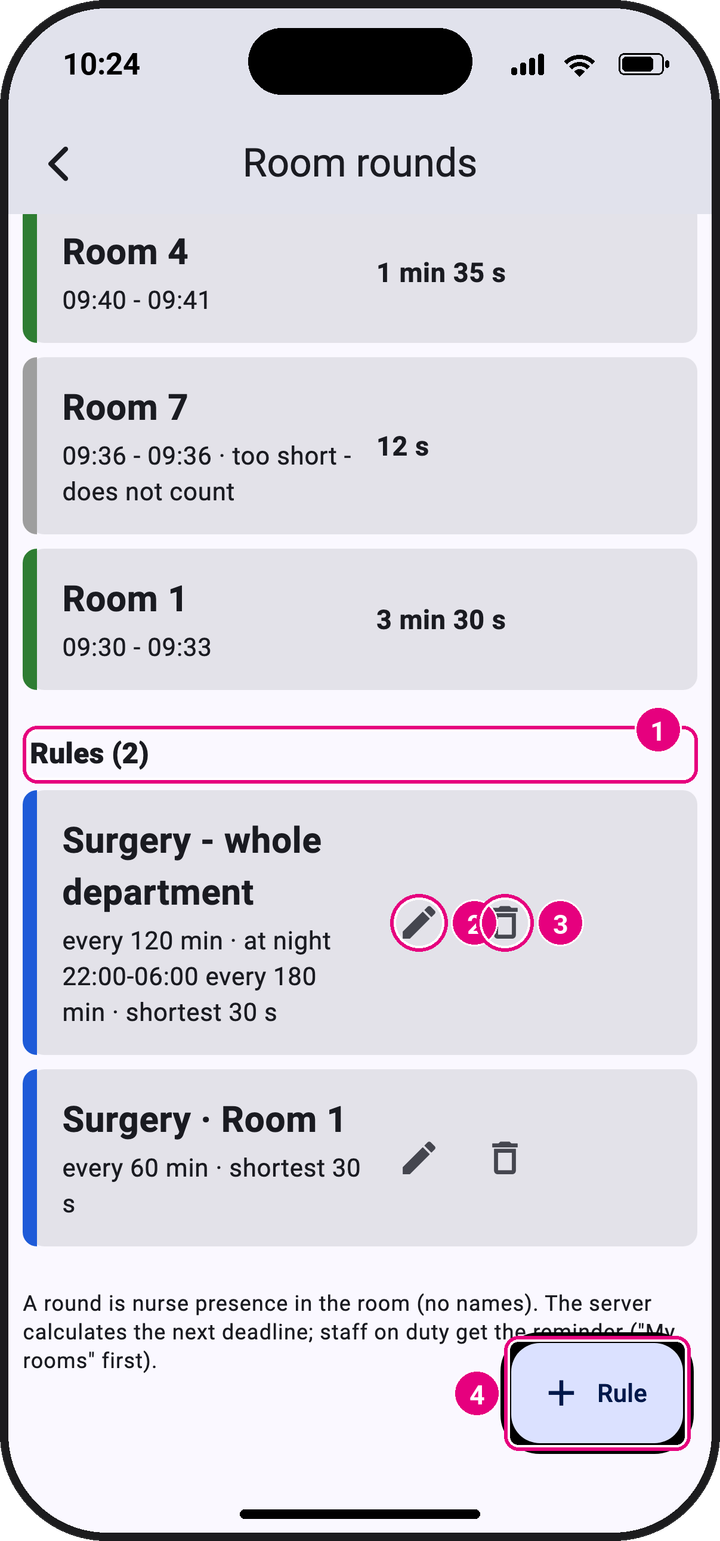
- 1Rules: one rule for the whole department and, if needed, separate rules for single rooms. A room rule takes precedence.
- 2Edit a rule.
- 3Delete a rule. A room without a rule has no deadline and no reminder.
- 4+ Rule: a new rule.
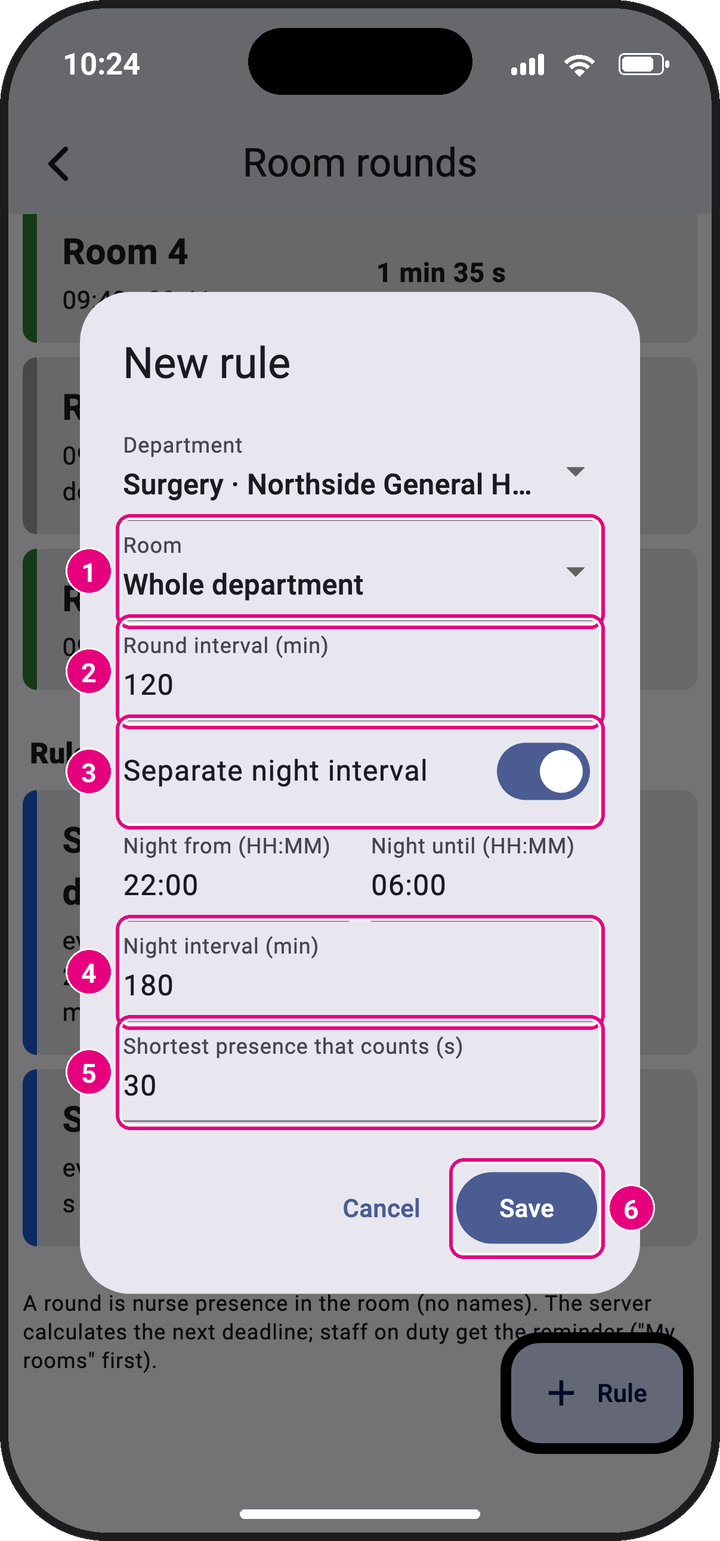
- 1Room: the whole department or a single room.
- 2Round interval in minutes, for example 120 = every 2 hours.
- 3Separate night interval: rounds can be less frequent at night. Enter the start and end of the night (HH:MM).
- 4Night interval in minutes.
- 5Shortest presence that counts as a round, in seconds (usually 30).
- 6Save.
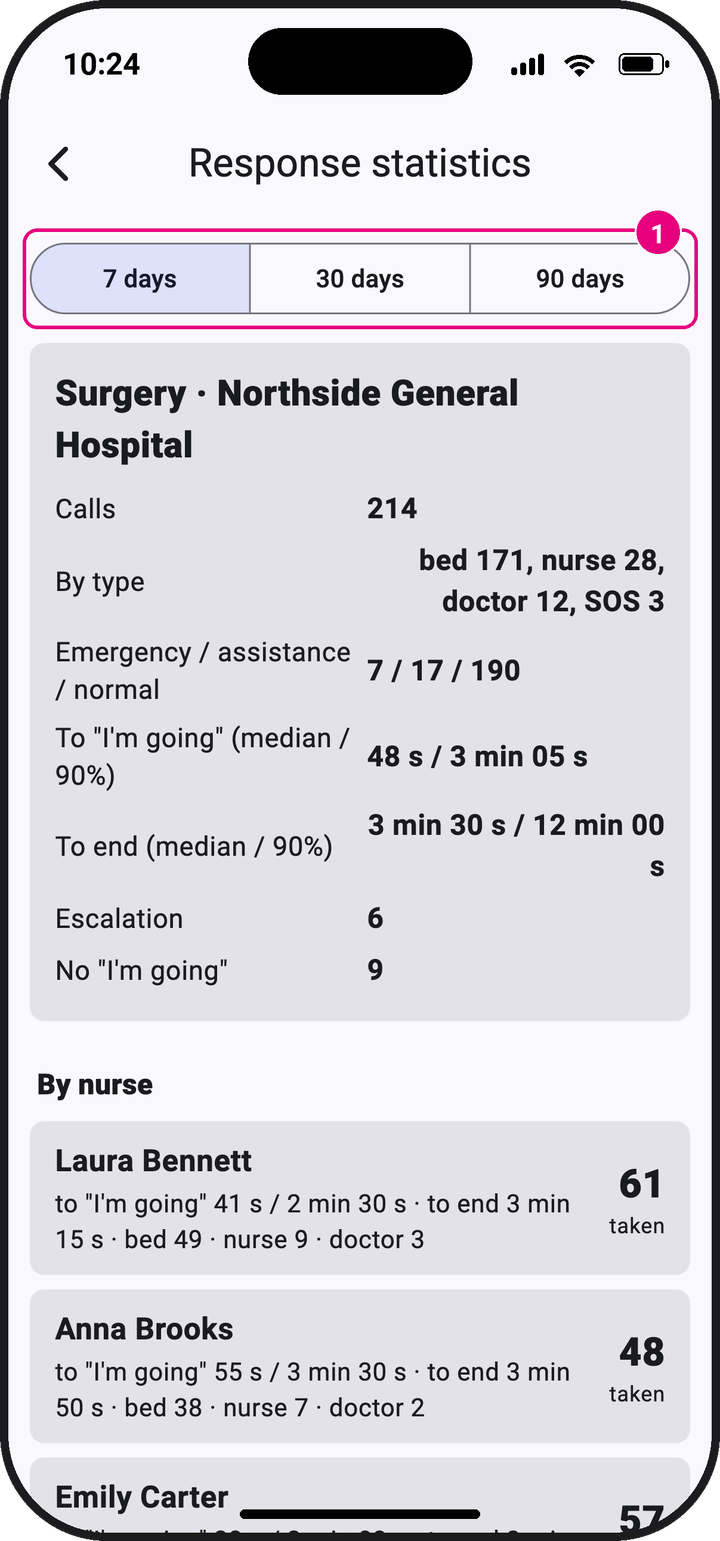
- 1Period: 7, 30 or 90 days.
For each department: the number of calls by type and priority, time to "I'm going" and to the end of the call (median and 90%: nine out of ten calls were faster), the number of escalations and calls without "I'm going". No patient names.
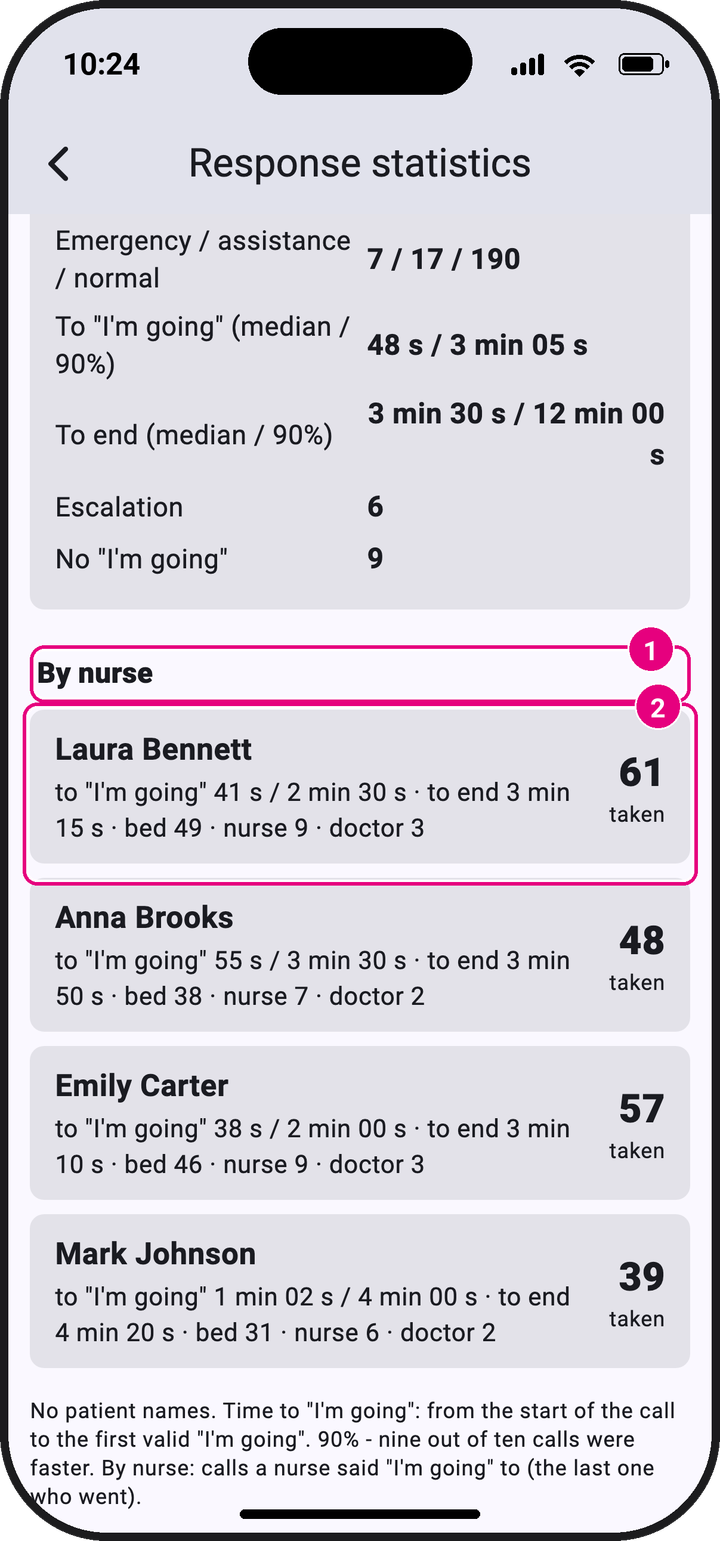
- 1By nurse: calls from your wards a nurse said "I'm going" to (the last one who went).
- 2For each nurse: calls taken (right), time to "I'm going" (median and 90%), time to the end of the call, and the count by type.
The server keeps these totals for 90 days. When an account is deleted, its totals are deleted too.
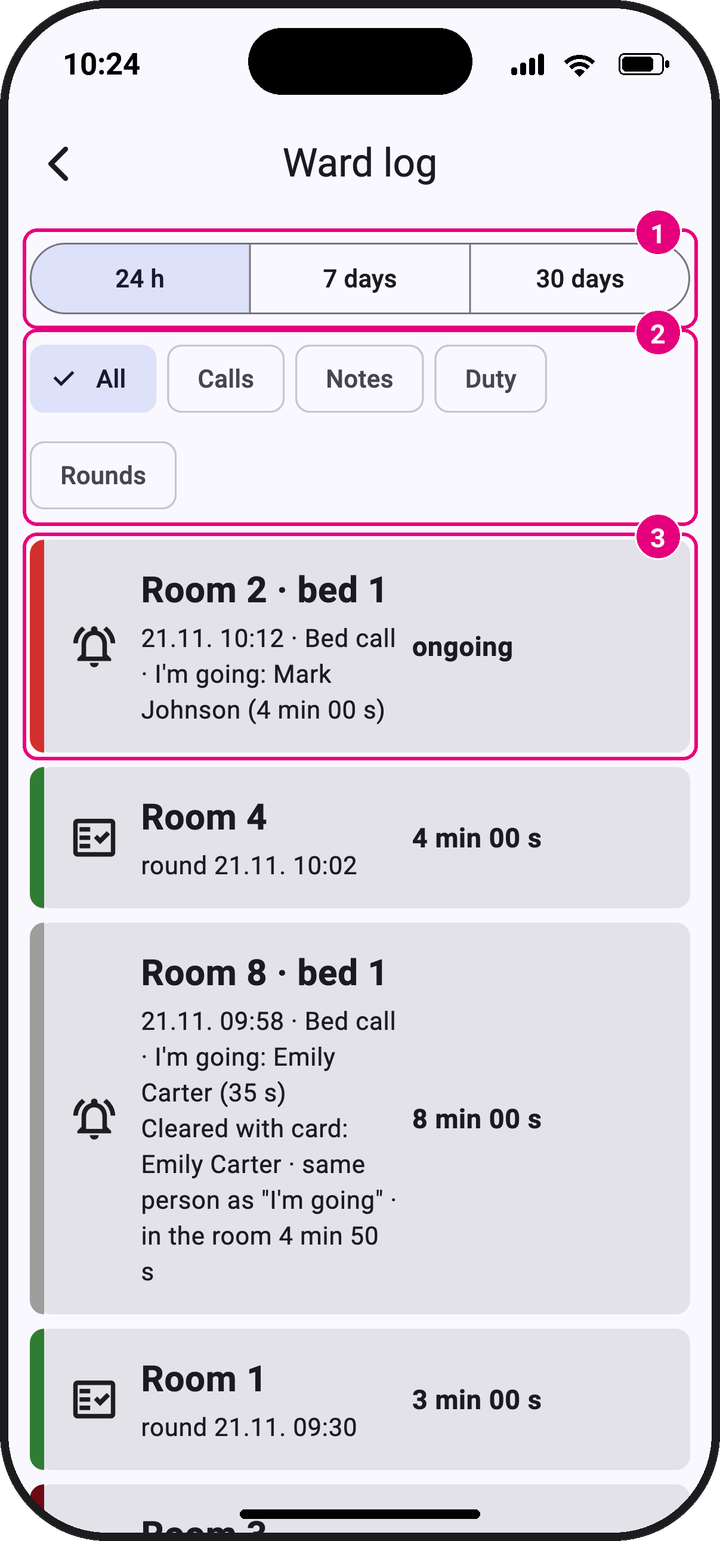
- 1Period: the last 24 h, 7 or 30 days.
- 2Filter: All, Calls, Notes, Duty, Rounds.
- 3An entry, newest on top. A call: room and bed, time, type, who said "I'm going" and how fast, duration, and who cleared it with a card (below).
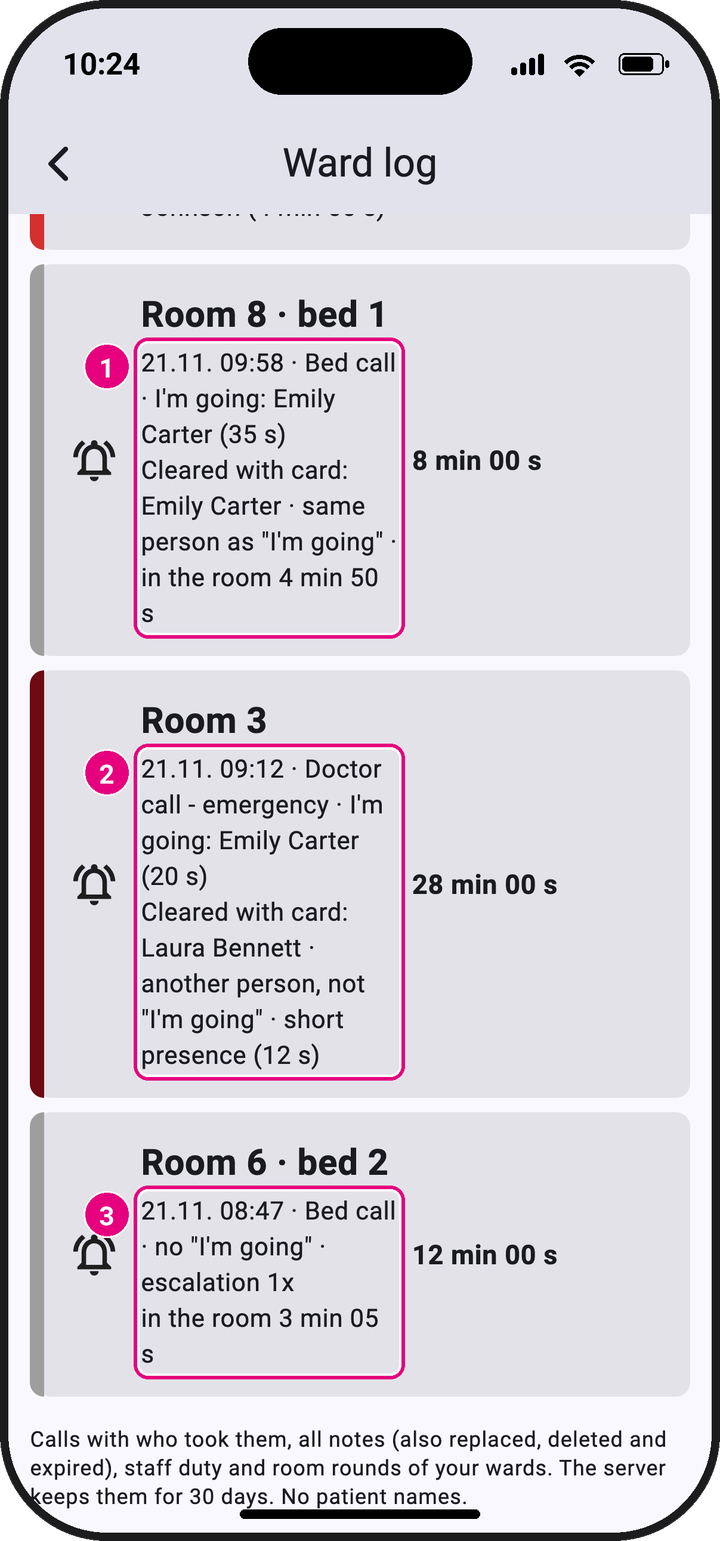
Below the call you see who cleared it in the room and how long the presence in the room lasted - proof of the intervention. When a nurse holds their card to a room terminal with a reader, the call shows Cleared with card and their name:
- 1same person as "I'm going" - the call was cleared by the nurse who said "I'm going"; in the room 4 min 50 s - how long their presence lasted.
- 2another person, not "I'm going" - another nurse cleared the call, e.g. because they were closer to the room; short presence (12 s) - presence was switched off before 30 s, so the intervention was probably not carried out.
- 3Without a card: the call was cleared with the green presence button (or on a room terminal without a reader) - only how long the presence lasted is shown, not who was in the room.
The duration is shown when the call was cleared by nurse presence in that room. The limit for "short presence" is the shortest presence from the round rules (30 s by default). That is why the presence button on the terminal counts down for the first 30 s, and before that it is switched off only with a long press.
If nobody said "I'm going", only the person who cleared the call is shown. Cleared with card (unknown card) means the card is not registered on the server.
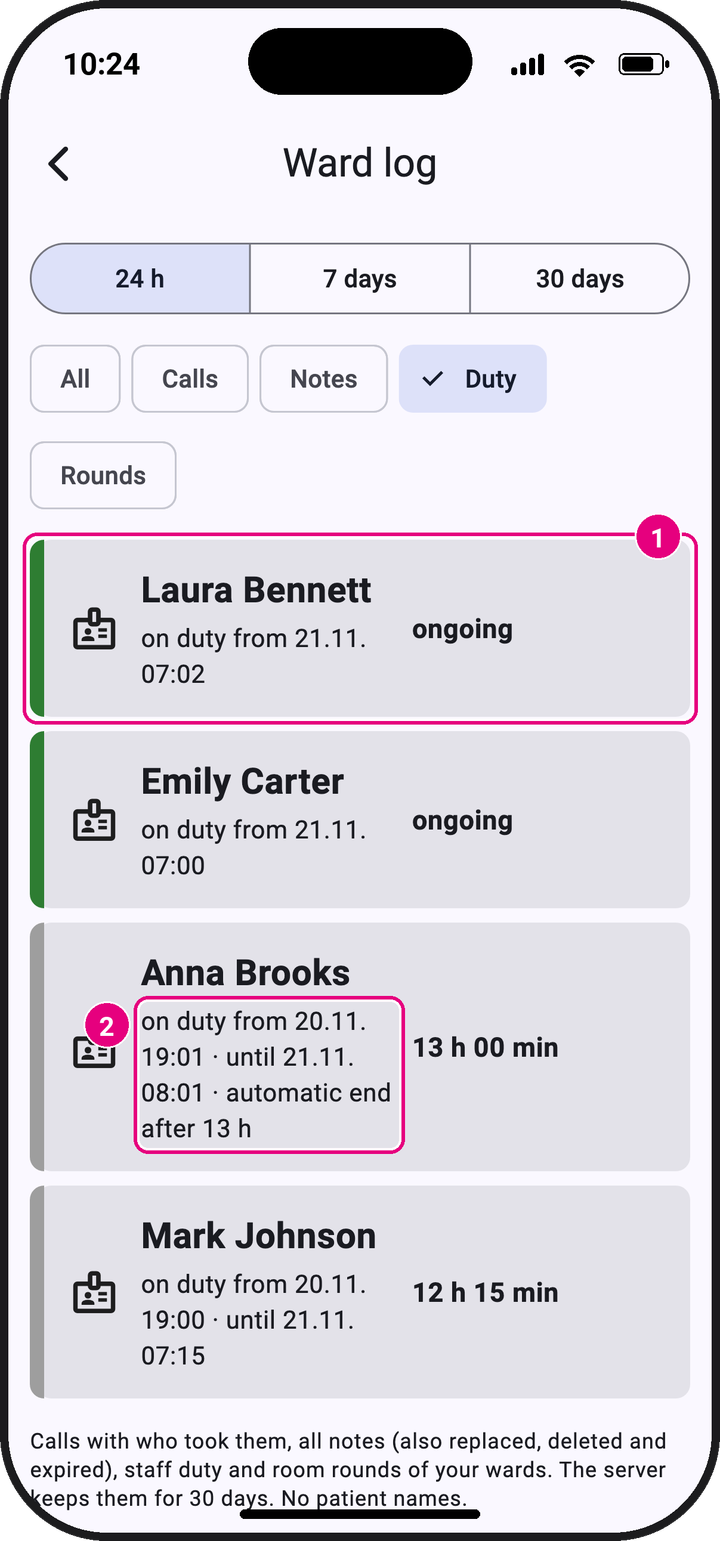
- 1Who is on duty and since when (green).
- 2Finished duty: start, end and how it ended - by hand, automatically after 13 h, by signing out on the phone, or end - account suspended (the administrator suspended the account).
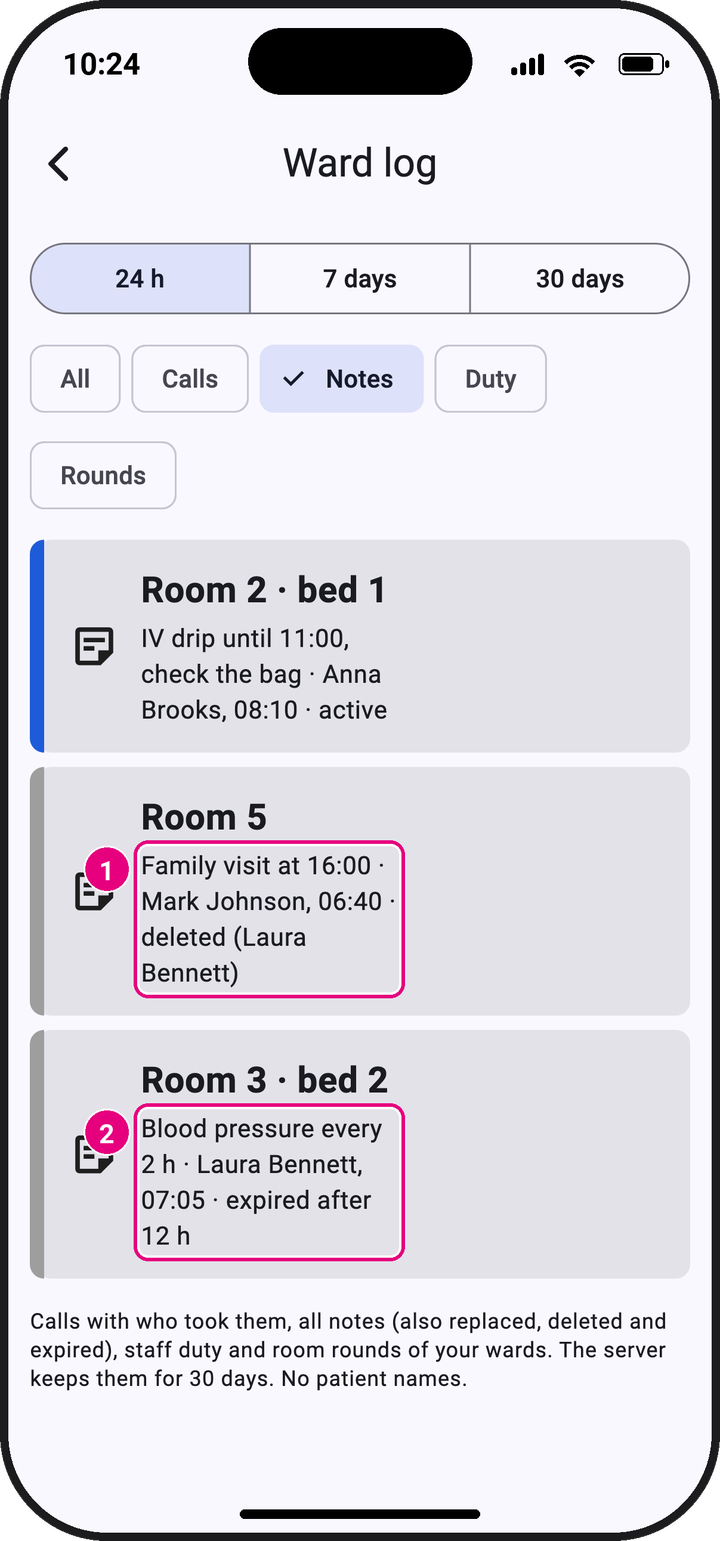
- 1All notes, also those no longer in the list: deleted (with who deleted it) or replaced by a new one.
- 2Expired after 12 h: nurses no longer see it, the log does.
The log is kept for 30 days. It also shows room rounds. No patient names.
14. Warnings on screen
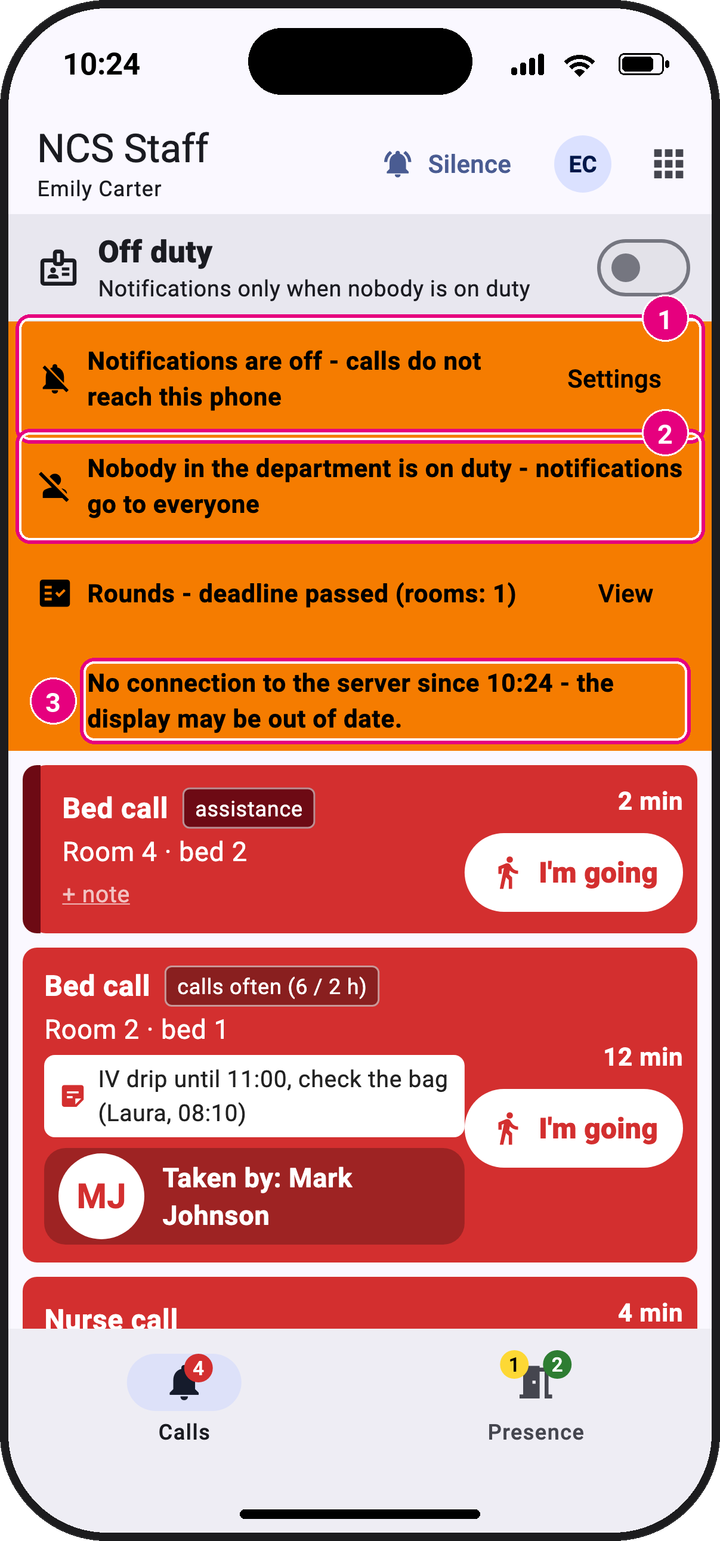
- 1Notifications are off: calls do not reach this phone. Tap Settings and turn on notifications for NCS Staff. On an Android phone this bar is shown all the time for now, because notifications from the server (push) do not exist on Android yet - the app gives notifications while it is running (section 15). On Android, check the permission in the phone's settings: Apps → NCS Staff → Notifications.
- 2Nobody in the department is on duty: notifications go to everyone until someone switches on.
- 3No connection to the server since 10:24: the phone has no internet or the server is not responding. The list may be out of date. Calls are still signalled on terminals and lamps.
If No connection to CU appears, the server is not getting data from that site's central unit. Tell the technical service. The bar disappears by itself when the connection is back.
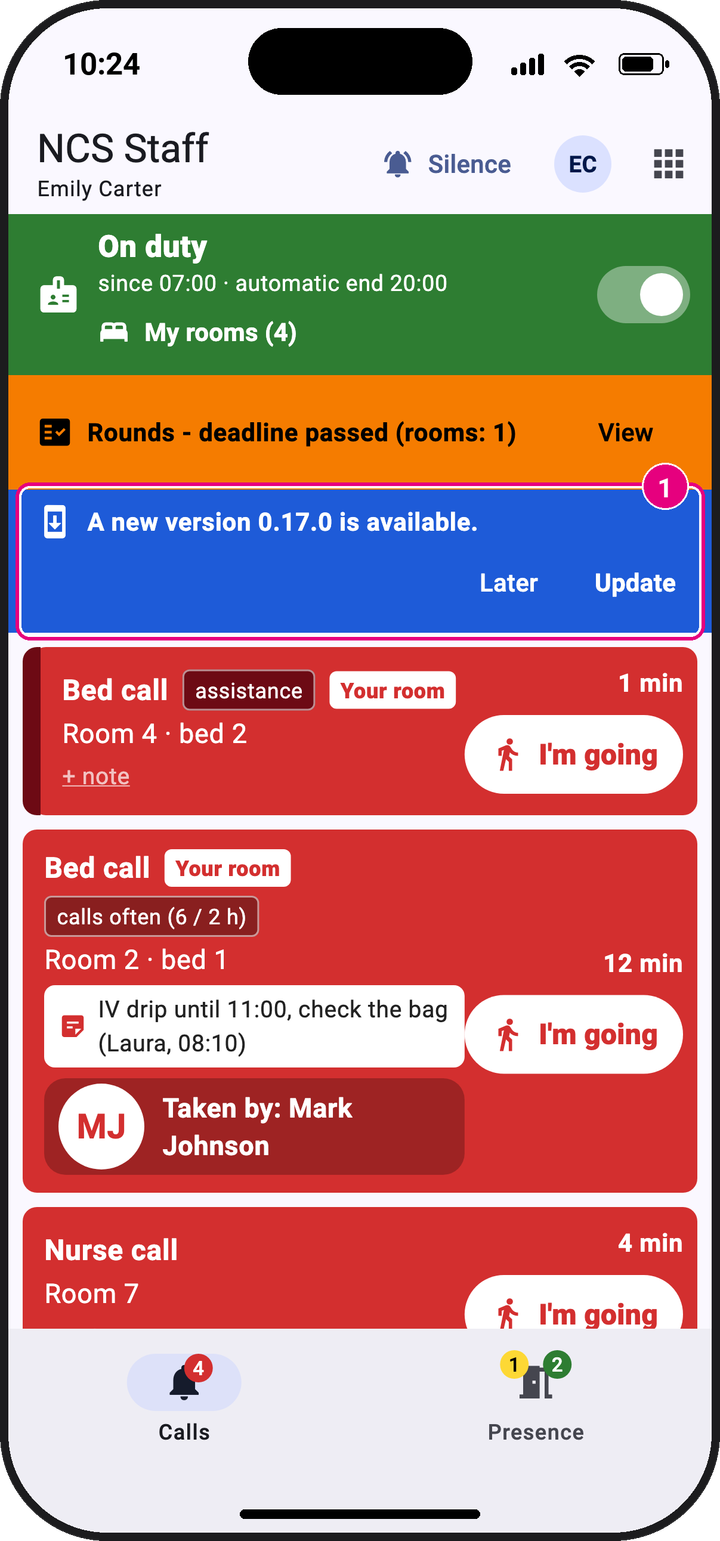
- 1A new version 0.17.0 is available. (blue bar): Update opens the App Store (iPhone), where you install the new version. Later hides the bar; it comes back only for the next newer version.
If your version is too old, the bar is orange: Update required - this version of the app is no longer supported., with only the Update button. Update the app as soon as you can. The app checks for a new version at start-up and at most once a day, and the same bar is also on the sign-in screen.
On an Android phone the bar appears when the PME server administrator publishes a new version, and Update opens the address the administrator set, where you download the installation file. If there is no button, you get the new version from the administrator.
15. Notifications and lock screen
- iPhone: a new call arrives as a notification with sound, even when the app is closed. Bathroom SOS, assistance and emergency calls have a longer, urgent sound. They and calls from My rooms arrive as time-sensitive notifications, so they can also get through a Focus mode.
- Android: notifications from the server (push) do not exist on Android yet. The notification about a new call is given by the app itself - while it is open and for at most 10 minutes after you leave it or lock the phone (to save battery, the phone may stop it even sooner). After that, calls do not reach the phone until you open the app again; the list is then refreshed immediately. So open the app now and then while on duty. Repeated notifications (nobody said "I'm going"), the reminder after "I'm going", round reminders and the notice about duty ending automatically come only through the server, so Android does not get them for now. Calls are always signalled on terminals and lamps.
- Android - notification channels: Urgent calls (bathroom SOS, assistance, emergency), Calls and Calls (silenced) (normal calls while Silence is on). You set the sound and display of each channel in the phone's settings: Apps → NCS Staff → Notifications. Do not turn off the Urgent calls channel. For urgent calls to get through Do Not Disturb as well, allow NCS Staff in that mode's settings.
- When someone says "I'm going" or the call ends, the notification disappears from the phone by itself.
- Notifications, the Live Activity and the widget are in the language you chose in the app (on Android also the channel names). After a language change, new notifications arrive in the new language.
- Tapping a round reminder (for now iPhone only) opens the Room rounds screen.
- Live Activity (iPhone only): while you are on duty and there are calls, the lock screen and the Dynamic Island show the number of calls and the most urgent one. Turn it on in Settings → NCS Staff → Live Activities.
- Lock screen widget (iPhone only): long-press the lock screen → Customize → Lock Screen → widget area → NCS Staff. For the home screen: long-press an empty spot → Edit → Add Widget → NCS Staff.
- If notifications do not arrive: Profile → Send test notification, then check that notifications for NCS Staff are allowed in the phone's Settings (iPhone: Settings → NCS Staff → Notifications). On an Android phone, check that the app is open or was used recently and that notifications are on (Apps → NCS Staff → Notifications).
16. End of duty and sign-out
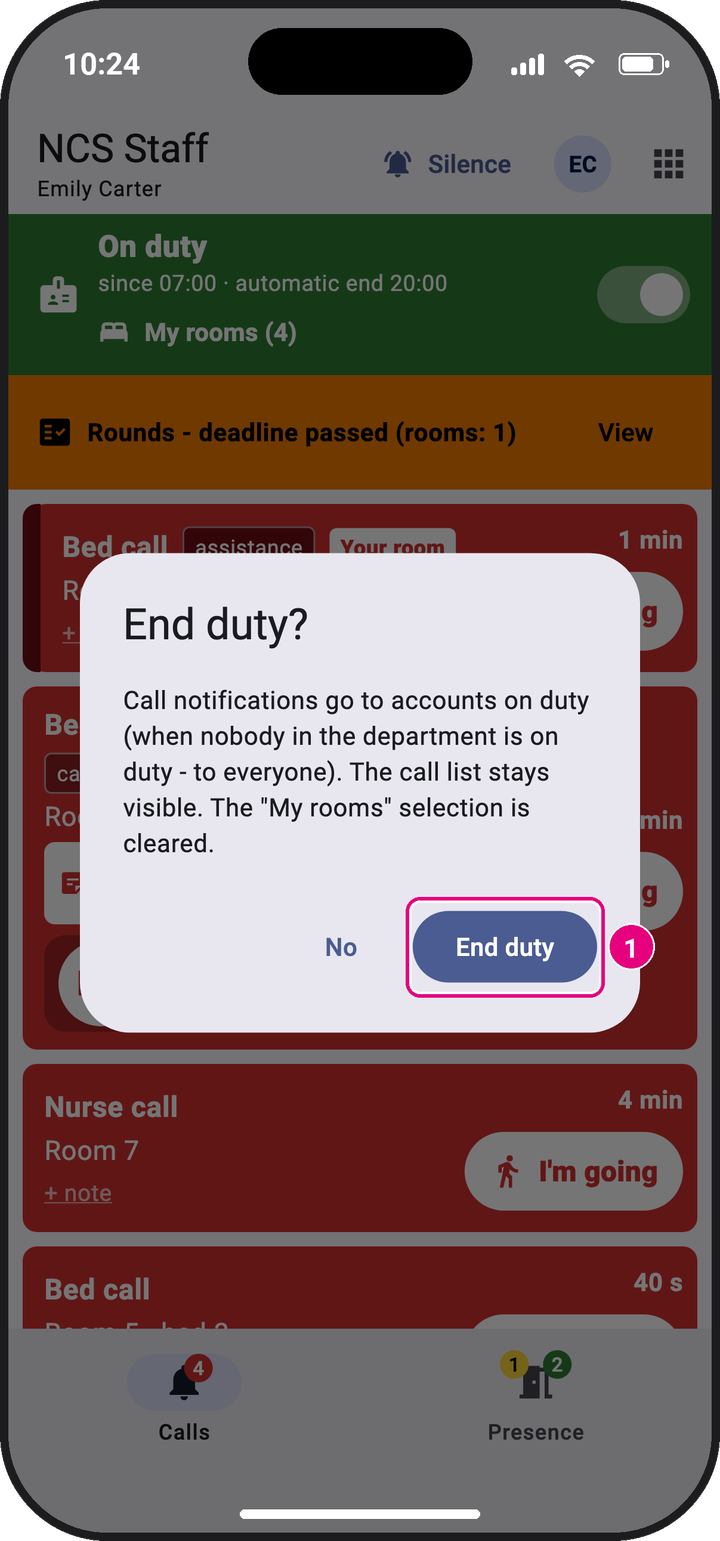
- 1At the end of your shift, turn off the switch and confirm with End duty. Your My rooms selection is cleared, and the call list stays visible.
If you forget, duty ends automatically after 13 h. An iPhone then shows a silent notice (Android not yet).
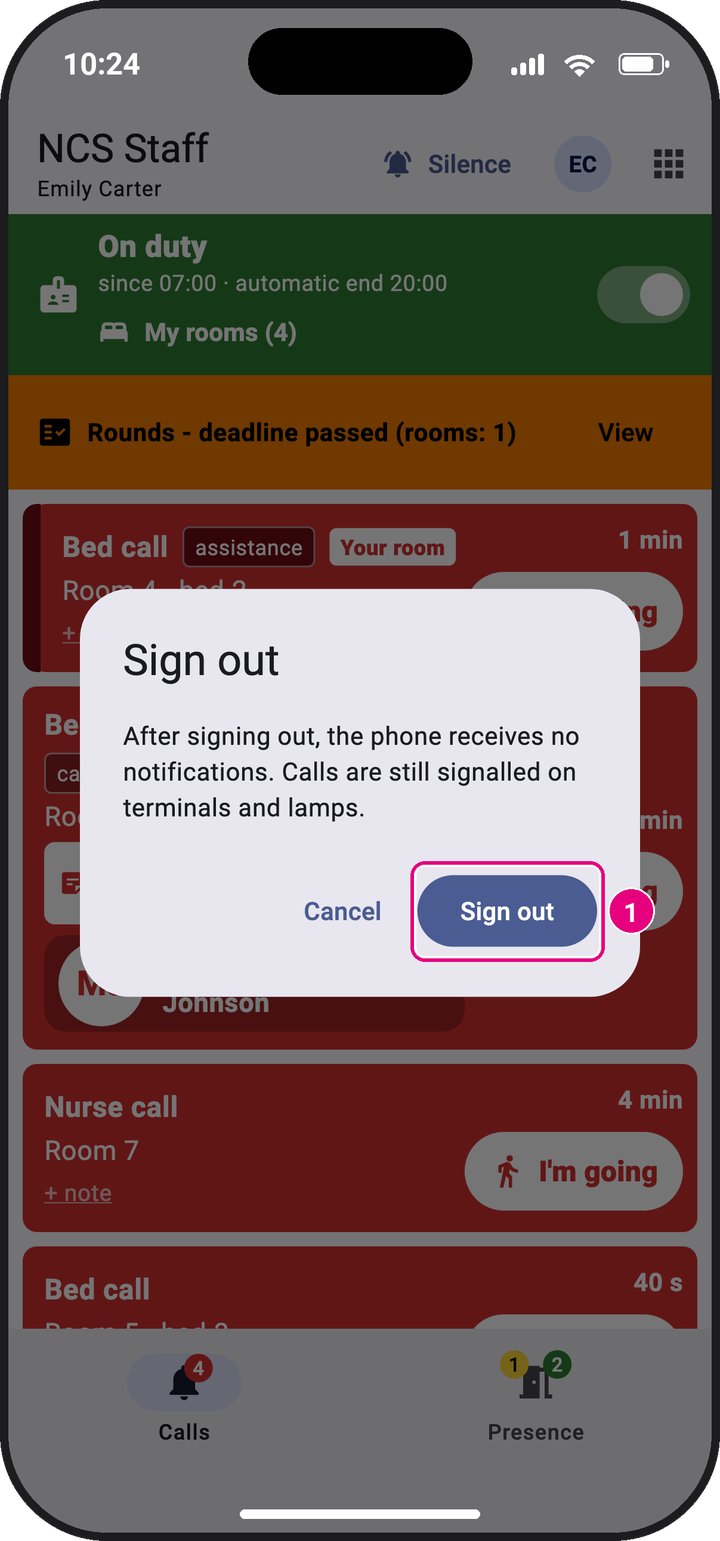
- 1Sign out: after signing out, the phone no longer receives notifications. Signing out on your last phone also ends your duty.
Sign out when you hand the phone to someone else or stop using it for work. For everyday work, turning off duty is enough.
17. Talk with a room
From the app you can talk to a device in a room (room terminal DT or bed terminal PT), as from the central DT. The conversation goes over the internet and the PME server, so it works even when you are not on the ward. It exists only at sites with CU 2102 where the administrator has enabled talk; then the Talk button appears on calls and on cards in Presence, and the Talk tile in the menu.
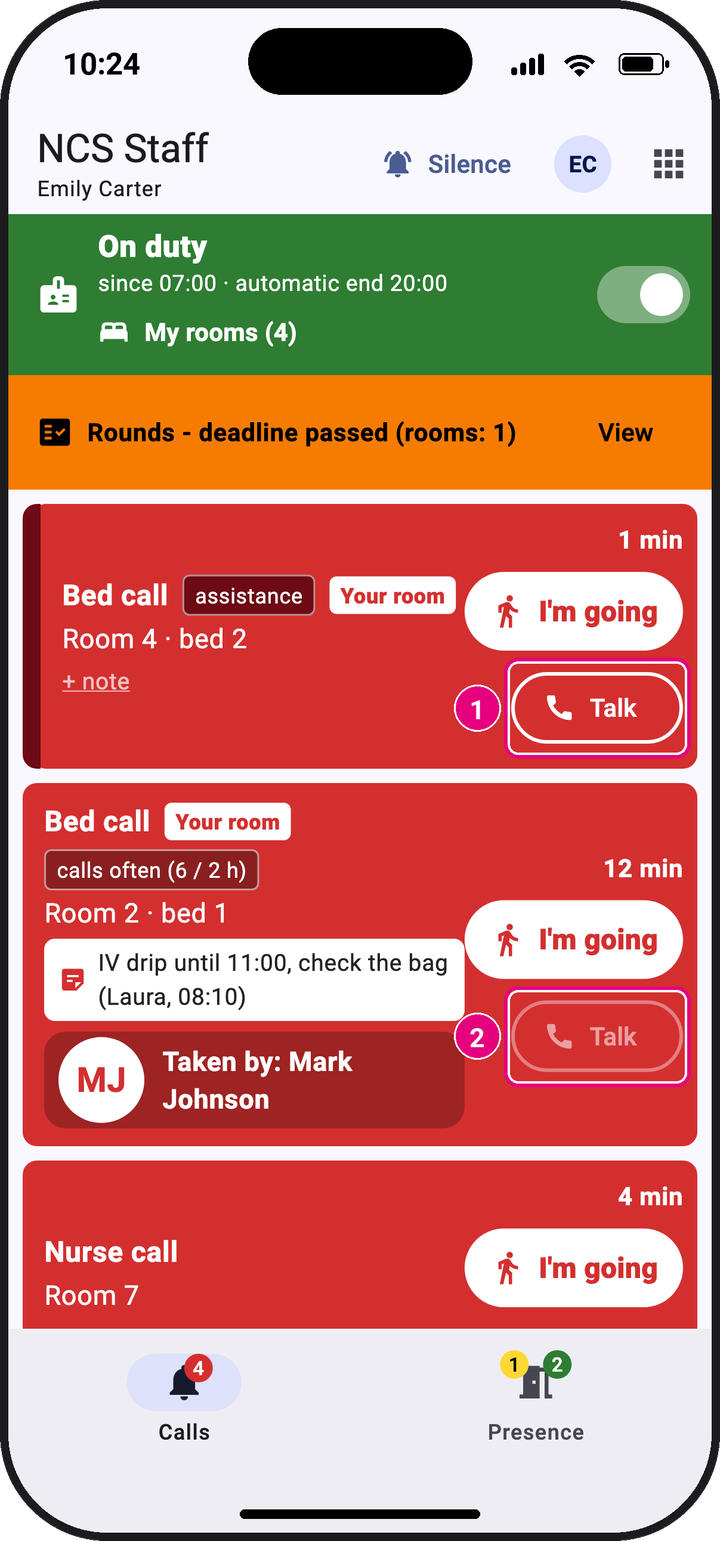
- 1Talk on a call calls the device at the place of that call (here bed 2 in Room 4). The button exists only when there is a device with talk at that place.
- 2Grey button: talk is not possible right now. Tap it to see why, for example "The device is not available for talk." (the device is busy or unavailable), "Talk is available only on duty." or "All lines are busy, please try again."
Talking does not change the call: the call is still cleared only in the room, at the place of the call.
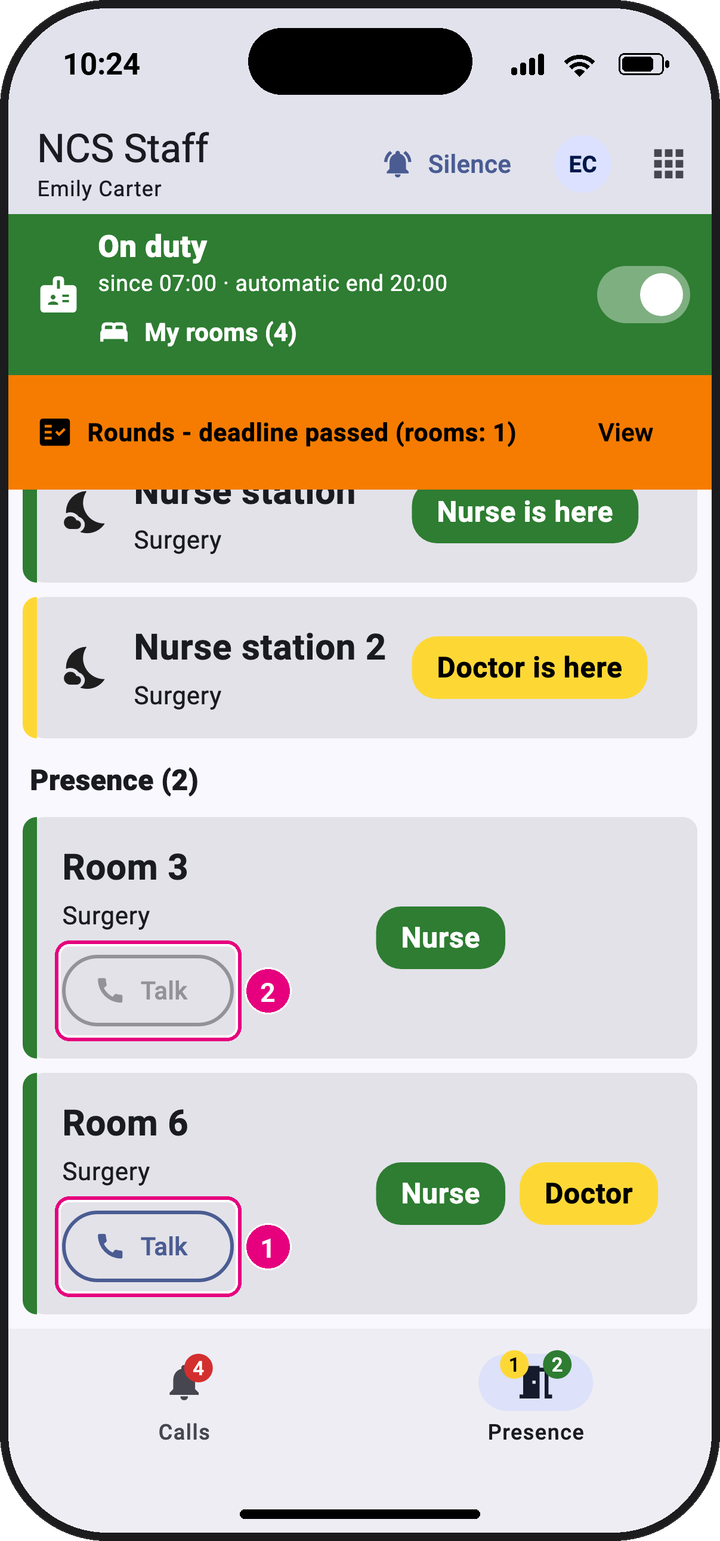
- 1Talk on a card in Presence calls the room terminal (DT) where presence is switched on - the quickest way to reach the nurse or doctor in that room (e.g. when you need help or the head nurse is looking for someone). It works for all ward rooms you see in Presence, not only My rooms.
- 2Grey button: the room terminal cannot be called right now (here its extension is not registered); tap it to see why. When the room has no terminal with talk, there is no button.
Night duty rooms have the same button, but only while someone is in them (an empty duty room has no one to call). When presence in the room is switched off, the card and the button disappear; a conversation already started goes on normally to its end. Talking changes neither presence nor calls.
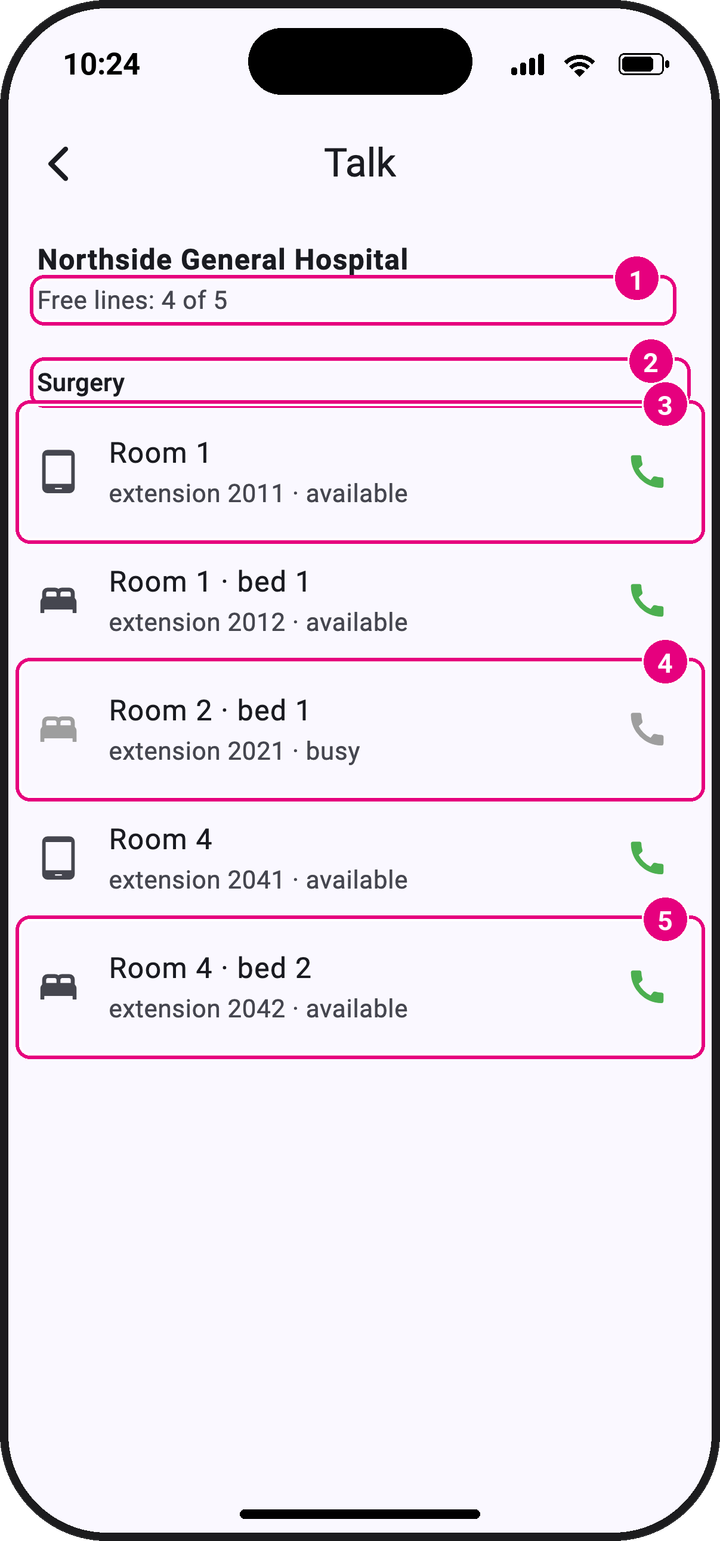
- 1Site and Free lines: at most 5 conversations per site at the same time.
- 2Devices are grouped by ward (here Surgery).
- 3Devices are named as on the DT: "Room 1" is the room terminal. Below the name are the extension and the state available.
- 4busy (in another conversation) or unavailable (e.g. a device with an active call): the device is shown with a grey handset - tap shows the reason.
- 5"Room 4 · bed 2" is a bed terminal. Green handset - tap to start talking. Only an available device can be called.
The directory shows devices in your My rooms (section 3); if you have not chosen My rooms, it shows all rooms of the ward you are on duty for. Offline devices and those whose extension is not registered are not shown - they come back to the list as soon as they are online again. Pull the list down to refresh. When the list has no device, it says "No devices available."
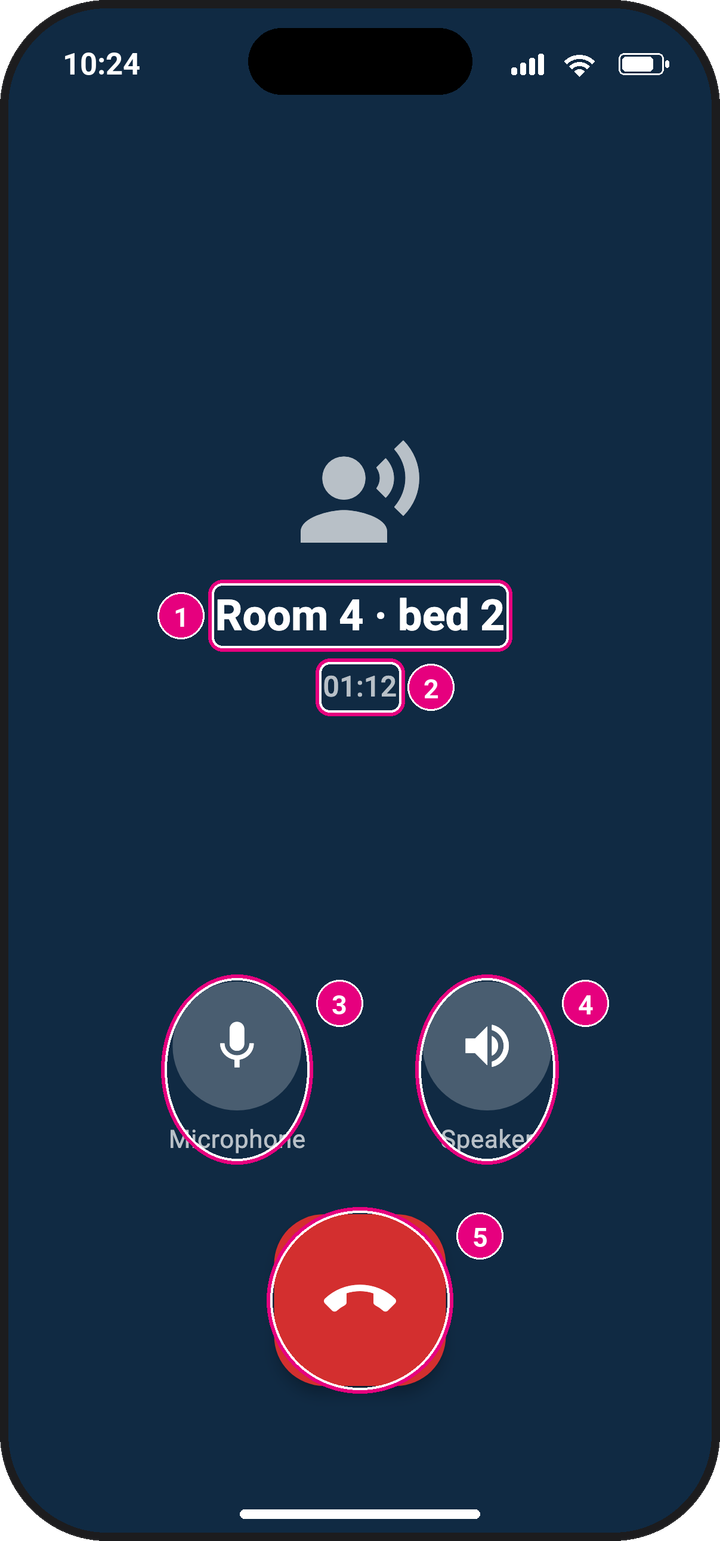
- 1Who you are talking to.
- 2State: Connecting…, Ringing…, then the length of the conversation. While the connection is being set up you hear a short ringing tone in the phone; it stops when the device in the room answers.
- 3Microphone: turns your microphone off and on.
- 4Speaker: talk through the phone's loudspeaker. Without it the sound goes to the phone's earpiece (on iPhone also to Bluetooth headphones).
- 5End ends the conversation.
The first time, the phone asks for microphone permission (iPhone and Android) - choose Allow; without it talking is not possible ("No microphone permission."). On iPhone the conversation is also shown on the lock screen like a phone call and can be ended there. On an Android phone the conversation is only on the app screen - keep the app open while you talk. An incoming phone call ends the conversation (iPhone and Android), and on Android so does another calling app that takes over the sound.
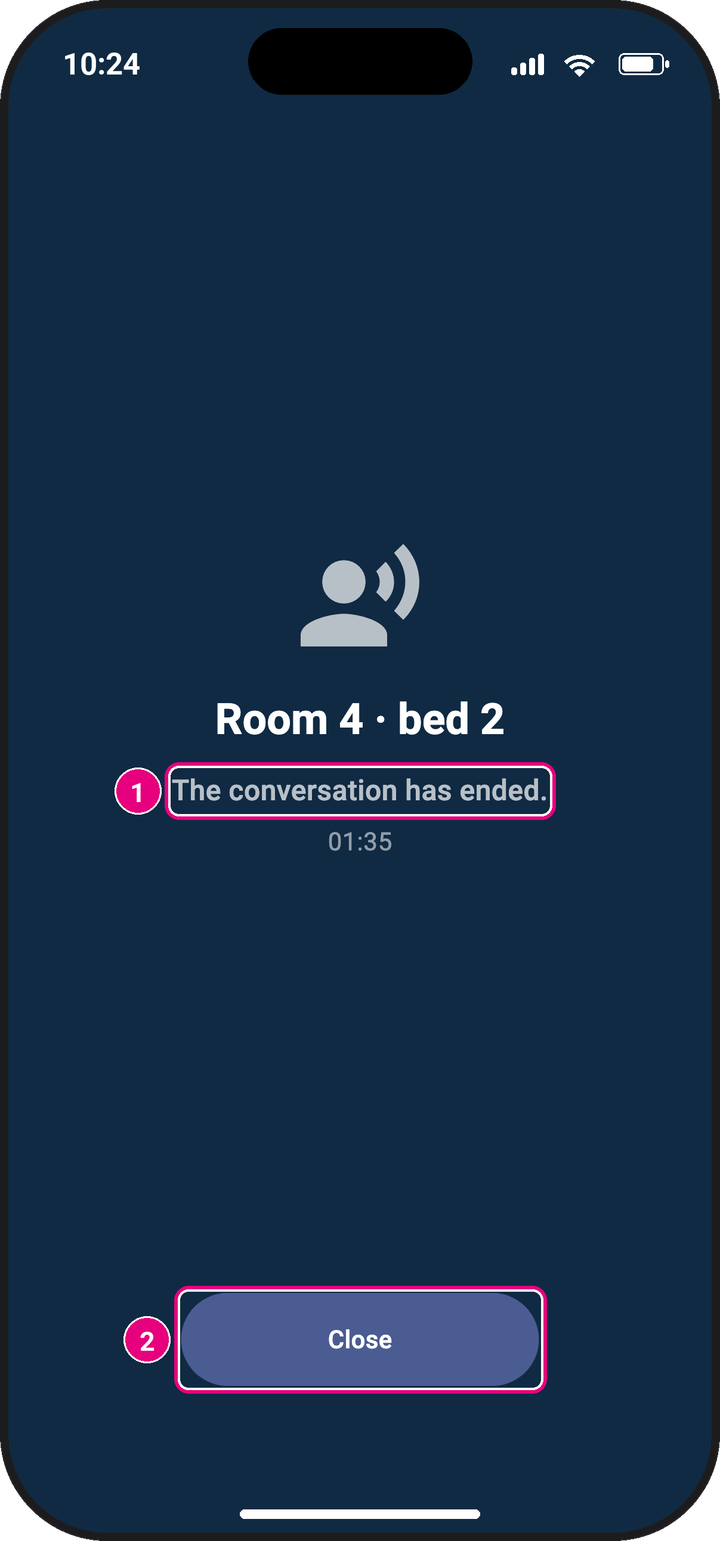
- 1Outcome: "The conversation has ended." after talking, or why there was no conversation - "The device does not answer." (rings for at most 20 s), "The device is busy.", "The device is not available for talk.", "The conversation was cancelled.", "The connection was lost." A conversation lasts at most 5 minutes, like a conversation between devices in the system ("The conversation has ended (5 min maximum).").
- 2Close returns to the previous screen.
18. Help
Help answers questions about working with the app, like a chat. Open it with the Help tile in the menu. The answers come from this guide and are built into the app, so topics and search work without internet as well. Help does not use artificial intelligence and does not send your questions to anyone.
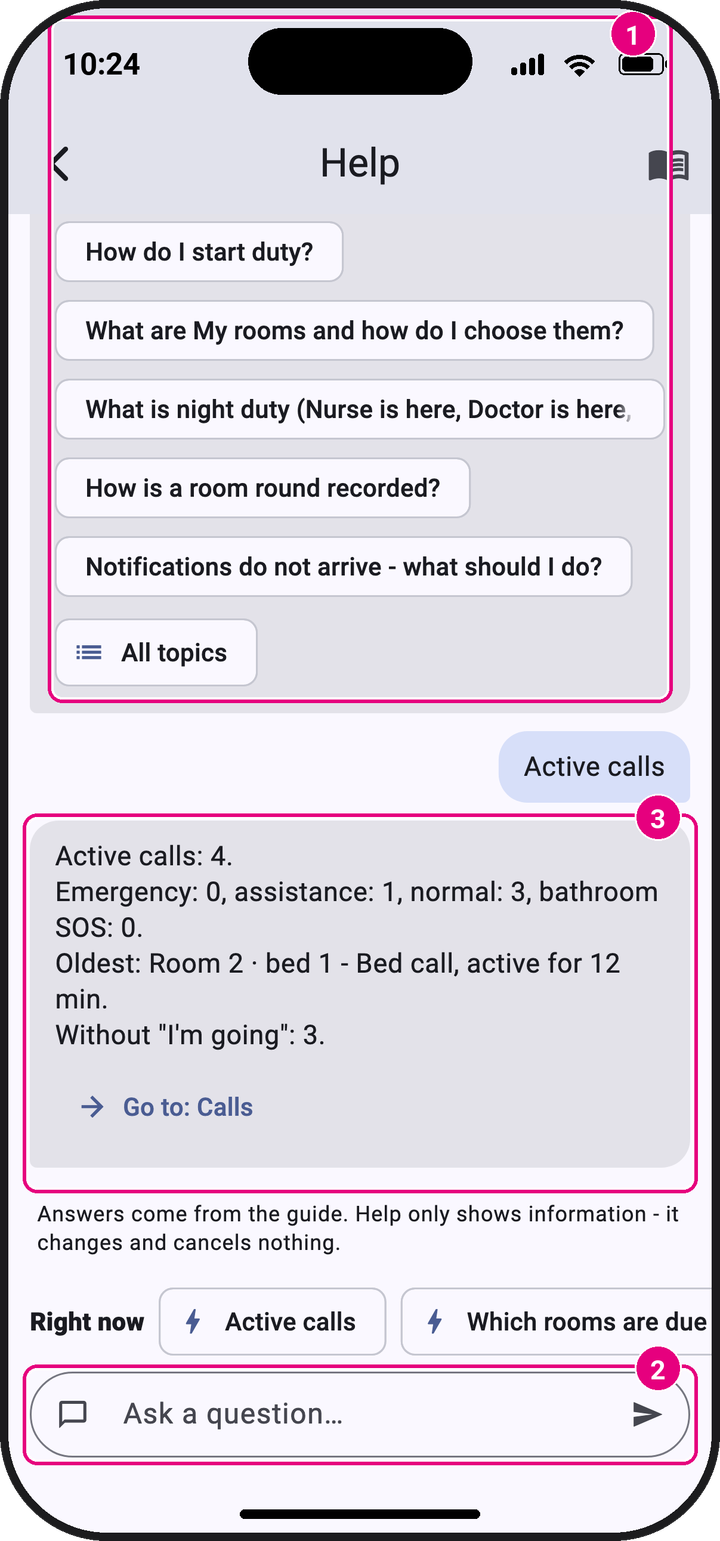
- 1Topics: the most common questions ("I'm going", clearing a call, colours, duty, My rooms, night duty, rounds, notifications). All topics shows the full list. Tap a topic to get the answer.
- 2Ask a question…: type your question in your own words, in any of the app's 25 languages, then tap the arrow. Accents, word forms and a single typo do not matter. Help shows the best answer and, below it, Closest topics. If nothing matches, it offers common topics and the guide.
- 3Right now: quick answers from the current state of the ward - Active calls (how many of each kind, the oldest and how long it has lasted, how many without "I'm going"), Which rooms are due for a round?, Who is in the duty rooms?, My rooms and My duty. This row of buttons is always above the question field; swipe it left for the others.
Below an answer there are buttons: Open the guide opens that part of the guide in the browser (with pictures), and Go to: … (e.g. Go to: Calls) only switches to that screen. Related topics lead to the next questions. The book icon at the top right opens the whole guide.
Quick answers only read what the app already shows, within your account's rights: Go to: My rooms only on duty, topics and links to Statistics and Ward log only for the head nurse. Without a connection to the server the answer starts with "The view may be out of date - no connection to the server."