NCS Staff in the browser
NCS Staff also runs in the browser on a computer, for example in the nurses' duty room. The web has everything the app has: calls with "I'm going" and notes, presence, duty and My rooms, room rounds, handover, notes and profile. The head nurse also has statistics and the ward log. Talk with a room exists only in the phone app, not on the web. The guide follows the pages in order, with screenshots.
Download the PDF for printing · Srpski · All guides
Video guide (1:47)
Before you start
- A browser on a computer and the address cloud.pme.rs.
- Your personal account, the same as in the NCS Staff app. The PME server administrator creates it and assigns your wards.
- Language: the web has 25 languages, the same set as the app. The guide is available in Serbian and English.
- Notifications do not reach the browser. You get calls on your phone through the app - see the app guide.
1. The cloud.pme.rs home page
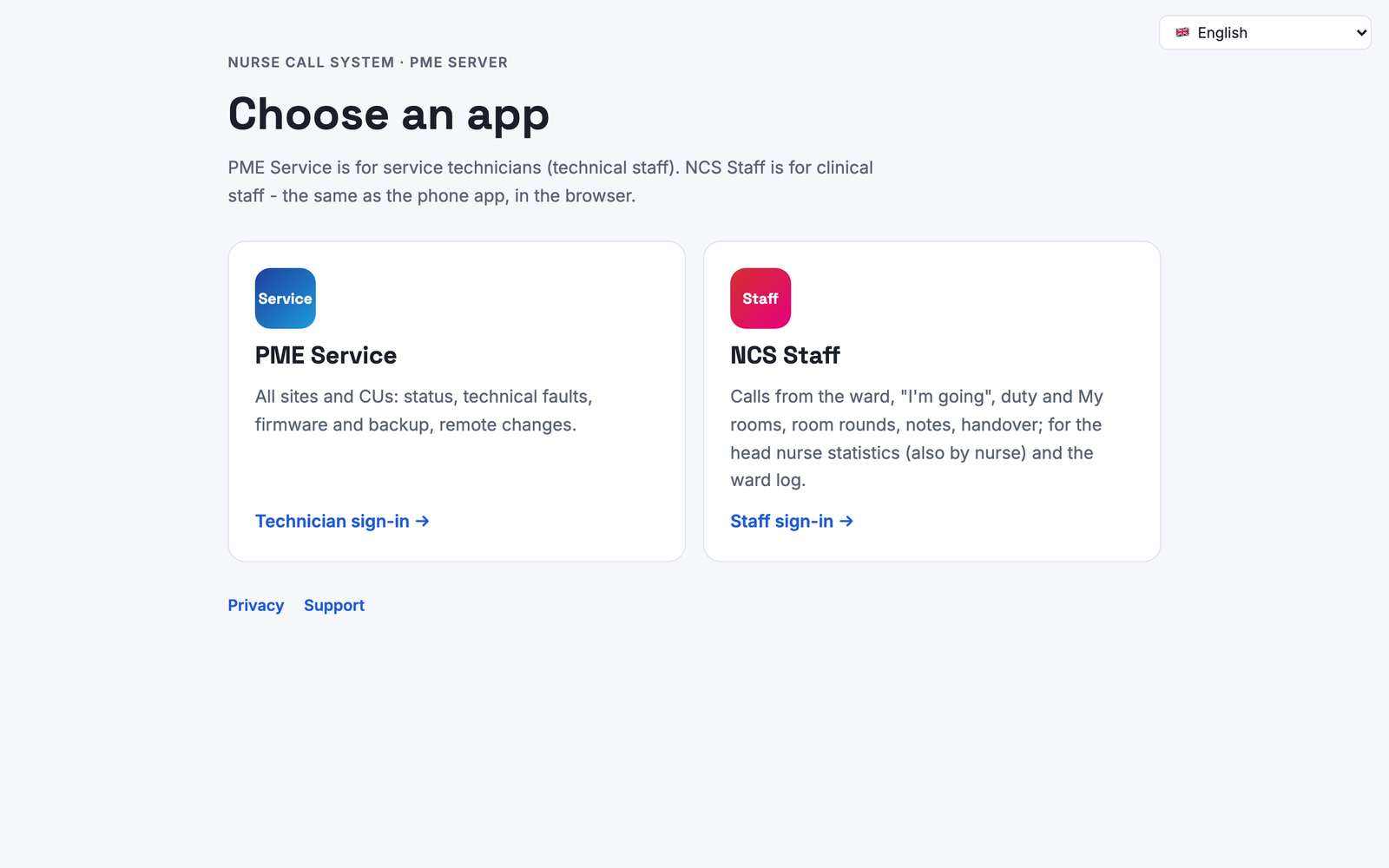
Open cloud.pme.rs. On the home page you choose the app: NCS Staff is for medical staff, PME Service for technicians. Click Staff sign-in.
2. Sign in and language
Enter your Username and Password (show reveals the password you typed) and click Sign in. On the first sign-in, the web asks you to replace the password from the administrator with your own (at least 8 characters).
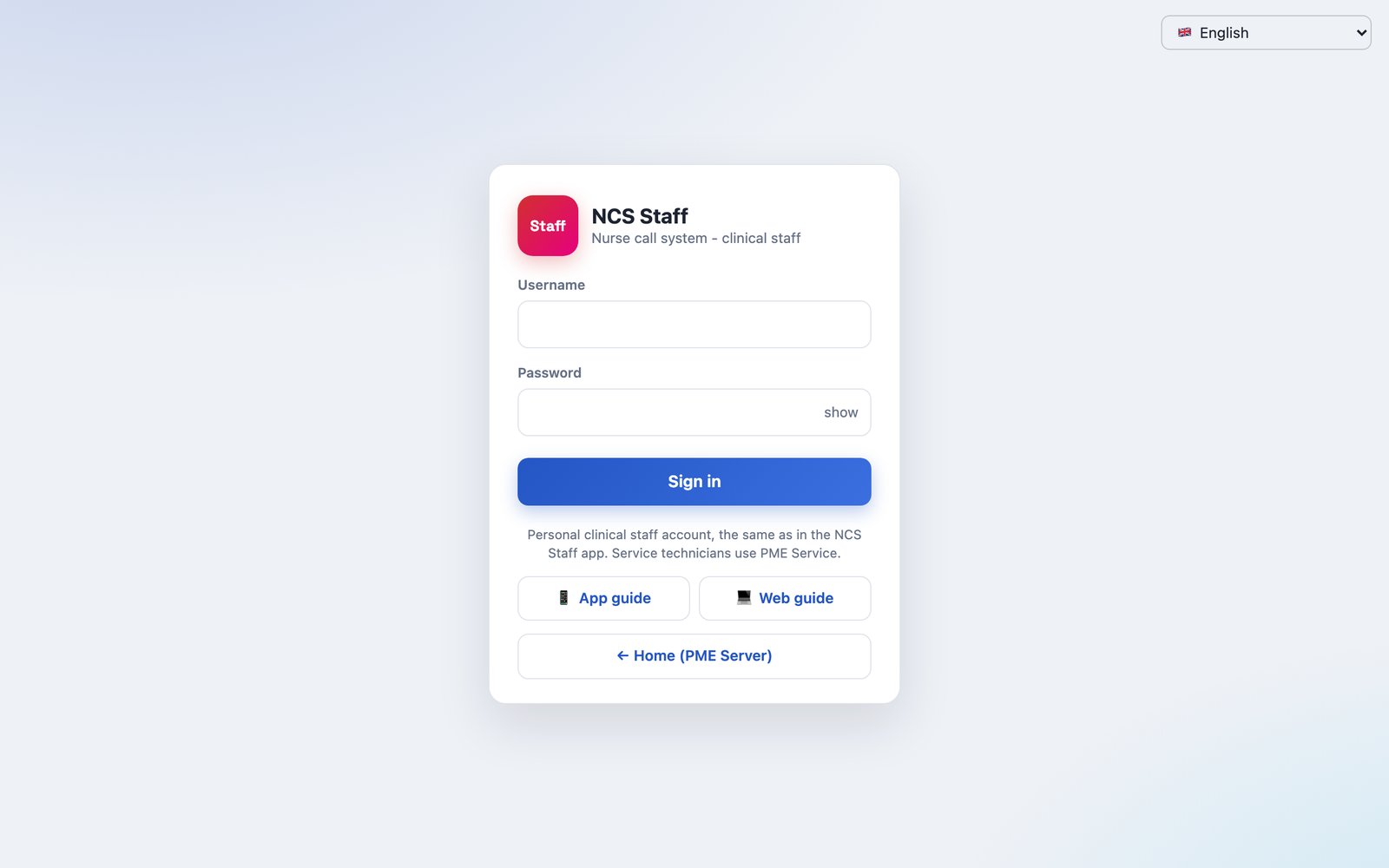
Choose the language from the drop-down list at the top right of every page. There are 25 languages, the same as in the app. The light or dark look of the page follows your computer's setting (system light or dark mode).
If sign-in fails, the message says why: Wrong username or password. (if you forgot your password, the administrator replaces it with a new initial one) or The account is suspended - contact the administrator. - the administrator has temporarily disabled the account; all sign-ins (phones and browser) are closed, your duty ends and your "I'm going" is cancelled, so the call goes back to your colleagues. When the administrator restores the account, you sign in with the same password.
3. Top bar and duty
After signing in, the Calls page opens. The top bar is the same on every page:
- Off duty / On duty - the duty switch. Clicking it asks Start duty? or End duty?; confirm. While on duty you get notifications on your phone. If you forget, duty ends automatically after 13 hours.
- Your photo and name; the head nurse is marked Head nurse.
- 💬 Help opens questions and answers (section 13). 📱 App guide and 💻 Web guide open the guides (this one is the web guide; when the bar does not fit on one line, e.g. in some languages on a 1280 px wide screen, only the 📱 and 💻 icons remain and the name shows when you hover over them), Sign out ends the sign-in, and the drop-down list on the right is the language. On a phone the bar wraps onto several lines.
- Pages: Calls, Presence, Rounds, Handover, Notes and Profile. The head nurse also has Statistics and Log.
A notice appears below the bar when needed:
- No connection to the server since ... - the view is not current; check the computer's network.
- Nobody on duty: ... - notifications go to everyone.
- Round deadline passed: N rooms. - click to open Rounds.
4. Calls and "I'm going"
Active calls from your wards, with the number in the heading. The page refreshes itself. One card is one call:
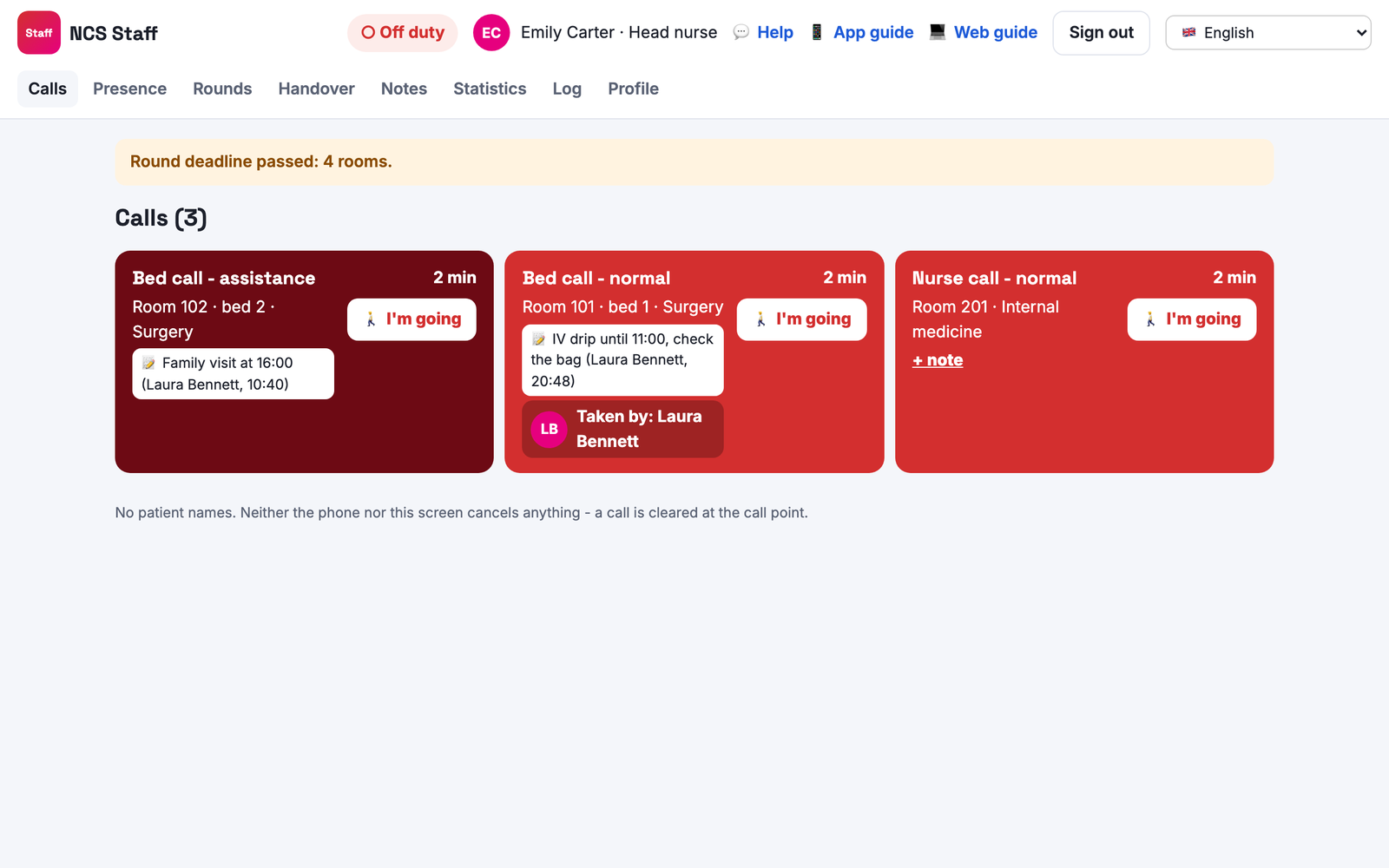
- Call type (e.g. "Bed call - normal"), room, bed and ward, and on the right how long the call has lasted. Your room marks a room from My rooms, and calls often means several calls from the same place in a short time.
- I'm going tells your colleagues you are on your way. Confirm in the window: "I'm going" does not clear the call - the call is cleared in the room. Your call then shows You're going, and Cancel hands the call back to the others.
- Taken by shows who is on the way (photo and name).
- + note adds a note to that place (see Notes). An existing note is shown on the card, with name and time.
5. Presence, night duty and My rooms
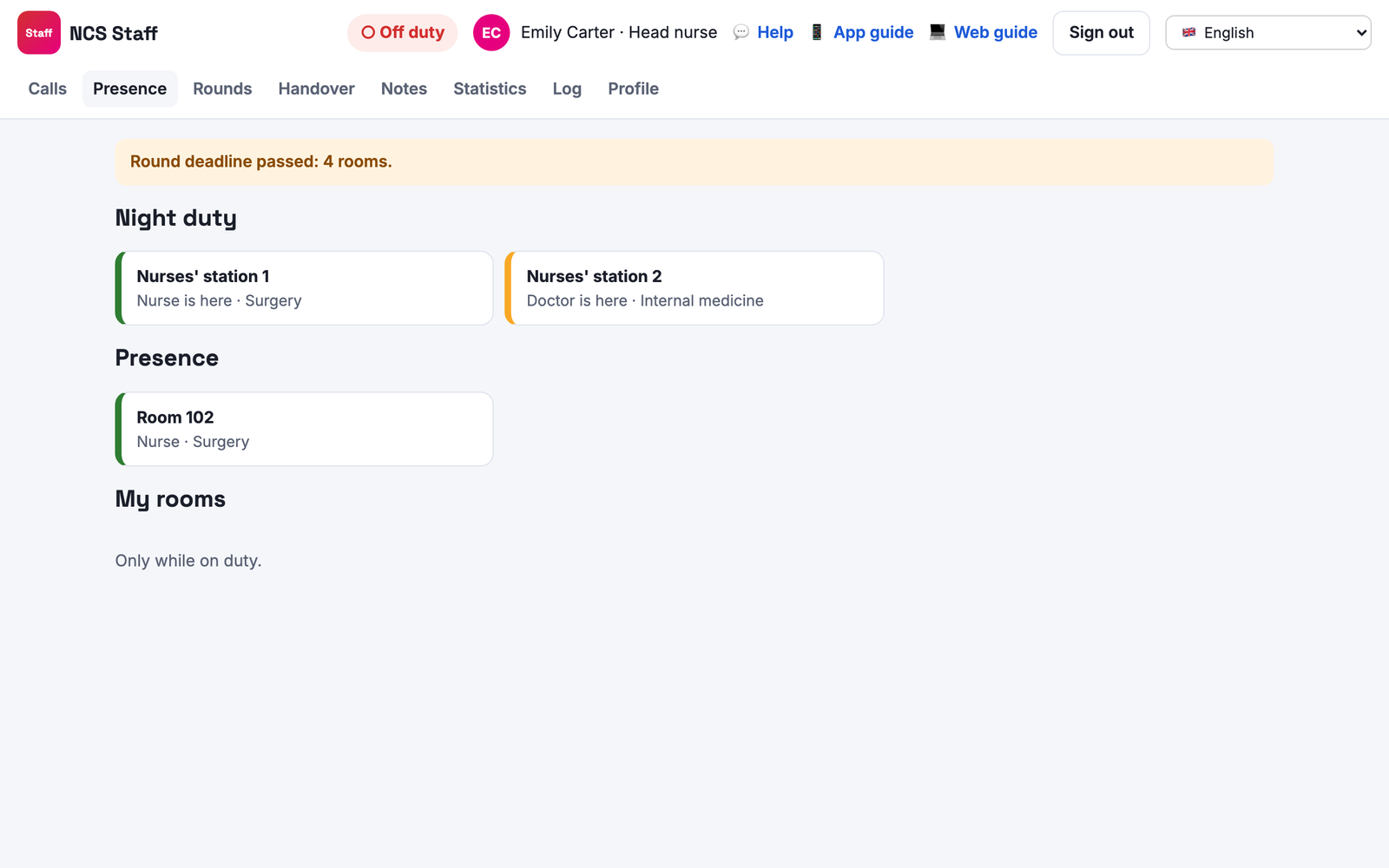
- Presence: rooms where the presence button is on; a green edge is a nurse, yellow a doctor.
- Night duty: the duty rooms while the night lasts (usually 22:00-06:00, set by the service technician on the CU), with Nurse is here (green), Doctor is here (yellow - only a doctor is in the room) or Nobody is here (grey). At night the duty-room terminal sounds calls only while presence is switched on there; if nobody is in any duty room, an orange bar at the top of the page says "At night no nurse is in a duty room - calls go to the central terminals" - no call is lost. Night duty is at the top of the page, with the presence rooms below it (a duty room is not repeated). Same as the Presence tab in the app (app guide, part 7).
- My rooms (only while on duty): tick your rooms and click Save. Their calls get the Your room mark. With nothing chosen, all rooms count. The choice is cleared automatically at the end of duty.
6. Room rounds
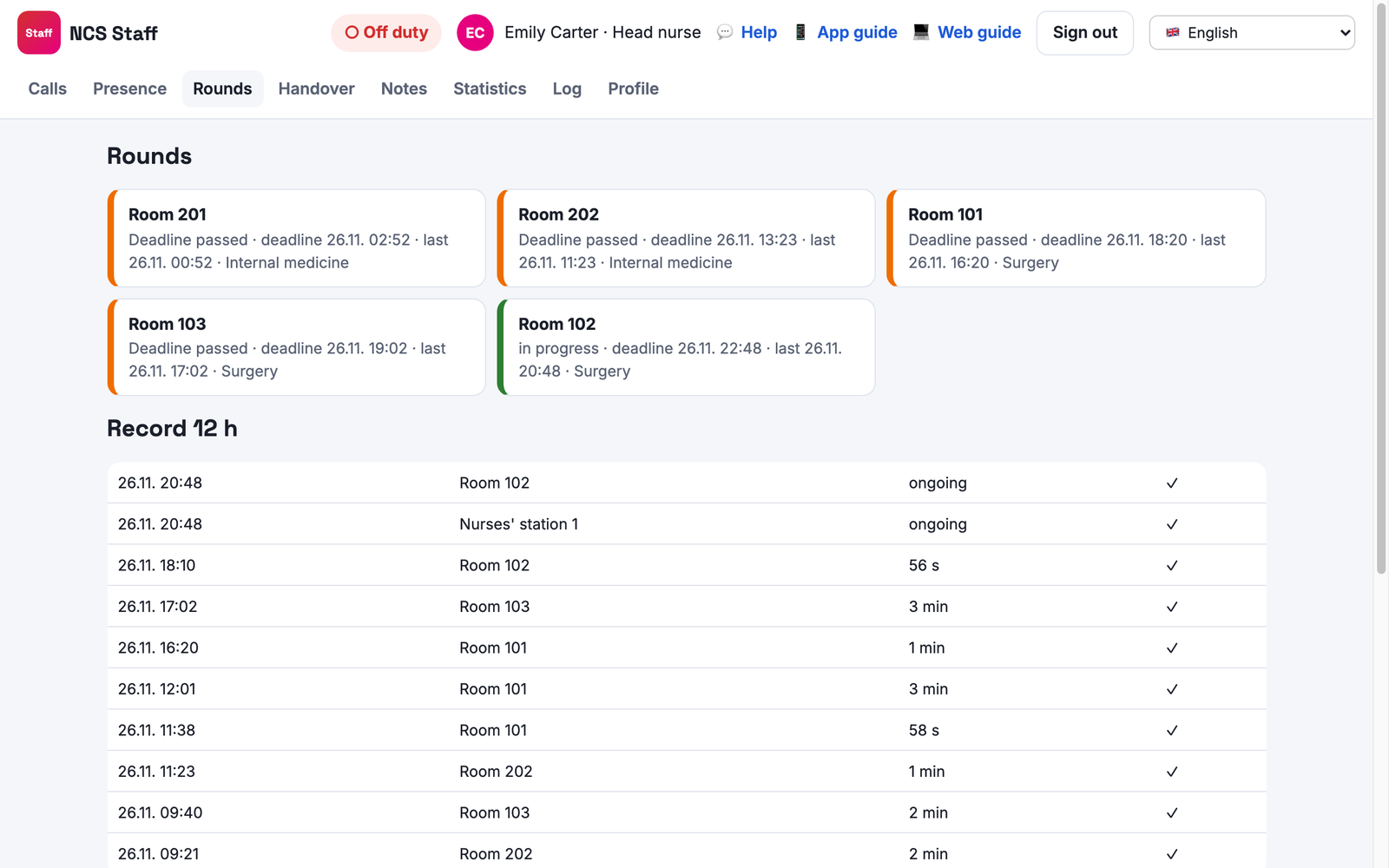
Rooms with a round rule, with their state, the deadline for the next round and the last round. A round is recorded in the room, with the presence button.
| State | Meaning |
|---|---|
| Deadline passed | The deadline has passed; the room is waiting for a round. |
| soon | The deadline is near. |
| in progress | A nurse is in the room now. |
| on time | All is well. |
| no CU connection | The state is unknown until the connection returns. |
Record 12 h: time, room and duration of each round (ongoing while the nurse is in the room). A tick means the round counts; a dash means it was shorter than the shortest time in the rule.
Round rules (head nurse), at the bottom of the page: the list of rules with a Delete button, and a form for a new rule - Ward, Room (empty = whole ward), Interval (min), optionally a night interval (Night from, Night until, Night interval (min)) and Shortest (s), then Save rule. A room without a rule has no deadline.
7. Handover
For handing over the shift: active calls and calls from the last 12 hours, with the active notes below.
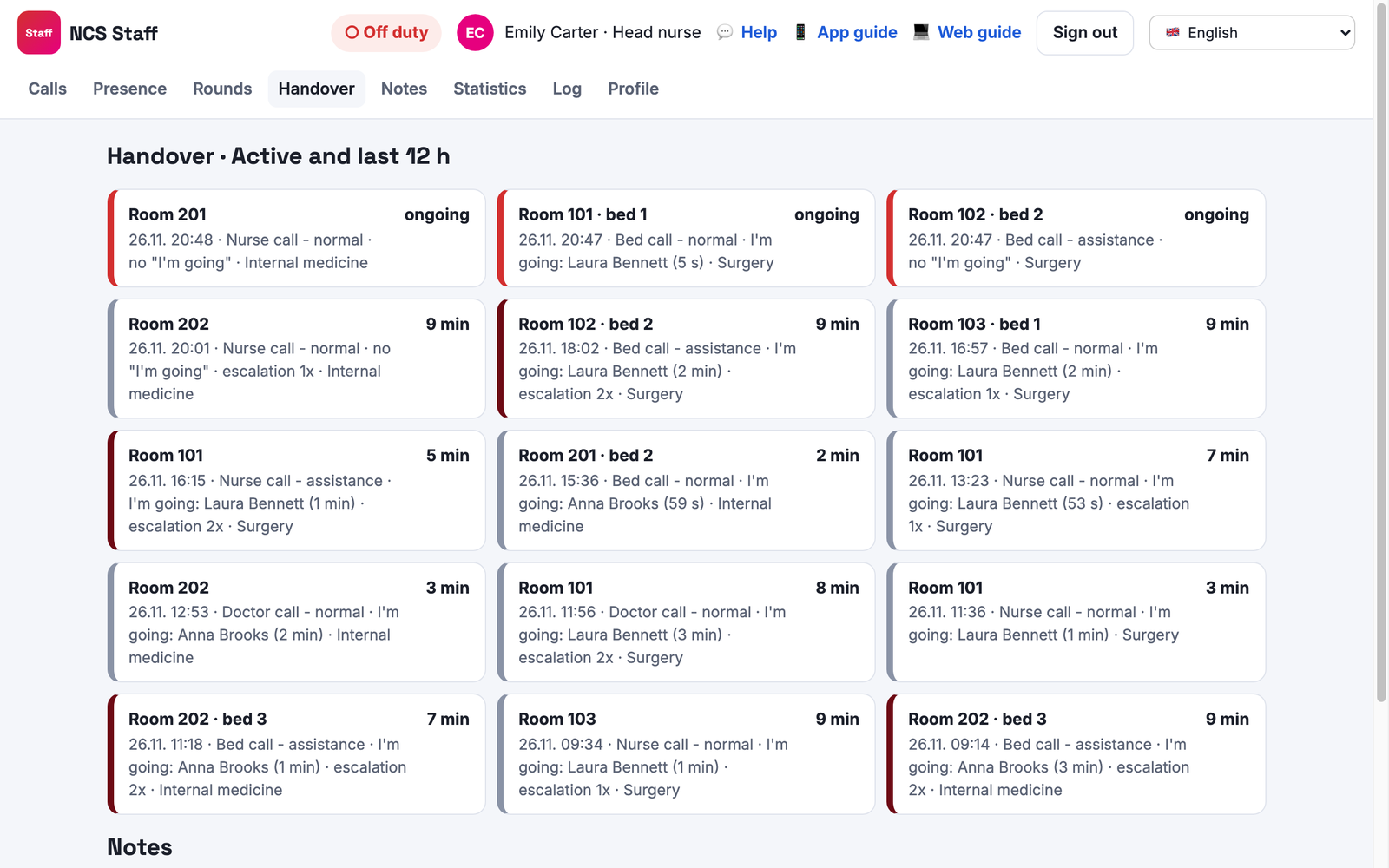
- For each call: place, start time, type, who said "I'm going" and after how long (or no "I'm going"), escalation and ward. On the right is the duration, or ongoing.
- Only the room, bed, type, times and staff name are kept - no patient data.
8. Notes
Short notes for colleagues about a room or bed, for example "infusion until 11". Each shows its author, time and when it expires - a note is deleted automatically after 12 hours.
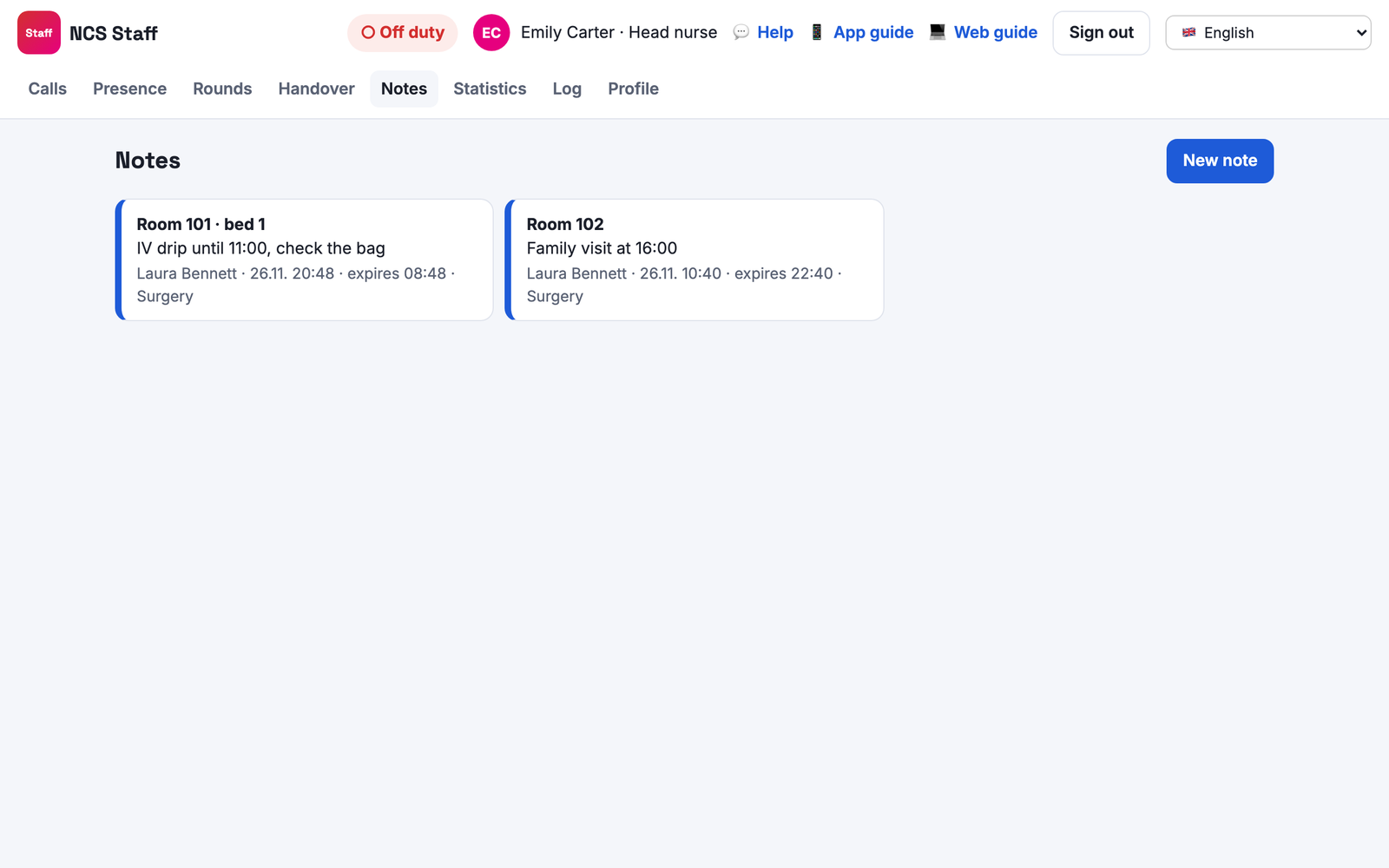
- New note (or + note on a call): choose the Ward, enter the Room and, if needed, the Bed (empty = room), then the text - no patient names, up to 120 characters - and Save. A new note for the same place replaces the old one.
- Delete appears on notes you may delete: your own and, while on duty, notes of your ward.
9. Statistics (head nurse)
Response to calls by ward for the last 7, 30 or 90 days, finished calls only.
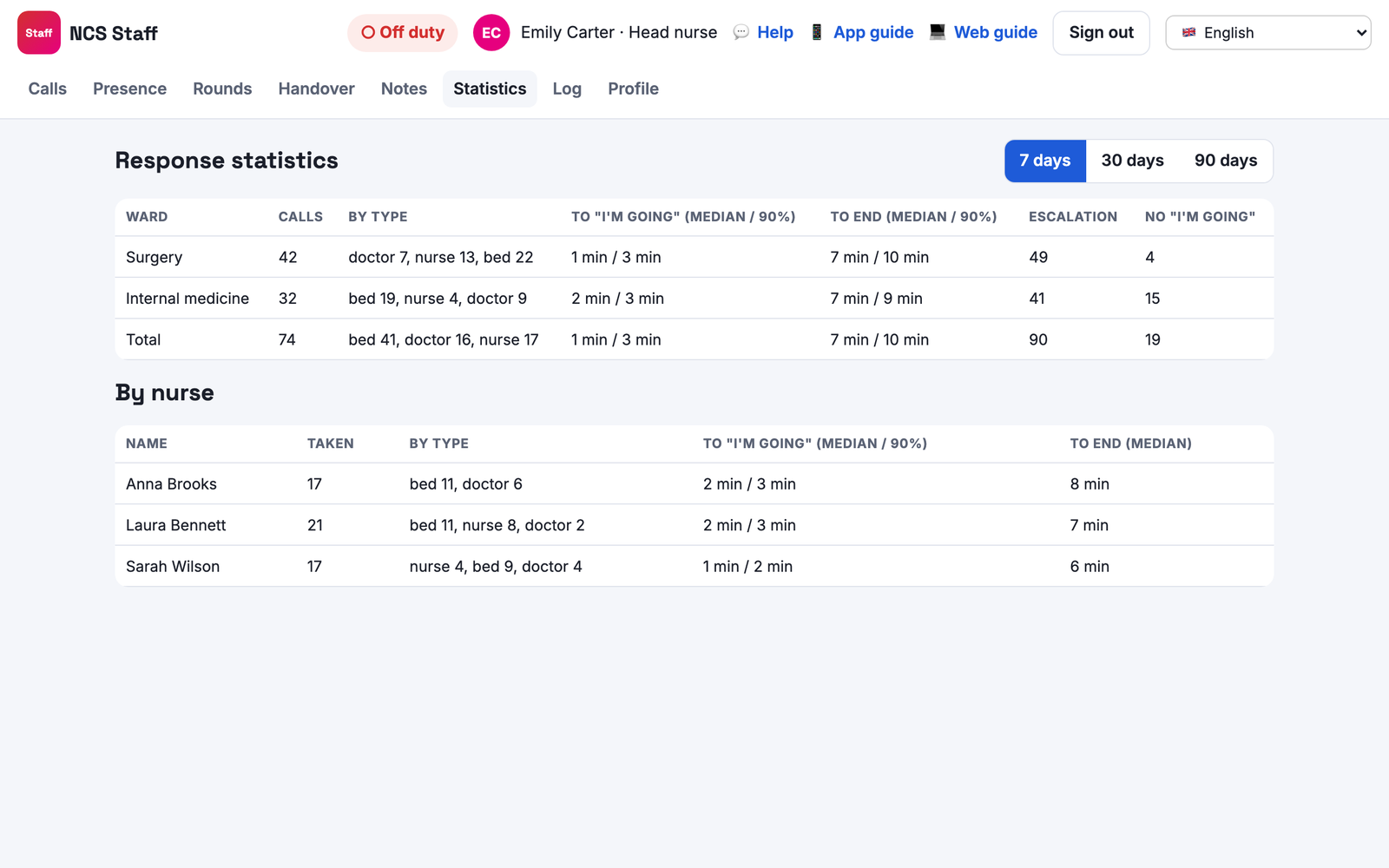
- Calls and By type (bed, nurse, doctor...).
- To "I'm going" and To end: the median and the time within which 90% of calls fall.
- Escalation and no "I'm going": how many calls escalated, and how many were cleared without "I'm going". The Total row sums them when you have several wards.
- By nurse: calls taken and response speed per nurse.
10. Ward log (head nurse)
Everything that happened on the ward, newest first, for 24 h, 7 or 30 days. Filter: All, Calls, Notes, Duty, Rounds.
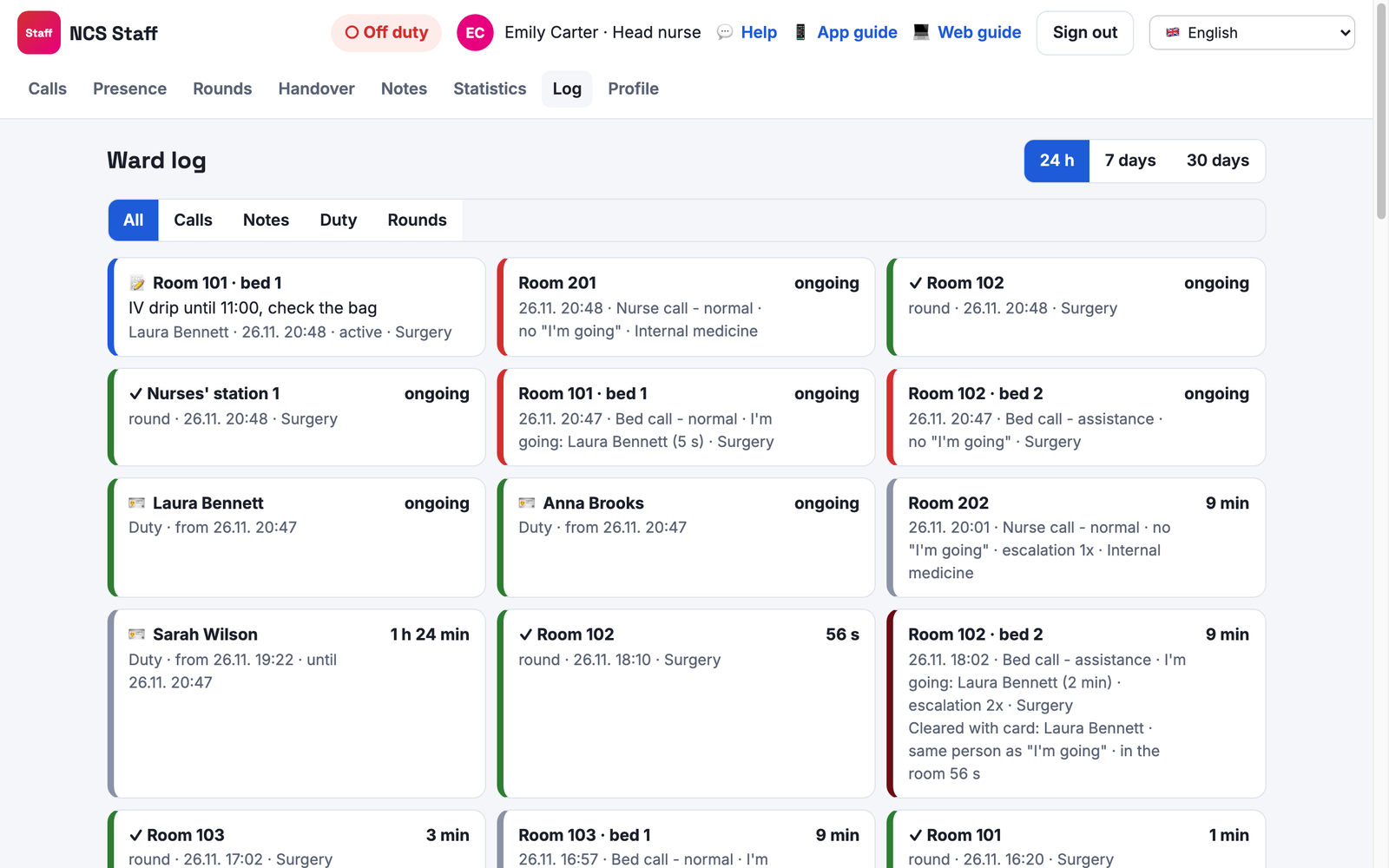
- Calls as in Handover, plus Cleared with card with the name of the nurse who held their card to the room terminal with a reader: same person as "I'm going" or another person, not "I'm going" (e.g. they were closer). The call also shows how long the presence in the room lasted (in the room 4 min), or short presence (12 s) when it was switched off before 30 s - proof of the intervention, also without a card.
- Notes, including those no longer shown: active, replaced or deleted (with the name of who did it), expired after 12 h.
- Duty: who was on duty, from when to when, and how it ended: by hand, automatically after 13 h, by signing out on the phone, or end - account suspended.
- Rounds: room, time and duration.
11. Profile and password
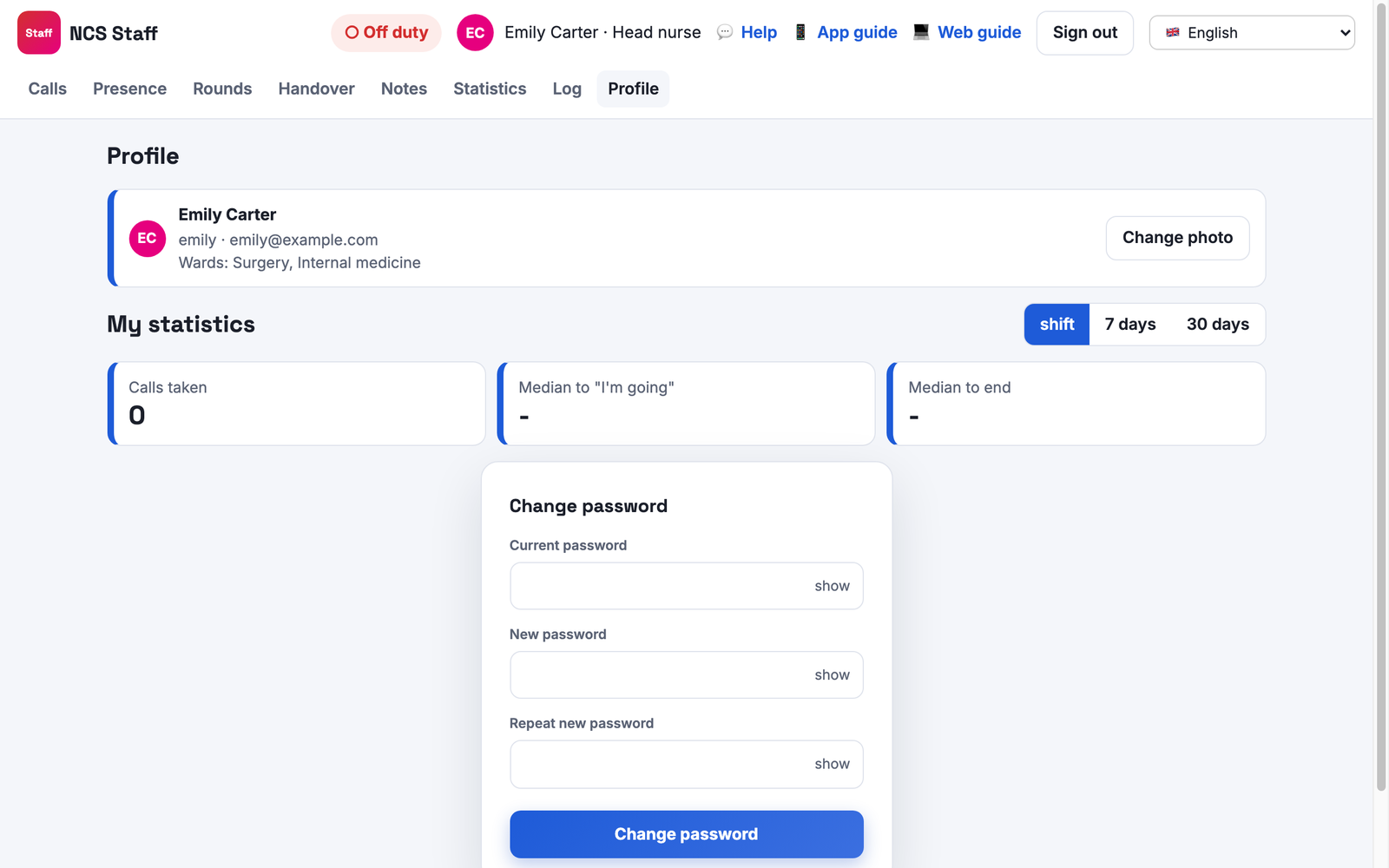
- Name, username, e-mail and your wards. Change photo sets your photo (colleagues see it with "I'm going"), Remove photo deletes it.
- My statistics for the shift, 7 or 30 days: calls taken, median to "I'm going" and to the end of the call. The head nurse sees the same figures for all nurses (Statistics, By nurse).
- Change password: current password and the new one twice (at least 8 characters), then Change password. The new password also applies in the app.
12. Sign out
Click Sign out in the top bar. A sign-in in the browser lasts only while the tab is open. A phone you are signed in on stays signed in. Signing out of your last sign-in (phone or browser) also ends your duty, as in the app.
13. Help
💬 Help in the top bar opens help: questions and answers from the guide, like a chat, the same as in the app. Help does not use artificial intelligence.
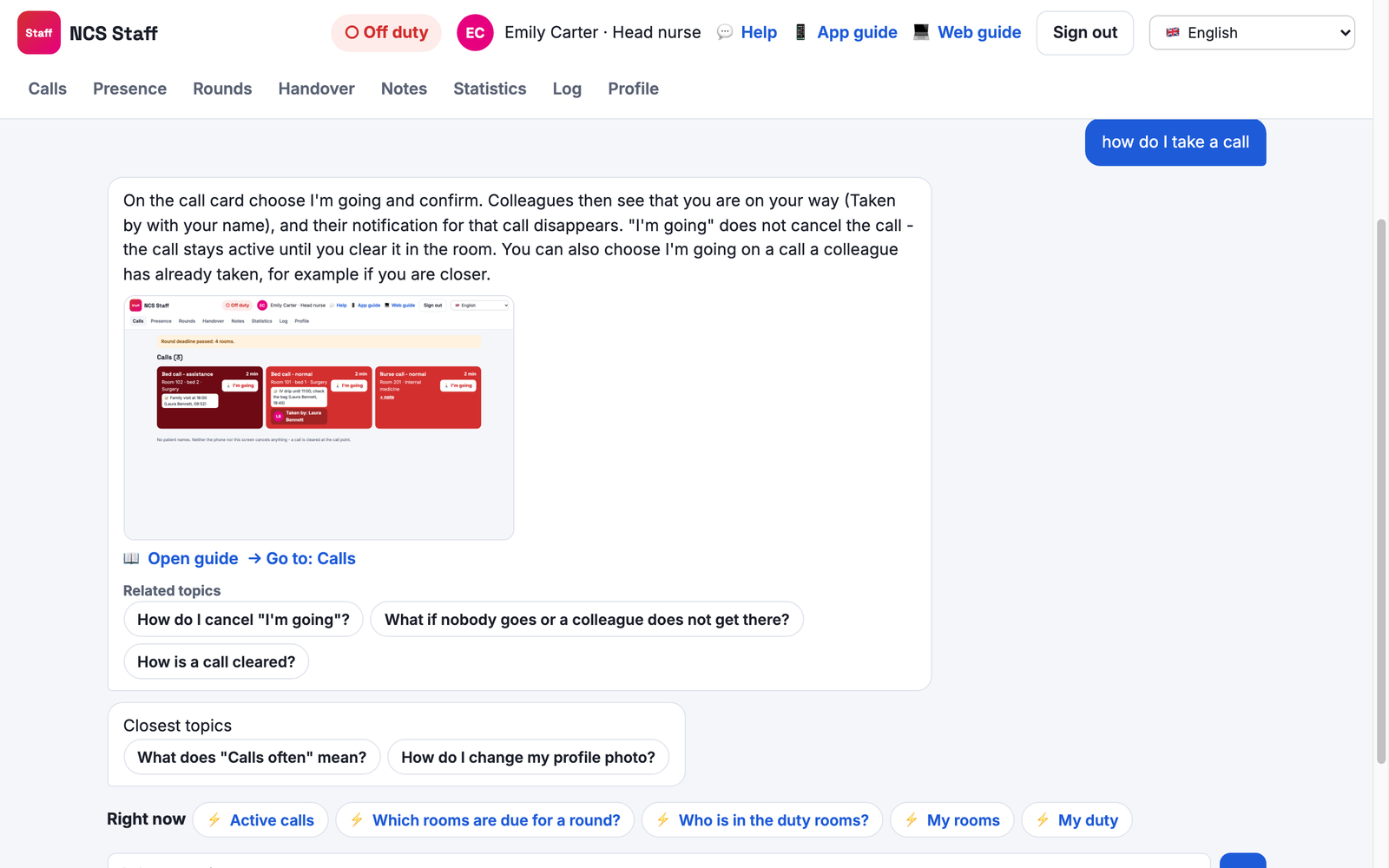
- Topics: the most common questions are at the top, and ☰ All topics shows the full list. Click a topic to get the answer.
- Ask a question…: type your question in your own words, in any of the 25 languages, then press Enter or ➤. Help shows the best answer and, below it, Closest topics.
- Where there is one, the answer includes a picture from the guide. 📖 Open guide opens that part of the guide, → Go to: … only opens that page, and Related topics lead further.
- Right now: quick answers from the current state - Active calls, Which rooms are due for a round?, Who is in the duty rooms?, My rooms, My duty. Only within your account's rights.